> For the complete documentation index, see [llms.txt](https://docs.uptiq.ai/llms.txt). Markdown versions of documentation pages are available by appending `.md` to page URLs; this page is available as [Markdown](https://docs.uptiq.ai/control-center/observe/export.md).

# Export

Create and deliver Control Center data exports on your schedule.

Create files from Control Center datasets and deliver download links by email or webhook. Exports run once or follow a recurring schedule.

> Exports run in the background. You don't need to remain on this page.

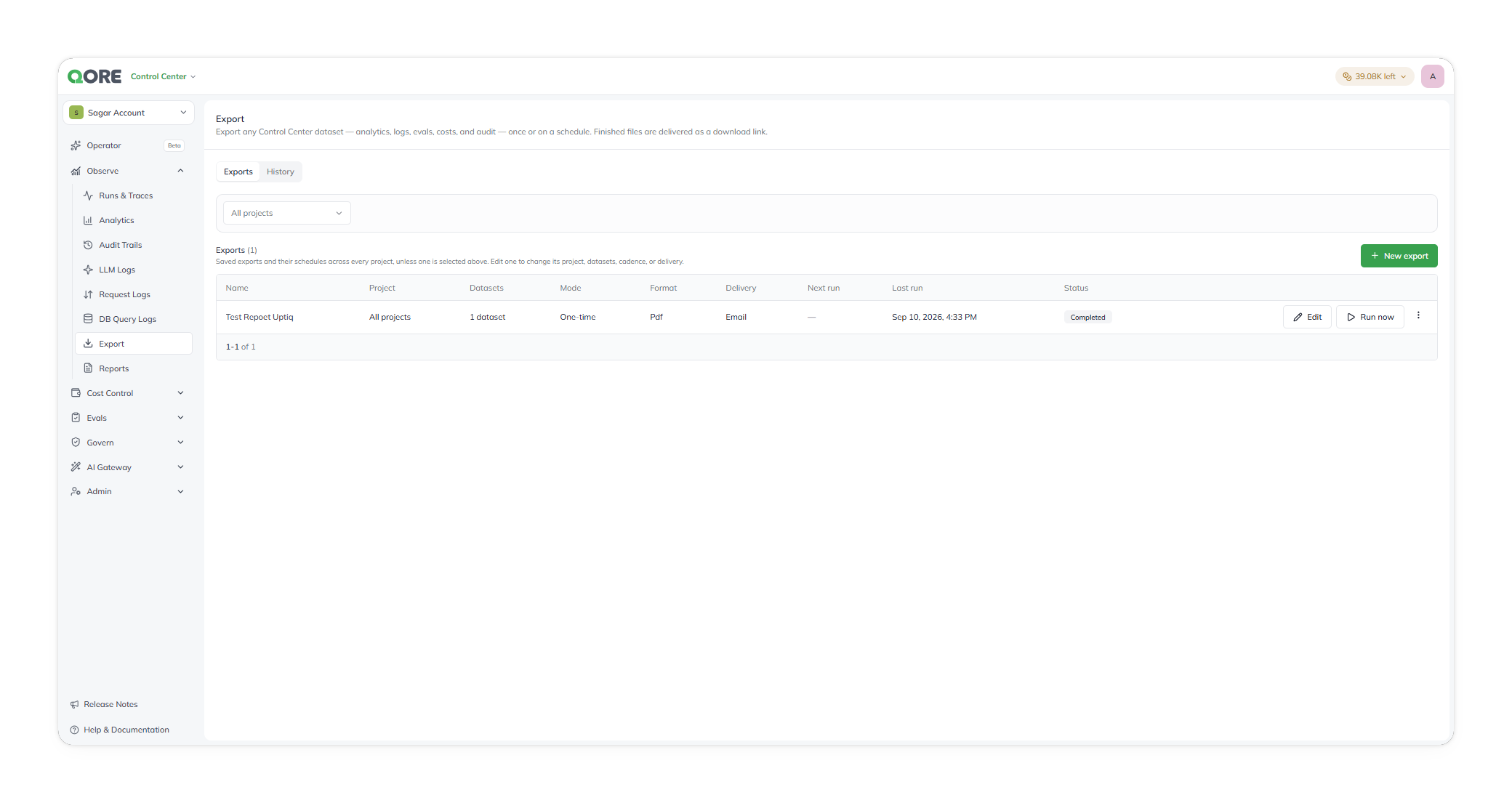
<figure><img src="https://1326225582-files.gitbook.io/~/files/v0/b/gitbook-x-prod.appspot.com/o/spaces%2F0qmgQjJ5aArDTj2ACFHG%2Fuploads%2Fgit-blob-7cee4b3e0916282aec5145452fc50eda78151180%2Fqore_control-center_control-centre-observability-export-exports_rounded_shadow.png?alt=media" alt="The Export screen&#x27;s Exports tab, listing a saved export definition with its project, datasets, mode, format, delivery, next run, last run, and status"><figcaption><p>Saved export definitions, on the Exports tab.</p></figcaption></figure>

## Plan an export

Start an export from Control Center → Observability → Export. Scope the export to every project or one project. The project scope starts as `All projects`, even when you previously narrowed the export history.

| Decision      | Available choices            | Default        | Result                                          |
| ------------- | ---------------------------- | -------------- | ----------------------------------------------- |
| Project scope | Every project or one project | `All projects` | Limits the included data                        |
| Delivery      | Email or webhook             | Email          | Sends a download link                           |
| Run type      | Scheduled or one-time        | Scheduled      | Creates a recurring definition or immediate run |
| File format   | CSV, JSON, or PDF            | CSV            | Defines each generated file                     |

Give the export a clear name, such as `Weekly audit trail export`. You must provide a name and select at least one dataset. Webhook delivery also requires an HTTPS URL.

## Choose data

Select the datasets that you need. Each dataset generates its own file. Selecting two datasets produces two files, not one merged workbook.

| Dataset            | Contents                                                                     | Best for                   |
| ------------------ | ---------------------------------------------------------------------------- | -------------------------- |
| Credit Usage       | Consumption by app, agent, and model over the selected period                | Cost analysis              |
| Platform Analytics | Platform, app, and agent events with the initiating user                     | Platform activity analysis |
| App Analytics      | Published-app sessions, visitors, page views, and duration                   | App usage analysis         |
| Agent Analytics    | One row per traced operation, including trace, parent, summary, and duration | Agent performance analysis |
| Audit Trails       | Configuration and access changes with the responsible user and time          | Compliance review          |
| AI Gateway Logs    | Provider, token usage, cost, and latency for every model call                | Model operations analysis  |
| Eval Results       | Scores, verdicts, reasoning, and human overrides for evaluated agent runs    | Agent-quality analysis     |

{% hint style="info" %}
At least one dataset is required. A multi-dataset export creates a separate file for each dataset.
{% endhint %}

## Set delivery

{% tabs %}
{% tab title="Email" %}
Send the download link to one or more recipients.

| Setting          | Value                           | Behavior                                 |
| ---------------- | ------------------------------- | ---------------------------------------- |
| Recipients       | Comma-separated email addresses | Sends the link to each address           |
| Empty recipients | No address                      | Sends the link to your signed-in account |
| {% endtab %}     |                                 |                                          |

{% tab title="Webhook" %}
Send the download link to an HTTPS endpoint that you control.

| Setting        | Required | Behavior                                                                                       |
| -------------- | -------- | ---------------------------------------------------------------------------------------------- |
| Webhook URL    | Yes      | Receives a `POST` request with the download link                                               |
| Signing secret | No       | Signs the request for endpoint verification; you can reveal the masked value while entering it |
| {% endtab %}   |          |                                                                                                |
| {% endtabs %}  |          |                                                                                                |

## Schedule delivery

Choose a recurring schedule when you need regular files. Choose a one-time run when you need one historical range.

| Run type  | Timing                            | Stored definition | Data period              |
| --------- | --------------------------------- | ----------------- | ------------------------ |
| Scheduled | Hourly, daily, weekly, or monthly | Yes               | The period for that run  |
| One-time  | Starts immediately                | No                | Your selected time range |

For scheduled exports, the default frequency is daily and the default UTC time is `02:00`. Daily runs cover the previous 24 hours. Weekly runs start on Monday. Monthly runs start on the first day of the month. You can't change either weekly or monthly anchor.

For a one-time export, select `Today`, `Yesterday`, `Last 7 days`, `Last 30 days`, `This Week`, `This Month`, or `Last Month`.

{% hint style="warning" %}
All times use UTC. Convert local times before scheduling an export.
{% endhint %}

## Confirm and run

Review the summary before saving or running the export. It shows the frequency or date range, project scope, dataset total, format, and delivery method.

> A scheduled export creates a reusable definition. A one-time export creates only a completed run.

Use these examples to validate the intended configuration:

* `Weekly at 08:00 UTC · All projects · 1 dataset · Csv → Email`
* `Runs once, starting now · Jul 1, 2026 – Jul 31, 2026 · <project> · 2 datasets · Json → Webhook`

## Track and update exports

<figure><img src="https://1326225582-files.gitbook.io/~/files/v0/b/gitbook-x-prod.appspot.com/o/spaces%2F0qmgQjJ5aArDTj2ACFHG%2Fuploads%2Fgit-blob-80f42598789a2b6559aa10d774655e456111157c%2Fqore_control-center_control-centre-observability-export-history_rounded_shadow.png?alt=media" alt="The Export screen&#x27;s History tab, listing a completed export run with its requested time, project, datasets, delivery, format, row count, and status"><figcaption><p>Completed runs, on the History tab.</p></figcaption></figure>

Saved export definitions retain their project scope, datasets, cadence, delivery, and format. Update a saved definition to change future runs.

Completed runs include one-time and scheduled exports. Each run records the requested time, project, datasets, delivery method, format, row total, and status. Status vocabulary can vary by environment.

If an email or webhook doesn't arrive, retrieve the file from the completed-run history while its download link remains valid. Refresh the history to retrieve the latest run state.

{% hint style="warning" %}
Canceling a new export returns the project filter to `All projects`. Reapply a project scope before reviewing history.
{% endhint %}

## Related

<table data-view="cards"><thead><tr><th>Topic</th><th>Use it for</th><th data-card-target data-type="content-ref">Learn more</th></tr></thead><tbody><tr><td>Analytics</td><td>Explore platform, app, and agent data interactively.</td><td><a href="/control-center/observe/analytics.md">Analytics</a></td></tr><tr><td>Audit Trails</td><td>Review configuration and access changes.</td><td><a href="/control-center/observe/audit-trails.md">Audit Trails</a></td></tr><tr><td>LLM Logs</td><td>Inspect model calls, token use, cost, and latency.</td><td><a href="/control-center/observe/llm-logs.md">LLM Logs</a></td></tr><tr><td>Request Logs</td><td>Inspect requests sent to and received from external services.</td><td><a href="/control-center/observe/request-logs.md">Request Logs</a></td></tr></tbody></table>


---

# Agent Instructions
This documentation is published with GitBook. GitBook is the documentation platform designed so that both humans and AI agents can read, navigate, and reason over technical content effectively. Learn more at gitbook.com.

## Querying This Documentation
If you need additional information that is not directly available in this page, you can query the documentation dynamically by asking a question.

Perform an HTTP GET request on the current page URL with the `ask` query parameter, and the optional `goal` query parameter:

```
GET https://docs.uptiq.ai/control-center/observe/export.md?ask=<question>&goal=<endgoal>
```

`ask` is the immediate question: it should be specific, self-contained, and written in natural language.
`goal` is optional and describes the broader end goal you are ultimately trying to accomplish on behalf of the user. GitBook uses it to tailor the answer towards what is most useful for that goal.

The response will contain a direct answer to the question and relevant excerpts and sources from the documentation.

Use this mechanism when the answer is not explicitly present in the current page, you need clarification or additional context, or you want to retrieve related documentation sections.
