For the complete documentation index, see llms.txt. This page is also available as Markdown.

Gateway Settings

Configure model families, providers, tiers, defaults, and authentication for projects.

Gateway Settings configures model access for projects. Choose families, providers, tiers, defaults, and authentication. Review the saved configuration before making changes.

Open Control Center → AI Gateway → Gateway Settings. The path is /platform/control-center/ai-gateway/gateway-settings.

Before you begin

Changes apply to one family at a time. Save changes before selecting another family.

AI Gateway provides configured model access. Agents and API calls use the gateway rather than connecting directly to model providers.

For what these terms mean and why an application requests a tier instead of a model, read How Model Routing Works first.

Term
Meaning
Choices or examples
What you configure

Family

Models from one source

Anthropic, Gemini, OpenAI

Enabled state and default status

Provider

Backend that supplies a family’s models

Anthropic direct, GCP Model Garden

Authentication method

Tier

Named model selection within a family

Economy, Smart, Premium

Assigned model

Default family

Family used when no family is specified

One family only

Default family

Authentication

Provider credential ownership

UPTIQ managed key, Bring your own key

Credential source

Only one family is Default. Setting a new default removes the previous one.

UPTIQ holds and pays for the API key. Usage counts against your UPTIQ credit balance.

Your organization provides its own key. The provider bills usage to that key's owner.

Choose the right destination

Goal
Use
Result

Check provider availability

View Enabled and Not configured status

Inspect a completed request

Review its model and provider

Review configuration history

See recorded changes

Stop an agent

Stop selected agents or all agents

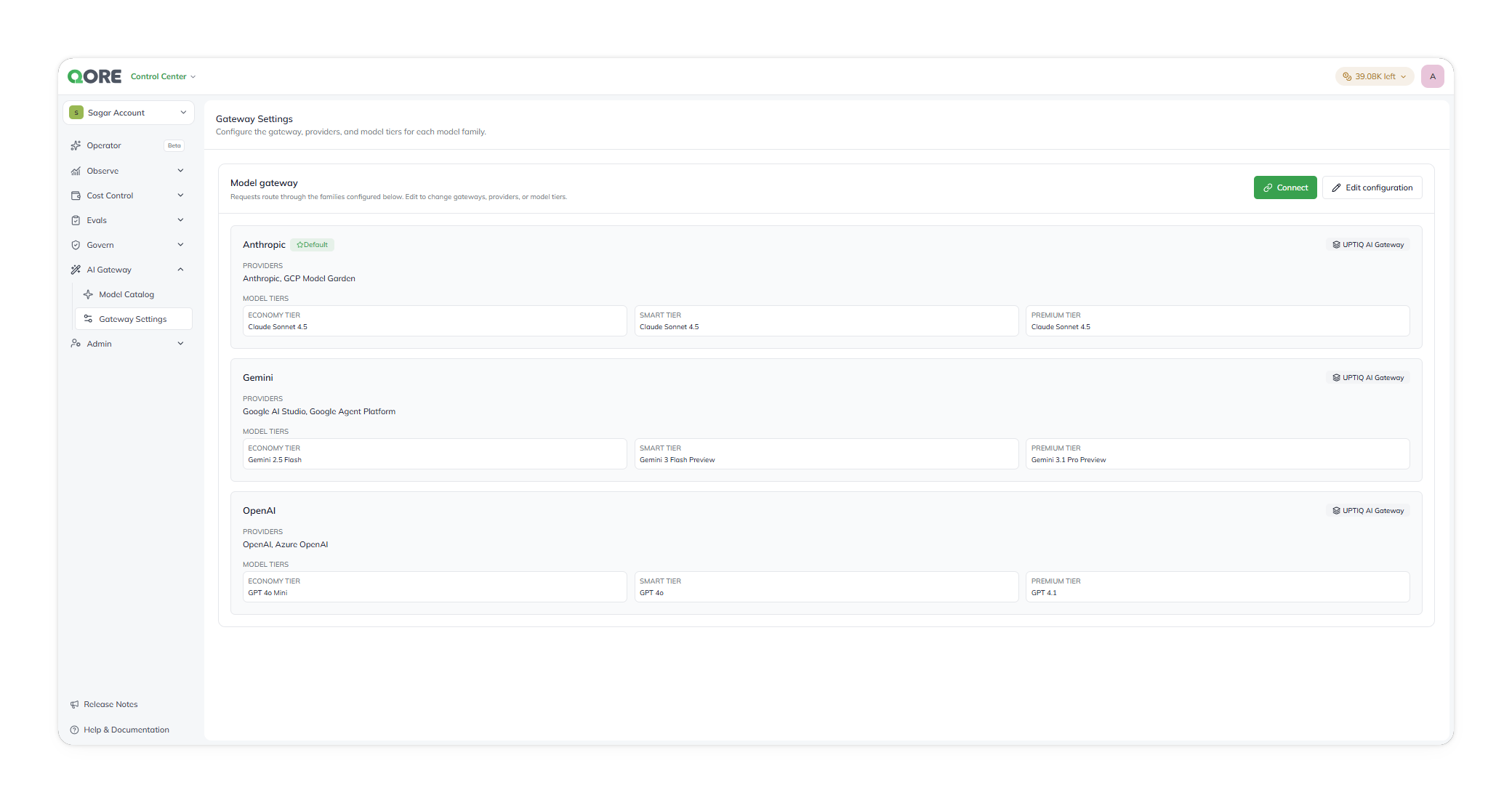
Review saved configuration

The summary is read-only. Select Edit configuration to make changes.

Information
What it shows
Why it matters

Family

Family name and Default status

Identifies the family used without a specified family

Providers

Providers available for the family

Shows which provider options require configuration

Model tiers

Economy, Smart, and Premium assignments

Shows the selected model for each tier

Configuration page

Selecting Edit configuration opens /gateway-settings/<uuid> as a full-screen page.

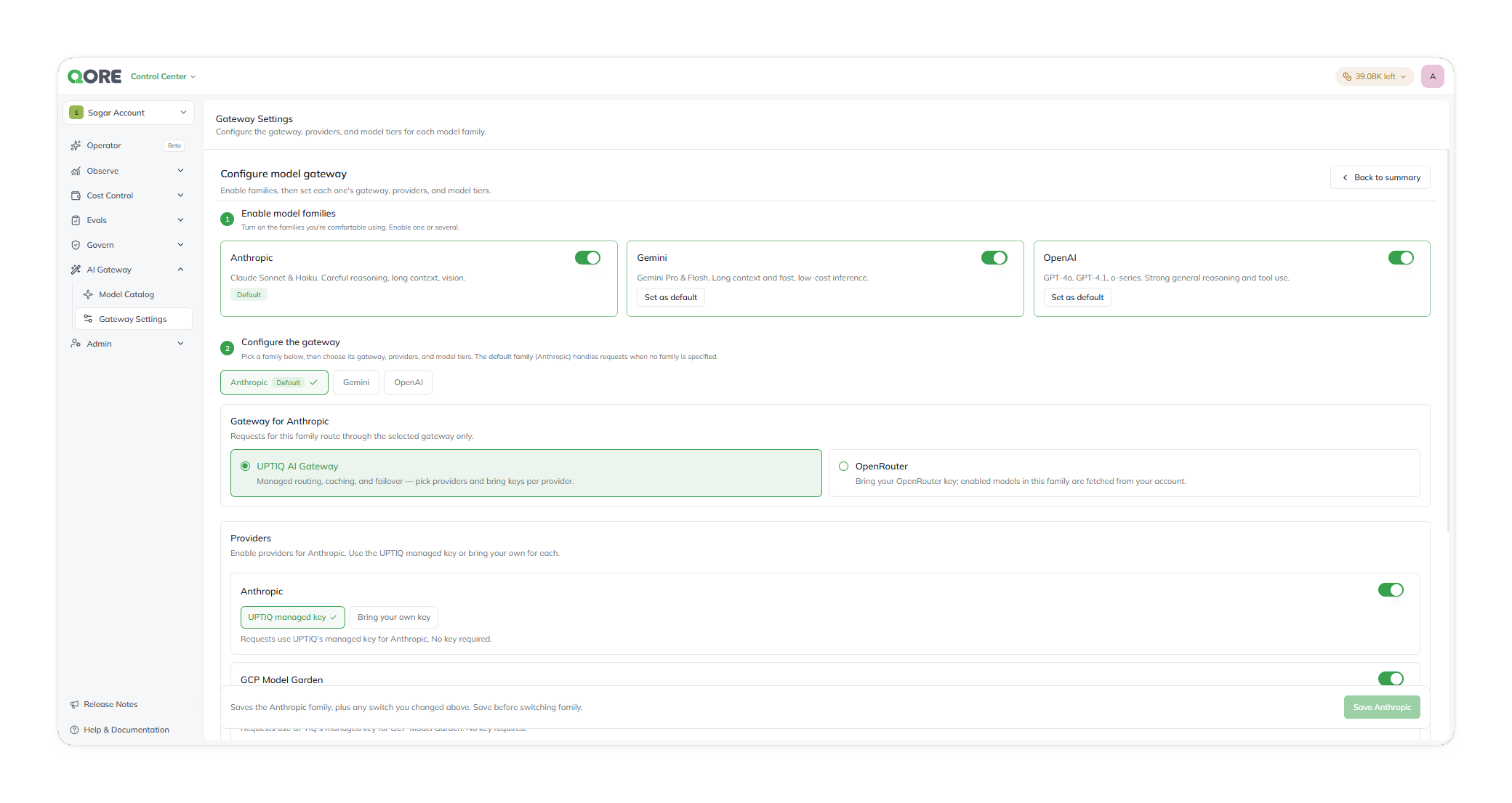
Enable model families

Enable or disable Anthropic, Gemini, and OpenAI for the project. Set a non-default family as the default when needed.

Changes to family availability and the default family remain pending until you save the family.

Configure a family

Select the family to configure. Anthropic is selected initially.

Configure
Details
Important information

Gateway

Choose UPTIQ AI Gateway or OpenRouter for the family

Every request for the family uses the gateway you choose.

Provider authentication

Choose UPTIQ managed key or Bring your own key for each provider

Anthropic has two provider choices. The choices appear in provider-list order.

Tier models

Assign a model to Economy, Smart, and Premium

Each tier shows its current model and available providers.

For Anthropic, configure the first credential choice for Anthropic direct. Configure the second for GCP Model Garden.

Choose a gateway

UPTIQ AI Gateway is the default. It provides managed routing, retries, caching, failover, and observability across the providers you authenticate below.

OpenRouter is an alternative that uses your organization's own OpenRouter API key. Enter the key, then fetch the models enabled on that account.

Where your own keys are stored

A key you enter under Bring your own key is held in the deployment's cloud secret manager — AWS Secrets Manager, GCP Secret Manager, or Azure Key Vault, depending on where the platform runs.

Keys are write-only after entry. Nobody can read one back through the UI or the API, including Uptiq staff. To rotate a key, enter the new one against the same provider.

Assign tier models

Each tier is a capability level, not a fixed model. Choose with the workload in mind:

Tier
Assign a model suited to

Economy

Routing, classification, extraction, and reranking — high volume

Smart

Synthesis, specialist tasks, reports, and drafts — most agents

Premium

The hardest reasoning, where quality outweighs latency and cost

Usage against a UPTIQ managed key draws on your credit balance. Check what each tier costs you in Credit Usage.

All three Anthropic tiers currently use Claude Sonnet 4.5. The product doesn't warn when tiers use the same model. Choose distinct models when you need different cost or capability levels.

Save changes

Select Save to apply pending changes for the current family.

Google and Gemini refer to the same family

The Model Catalog labels the same family Google. The underlying family is the same.

Examples

Enable a new family for this project

Add Gemini models to a project that currently uses Anthropic only.

1

Start configuration

From the summary, select Edit configuration.

2

Enable Gemini

Set Gemini as available for the project.

3

Configure Gemini

Select Gemini. Choose UPTIQ managed key or Bring your own key for Google AI Studio and Google Agent Platform. For your own key, provide the key. Assign a model to Economy, Smart, and Premium.

4

Save Gemini

Select Save Gemini. Don't change families first. Unsaved changes are discarded.

5

Verify

Select Back to summary. Confirm Gemini shows the selected providers and tier models.

Change the default family

Make Gemini the default family instead of Anthropic.

1

Start configuration

Select Edit configuration from the summary.

2

Set the default

Select Set as default for Gemini.

3

Save

Select Save Gemini. The default changes only after you save.

4

Verify

Select Back to summary. Confirm Gemini is the default family.

Update the model powering a tier

Change the Anthropic Smart tier from Claude Sonnet 4.5 to Claude Opus 4.6.

1

Confirm model availability

Before changing tier assignment, open Model Catalog. Confirm Claude Opus 4.6 is Enabled on at least one Anthropic provider. A tier using a Not configured provider fails at request time.

2

Change the tier

In Gateway Settings, select Edit configuration, then Anthropic. Assign Claude Opus 4.6 to the Smart tier.

3

Save and verify

Select Save Anthropic, then Back to summary. Confirm the Anthropic Smart tier uses Claude Opus 4.6.

Switch a provider to Bring your own key

Use your organization’s Anthropic API key for Anthropic-family calls instead of a UPTIQ managed key.

1

Select Anthropic

Open Gateway Settings. Select Edit configuration, then Anthropic.

2

Change provider authentication

Choose Bring your own key for the Anthropic provider. Anthropic’s choice appears first. Enter the key when prompted.

3

Save Anthropic

Select Save Anthropic. GCP Model Garden authentication is independent from Anthropic authentication.

4

Verify with a test call

Send a test call through an agent that uses Anthropic. Check Runs & Traces to confirm the expected provider served the call.

Verify the configuration

Run through this before agents depend on the family.

Check
Expected result

Family status

The required family is enabled.

Default selection

One enabled family is marked default.

Provider readiness

Required providers show Enabled in Model Catalog.

Tier mappings

Economy, Smart, and Premium map to intended models.

Guardrails (coming soon)

Allowed families and providers permit the workload.

Guardrails that restrict which families and providers an agent may use are not available yet. Until they ship, the families you enable here are the control.

Why this matters

  • Save applies to one family.

  • Family availability and the default apply after saving.

  • Model Catalog shows model availability. Confirm a provider is Enabled before assigning a tier.

Last updated