> For the complete documentation index, see [llms.txt](https://docs.uptiq.ai/llms.txt). Markdown versions of documentation pages are available by appending `.md` to page URLs; this page is available as [Markdown](https://docs.uptiq.ai/control-center/admin/single-sign-on.md).

# Single Sign-On

Sign in to Qore with Google or Microsoft, including Microsoft Entra ID accounts.

Qore lets people sign in with an account they already have: a **Google** account, or a **Microsoft** account, including work and school accounts in **Microsoft Entra ID**. Nobody needs a separate Qore password to sign in this way.

Single sign-on doesn't replace invitations. Everyone, however they sign in, must first be invited to the account by an administrator.

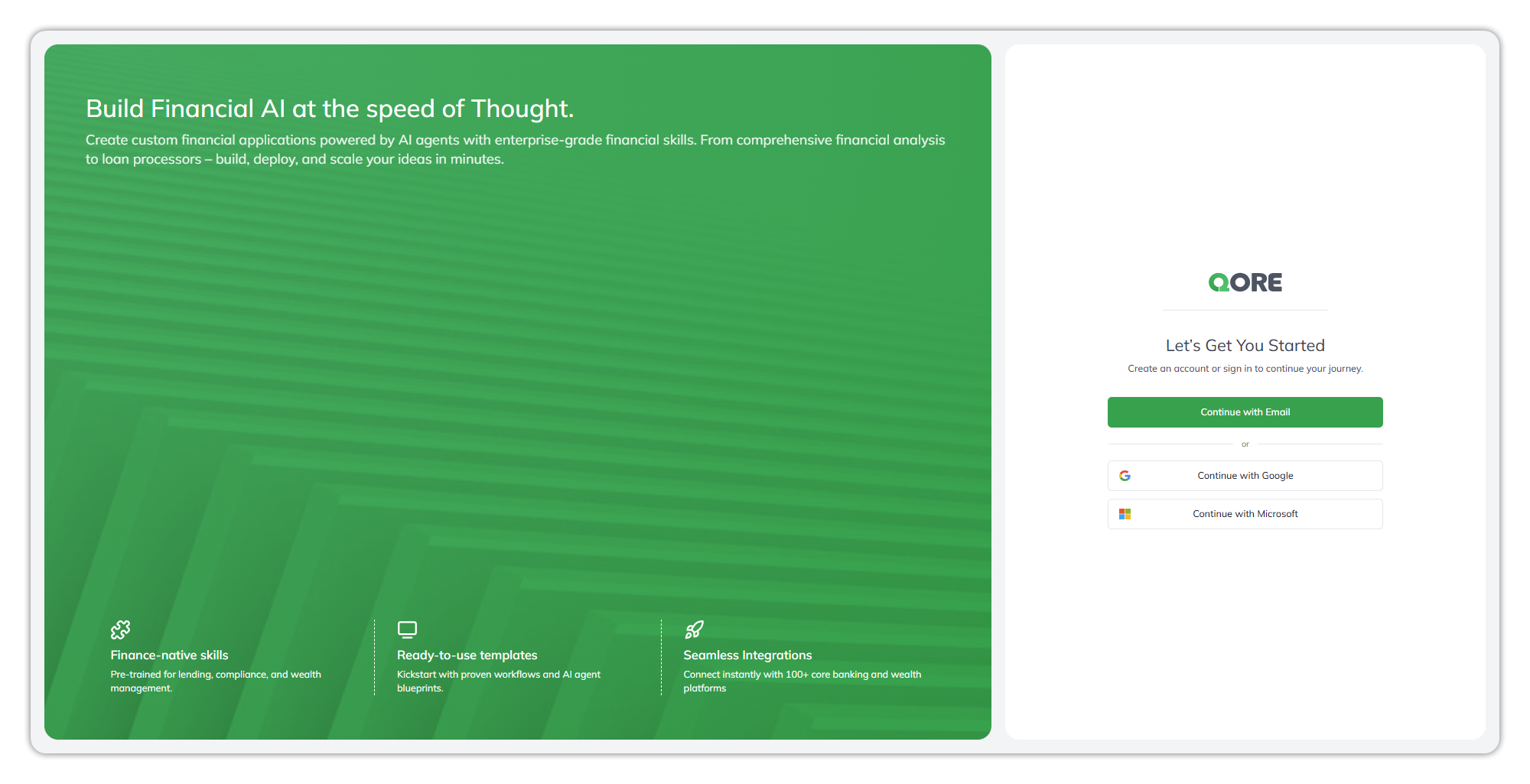
<figure><img src="https://1326225582-files.gitbook.io/~/files/v0/b/gitbook-x-prod.appspot.com/o/spaces%2F0qmgQjJ5aArDTj2ACFHG%2Fuploads%2Fgit-blob-3b43be70007e016d501f770b8771d15cb2af2842%2F001_sign_in_options.png?alt=media" alt="The Qore sign-in page: Let&#x27;s Get You Started, with a Continue with Email button, then an or divider, then Continue with Google and Continue with Microsoft"><figcaption><p>The sign-in page, with email first and the single sign-on options below it.</p></figcaption></figure>

## At a glance

| Method                 | Button on the sign-in page  | Who can use it                                                                                    |
| ---------------------- | --------------------------- | ------------------------------------------------------------------------------------------------- |
| **Google**             | **Continue with Google**    | Invited people whose email is a Google account                                                    |
| **Microsoft**          | **Continue with Microsoft** | Invited people with a Microsoft Entra ID (work or school) account or a personal Microsoft account |
| **Email and password** | **Continue with Email**     | Any invited person. See [Password Sign-In](/control-center/admin/password-sign-in.md)             |

## Access is invite-only

Qore has no self sign-up. The sign-in page reads *"Create an account or sign in to continue your journey"*, but an account is created only when an administrator invites someone from [Users](/control-center/admin/users.md). This applies to every sign-in method.

To give someone access:

1. In Control Center, open **Admin → Users** and select **+ Create User**.
2. Enter their details. The **Email** must be the address they'll sign in with: their Google address for Google, or their Microsoft or Entra ID address for Microsoft.
3. Assign their roles and save. They receive an invitation and can then sign in with any method available to them.

If someone tries to sign in with an email that hasn't been invited, Qore shows a validation error and doesn't let them in. Invite that exact address, then ask them to try again.

{% hint style="info" %}
**Match the address exactly.** A person invited as `jane.doe@example.com` can't sign in with Microsoft as `jdoe@example.com`, even if both reach the same mailbox. Invite the address their Microsoft or Google account actually uses.
{% endhint %}

## Sign in with Google

1. On the sign-in page, select **Continue with Google**.
2. Choose your Google account, or sign in to Google if you aren't already.
3. Qore opens, signed in.

You're never asked to create or enter a Qore password when you sign in with Google.

## Sign in with Microsoft

1. On the sign-in page, select **Continue with Microsoft**.
2. Sign in with your Microsoft account. This can be a work or school account from your organization's Microsoft Entra ID directory, or a personal Microsoft account.
3. Qore opens, signed in.

Qore supports multi-factor authentication. When you sign in with your organization's Entra ID account, your organization's own Microsoft sign-in rules apply, including multi-factor authentication, so you may be asked to approve the sign-in on your phone or enter a code. Qore doesn't store your Microsoft password.

## Which buttons appear

Each single sign-on button is turned on per Qore deployment. Your sign-in page may show **Continue with Google**, **Continue with Microsoft**, both, or neither. When none is turned on, the page shows only **Continue with Email**, with no "or" divider.

Which methods are on isn't set from Control Center. If you need a method that your sign-in page doesn't show, ask your Qore administrator.

## Notes and limitations

* **Invitation first, always.** Single sign-on proves who someone is; the invitation decides whether they get in.
* **One address per person.** The invited email is the identity Qore checks, whichever method the person uses.
* **Roles still apply.** Signing in with single sign-on gives the same access as signing in with a password. What someone can do comes from their [roles](/control-center/admin/roles.md).

### Related

<table data-view="cards"><thead><tr><th>Title</th><th>Description</th><th data-card-target data-type="content-ref">Target</th></tr></thead><tbody><tr><td><strong>Password Sign-In</strong></td><td>Sign in with email and password, and reset a forgotten password.</td><td><a href="/control-center/admin/password-sign-in.md">Password Sign-In</a></td></tr><tr><td><strong>Users</strong></td><td>Invite people and assign their roles.</td><td><a href="/control-center/admin/users.md">Users</a></td></tr><tr><td><strong>Roles</strong></td><td>What each role can do.</td><td><a href="/control-center/admin/roles.md">Roles</a></td></tr></tbody></table>


---

# Agent Instructions
This documentation is published with GitBook. GitBook is the documentation platform designed so that both humans and AI agents can read, navigate, and reason over technical content effectively. Learn more at gitbook.com.

## Querying This Documentation
If you need additional information that is not directly available in this page, you can query the documentation dynamically by asking a question.

Perform an HTTP GET request on the current page URL with the `ask` query parameter, and the optional `goal` query parameter:

```
GET https://docs.uptiq.ai/control-center/admin/single-sign-on.md?ask=<question>&goal=<endgoal>
```

`ask` is the immediate question: it should be specific, self-contained, and written in natural language.
`goal` is optional and describes the broader end goal you are ultimately trying to accomplish on behalf of the user. GitBook uses it to tailor the answer towards what is most useful for that goal.

The response will contain a direct answer to the question and relevant excerpts and sources from the documentation.

Use this mechanism when the answer is not explicitly present in the current page, you need clarification or additional context, or you want to retrieve related documentation sections.
