> For the complete documentation index, see [llms.txt](https://docs.uptiq.ai/llms.txt). Markdown versions of documentation pages are available by appending `.md` to page URLs; this page is available as [Markdown](https://docs.uptiq.ai/control-center/admin/password-sign-in.md).

# Password Sign-In

Sign in to Qore with your email and password, and reset a forgotten password.

You can sign in to Qore with the email address you were invited with and a password. Your first password is a temporary one from your invitation email, and if you forget your password later, Qore emails you a new temporary one. Each time you sign in with a temporary password, you set a new password of your own.

Access is invite-only. You can sign in only after an administrator has invited your email address from [Users](/control-center/admin/users.md). To sign in with Google or Microsoft instead, see [Single Sign-On](/control-center/admin/single-sign-on.md).

## First sign-in

When an administrator invites you, you receive an invitation email with a temporary password.

1. On the sign-in page, select **Continue with Email** and enter the address the invitation was sent to.
2. Enter the temporary password from the email and select **Continue**.
3. Qore opens **Update your Password**. Set a password of your own; see [Set your own password](#set-your-own-password). You use it from then on.

## Sign in

1. On the sign-in page, select **Continue with Email**.
2. Enter your email address and continue.
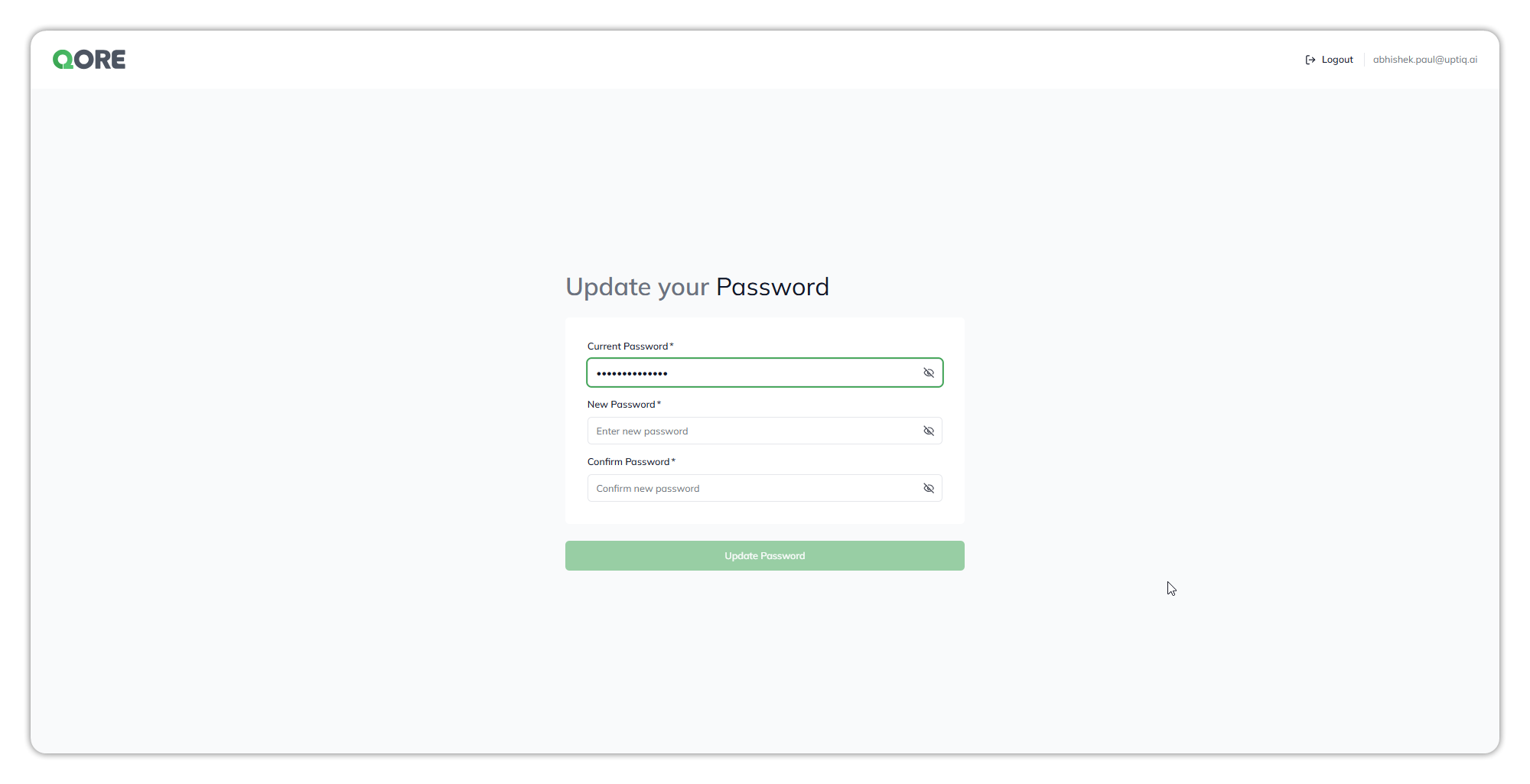
3. The page greets you by name, for example **Welcome Back, Abhishek!** Enter your **Password**. Select the eye icon to show or hide what you type.
4. Select **Continue**.

To use a different email address, select the pencil icon in the **Email Id** field.

<figure><img src="https://1326225582-files.gitbook.io/~/files/v0/b/gitbook-x-prod.appspot.com/o/spaces%2F0qmgQjJ5aArDTj2ACFHG%2Fuploads%2Fgit-blob-bda3d48b8de75c4243c69f3db02bd4f376229cf9%2F002_password_sign_in.png?alt=media" alt="The password step of Qore sign-in: Welcome Back, Abhishek!, the Email Id field with a pencil icon, the Password field with a show/hide icon and a Forgot your password? link, and a Continue button"><figcaption><p>The password step, with the link to reset a forgotten password.</p></figcaption></figure>

If the email you enter hasn't been invited, you can't continue. Ask your administrator to invite you.

## Reset a forgotten password

1. On the password step, select **Forgot your password?**.
2. Qore confirms: *"We've sent a temporary password. Please check your inbox and use it to log in."*, with the email address it was sent to.
3. Select **Back to Login**, and sign in with the temporary password from the email.
4. Qore opens **Update your Password**. Set a new password; see [Set your own password](#set-your-own-password). The temporary password only gets you back in.

If the email doesn't arrive within a few minutes, check your spam or junk folder. A temporary password goes only to the invited email address shown on the confirmation.

{% hint style="info" %}
**Only sign in with Google?** People who only ever sign in with Google don't have a Qore password to reset. Use **Continue with Google** instead.
{% endhint %}

## Set your own password

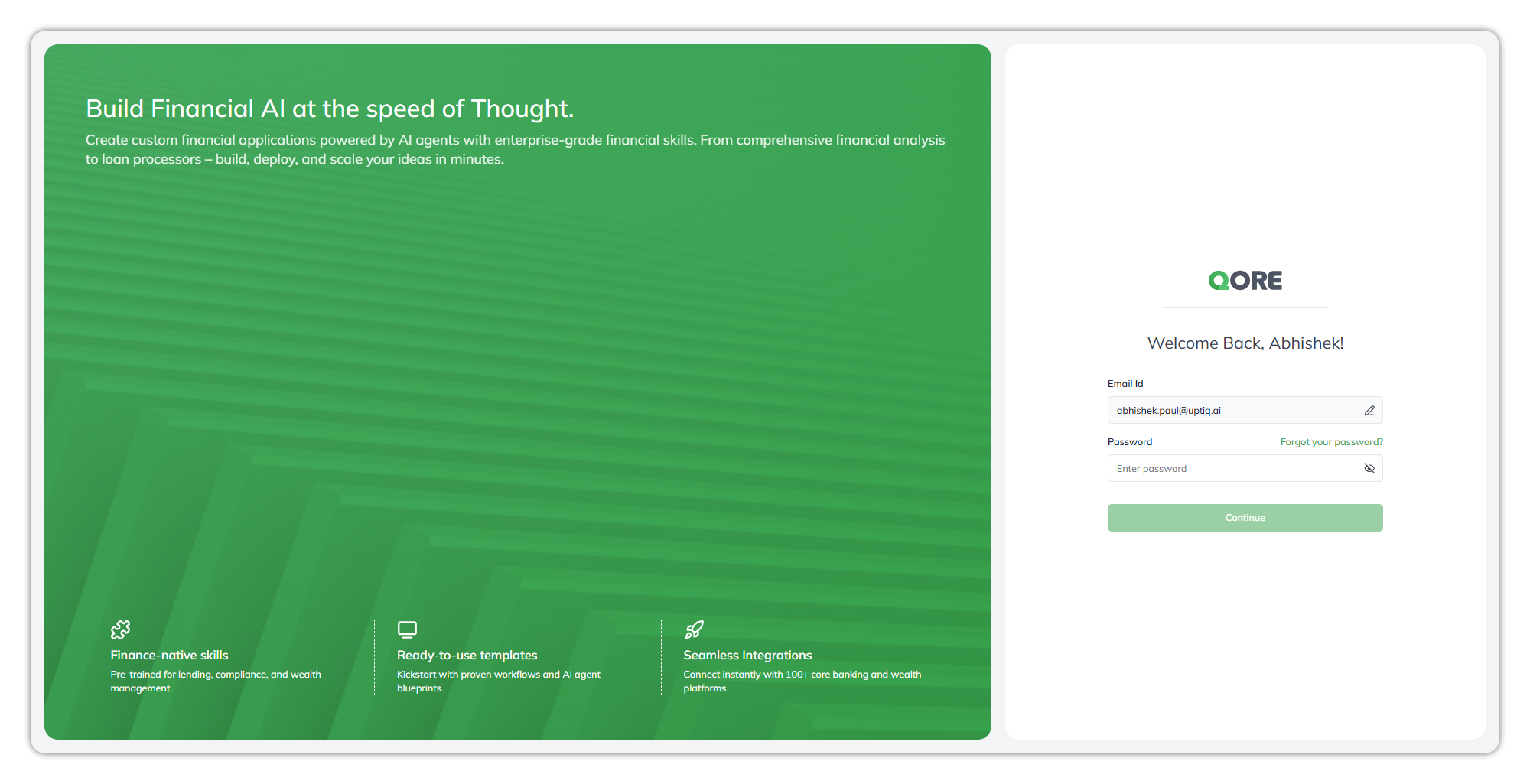
After you sign in with a temporary password, from an invitation or after **Forgot your password?**, Qore asks you to replace it before you continue.

<figure><img src="https://1326225582-files.gitbook.io/~/files/v0/b/gitbook-x-prod.appspot.com/o/spaces%2F0qmgQjJ5aArDTj2ACFHG%2Fuploads%2Fgit-blob-272201ad7076ad66419a4d0f32cfaa1c5a1cb9b7%2F003_update_password.png?alt=media" alt="The Update your Password screen: Current Password, New Password and Confirm Password fields, each with a show/hide icon, and an Update Password button; Logout and the signed-in email are in the top bar"><figcaption><p>Replace the temporary password with one of your own.</p></figcaption></figure>

1. **Current Password** — the temporary password you just signed in with.
2. **New Password** — the password you want to use from now on.
3. **Confirm Password** — the new password again, exactly as before.
4. Select **Update Password**. It becomes available once all three fields are filled.

Select the eye icon in any field to check what you typed. To leave without changing your password, select **Logout** in the top bar.

## Notes and limitations

* **Invite-only.** There's no self sign-up, even though the sign-in page mentions creating an account. An administrator creates accounts from [Users](/control-center/admin/users.md).
* **Temporary passwords come by email.** Keep access to the inbox for the address you were invited with.
* **A temporary password is for one sign-in.** After using it, you're asked to set your own password.

### Related

<table data-view="cards"><thead><tr><th>Title</th><th>Description</th><th data-card-target data-type="content-ref">Target</th></tr></thead><tbody><tr><td><strong>Single Sign-On</strong></td><td>Sign in with Google or Microsoft, including Entra ID.</td><td><a href="/control-center/admin/single-sign-on.md">Single Sign-On</a></td></tr><tr><td><strong>Users</strong></td><td>Invite people and assign their roles.</td><td><a href="/control-center/admin/users.md">Users</a></td></tr></tbody></table>


---

# Agent Instructions
This documentation is published with GitBook. GitBook is the documentation platform designed so that both humans and AI agents can read, navigate, and reason over technical content effectively. Learn more at gitbook.com.

## Querying This Documentation
If you need additional information that is not directly available in this page, you can query the documentation dynamically by asking a question.

Perform an HTTP GET request on the current page URL with the `ask` query parameter, and the optional `goal` query parameter:

```
GET https://docs.uptiq.ai/control-center/admin/password-sign-in.md?ask=<question>&goal=<endgoal>
```

`ask` is the immediate question: it should be specific, self-contained, and written in natural language.
`goal` is optional and describes the broader end goal you are ultimately trying to accomplish on behalf of the user. GitBook uses it to tailor the answer towards what is most useful for that goal.

The response will contain a direct answer to the question and relevant excerpts and sources from the documentation.

Use this mechanism when the answer is not explicitly present in the current page, you need clarification or additional context, or you want to retrieve related documentation sections.