> For the complete documentation index, see [llms.txt](https://docs.uptiq.ai/llms.txt). Markdown versions of documentation pages are available by appending `.md` to page URLs; this page is available as [Markdown](https://docs.uptiq.ai/ai-workbench-qore/console/console-operator/schedules.md).
# Schedules
Run the Operator on a schedule, with instructions and the agents each run may use.
A schedule runs the Operator for you at a set time, with instructions you write once: *"Summarise yesterday's failed runs and list the top three causes with a suggested fix for each"*, every morning at nine. Each run is an Operator conversation like one you started yourself, and it appears in your **Conversation History** afterwards.
Select **Schedules** in the top bar. The page reads *"Run tasks on a schedule or whenever you choose."* It is in both Console and Control Center: schedules made in Console run the Console Operator, and schedules made in Control Center run the Governance Operator.
## At a glance
| Task | How | Result |
| ----------------------------- | ------------------------ | ---------------------------------------------- |
| Create a schedule | **+ Add Schedule** | A schedule that runs at the time you set |
| Have the Operator set one up | Ask it in a conversation | The same, created for you |
| Pause, resume, edit or delete | The schedule's **⋯** | The schedule changes; past runs are unaffected |
| Find one | **Search schedules…** | The list, filtered |
## Create a schedule
Select **+ Add Schedule**. When there are no schedules yet, the page reads **No schedules yet.** with the same button.
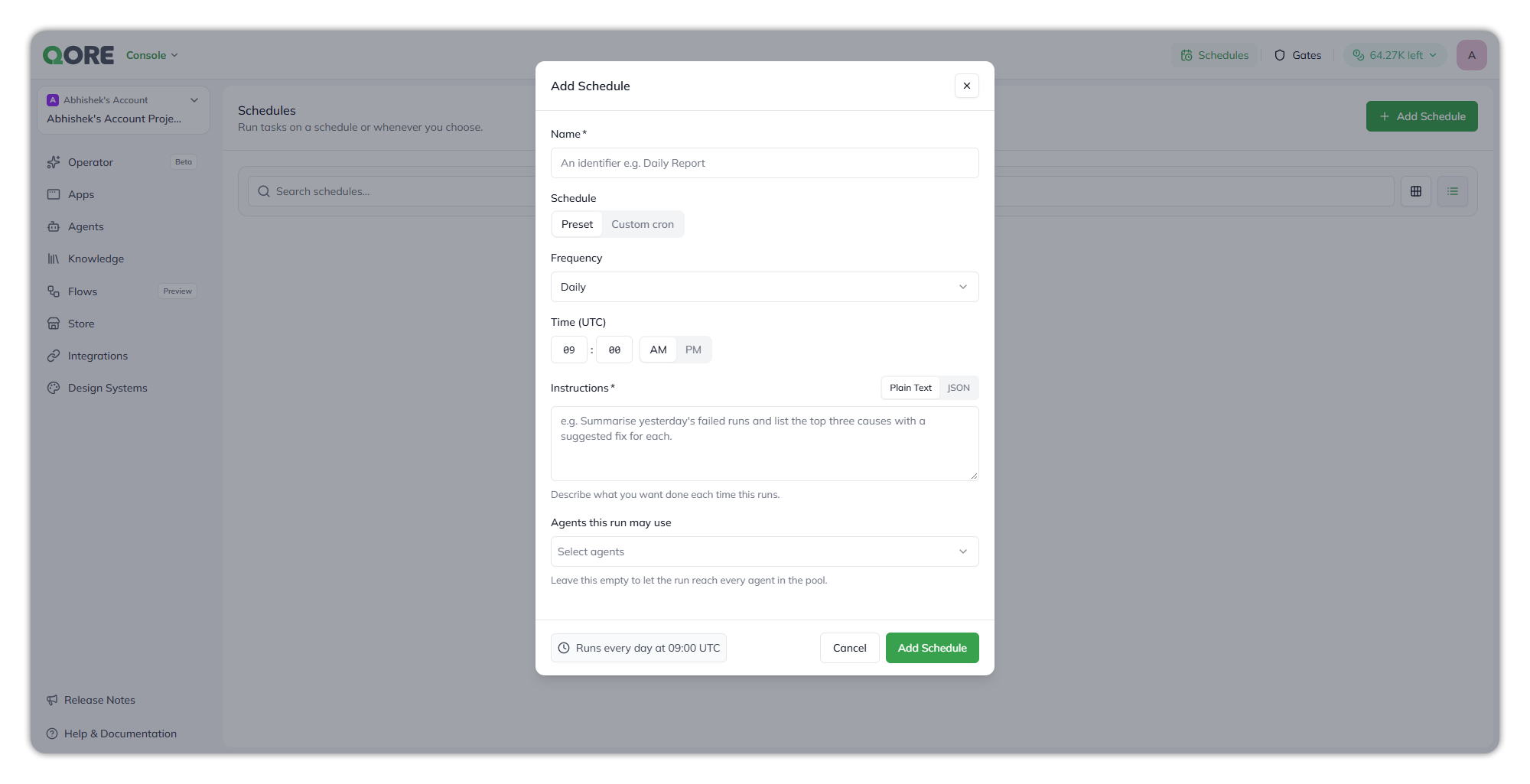
The Add Schedule dialog, with its summary of when the schedule runs.
**Name** — required. An identifier for the list, for example `Daily Report`. A name of only spaces isn't accepted.
**Schedule** — when it runs, set one of two ways:
* **Preset** — pick a **Frequency**: **Hourly**, **Daily**, **Weekly** or **Monthly**, then a **Time (UTC)** in hours, minutes and **AM** / **PM**.
* **Custom cron** — enter a **Cron Expression**, for example `0 9 * * *` for every day at 09:00 UTC. **Get your cron expression** helps you build one.
**Instructions** — required. What you want done each time it runs: *"Describe what you want done each time this runs."* Write them in **Plain Text**, or switch to **JSON** to pass a structured object. In JSON mode the instructions must be a non-empty JSON object.
**Agents this run may use** — the agents each run can hand work to, picked from a searchable list. In Console, that is the Console Operator's agents, such as **App Builder Agent** or **Document AI Agent**, and your own project agents. In Control Center, it is the governance agents, such as **Agent Performance Analyst**, **Billing & Credit Manager** or **Platform Audit Investigator**. Leave it empty *"to let the run reach every agent in the pool."*
The footer confirms the timing in words before you save, for example **Runs every day at 09:00 UTC**. Select **Add Schedule** to save it, or **Cancel**.
{% hint style="info" %}
**Times are set in UTC.** Convert from your local time when you pick one. The schedules list then shows the next run in your local time, so a schedule for `09:00 UTC` can read `Next run … 2:30 PM` in India.
{% endhint %}
Limit **Agents this run may use** to what the task needs. A reporting schedule that can only reach an analyst agent can't build or change anything, however its instructions are read.
### Ask the Operator to schedule it
You can also describe the schedule in a conversation, for example *"Every Monday at 8 AM UTC, check which knowledge bases have files that need syncing and tell me."* The Operator sets up the schedule for you, and it appears on the **Schedules** page.
## Manage schedules
Each schedule shows its name, when it runs (for example `Runs every day at 09:00 UTC`), its status, and for active schedules the next run, for example `Next run Oct 1, 2026, 2:30 PM`. Switch between list and grid with the icons beside the search.
The list shows only schedules you created, from every project, not just the one selected. Colleagues' schedules don't appear.
The **⋯** menu on a schedule lets you:
* **Pause** it: it stays in the list as **Paused**, shows no next run, and doesn't run until you resume it.
* **Resume** it: it becomes **Active** again and shows its next run.
* **Edit** it: change any field in the same dialog.
* **Delete** it.
There is no **Run now**. To run the same instructions straight away, ask the Operator in a conversation.
## Notes and limitations
* **A scheduled run acts with no one watching.** The Console Operator dispatches without an approval step. Keep scheduled instructions to work you are comfortable having done unattended.
* **Write instructions that need no answers.** Nobody is present during a scheduled run, so give it everything it needs up front.
* **A run skips an agent that isn't available.** If the Operator a schedule runs isn't active, the run is skipped rather than failing silently.
* **Your role decides what you can do.** Creating and changing schedules needs a role that allows it; actions you can't take are unavailable, with a tooltip saying why.
### Related
Title
Description
Target
Console Operator
Conversations, the composer, and what the Operator does.
{% endcolumn %}
{% endcolumns %}
---
# Agent Instructions
This documentation is published with GitBook. GitBook is the documentation platform designed so that both humans and AI agents can read, navigate, and reason over technical content effectively. Learn more at gitbook.com.
## Querying This Documentation
If you need additional information that is not directly available in this page, you can query the documentation by asking a question.
Perform an HTTP GET request on the following URL with the `ask` and `goal` query parameters:
```
GET https://docs.uptiq.ai/ai-workbench-qore/console/console-operator/schedules.md?ask=&goal=
```
`ask` is the immediate question: it should be specific, self-contained, and written in natural language.
`goal` is what the user is ultimately trying to achieve, the reason they need the answer. Sharing it helps GitBook give you a better, more relevant answer. A goal is most helpful when it describes the outcome the user wants rather than restating the question. For example, with `ask=how do I create an API token`, a goal like `automate deployments from our CI pipeline` lets GitBook tailor the answer to that use case.
The response will contain a direct answer to the question and relevant excerpts and sources from the documentation.
Use this mechanism when the answer is not explicitly present in the current page, you need clarification or additional context, or you want to retrieve related documentation sections.