> For the complete documentation index, see [llms.txt](https://docs.uptiq.ai/llms.txt). Markdown versions of documentation pages are available by appending `.md` to page URLs; this page is available as [Markdown](https://docs.uptiq.ai/ai-workbench-qore/console/app-builder/app-workspace.md).
# App Workspace
Build, preview, inspect, test, version, and share your app.
The app workspace is where you build, inspect, test, and share an app. Describe a change, review the live preview, then move through the App Builder workflow.
### Describe and build
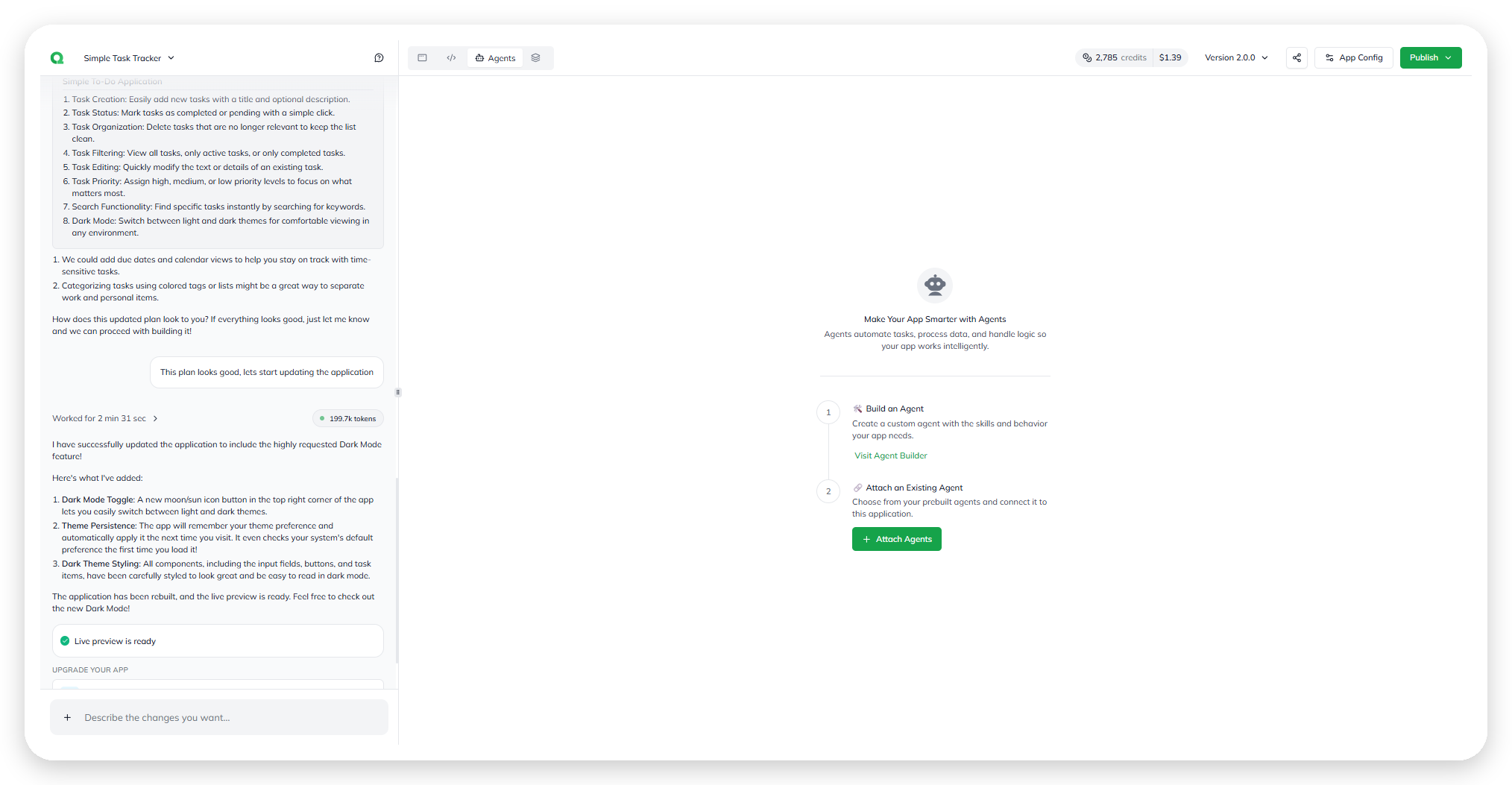
Use the conversation to describe the change you want. Qore plans the work, waits for your approval, builds the app, and confirms when **Live preview is ready**.
Describing a change in the build conversation.
Each turn shows its work time and token usage. Open the token total for model-level input and output usage.
While the build agent works, the conversation shows **Working…** and each step it takes, such as finding, reading, or running files, with a tick when each is done. Select **Stop** to stop it.
The build agent at work, with Stop.
A single request can run for up to 45 minutes. If it runs longer, Qore stops it, saves the work done so far, and replies: *This request ran too long and was stopped. The work done so far is saved — send a follow-up to continue, or split the request into smaller steps.* If code generation fails, the reply reads *We are currently experiencing an issue with code generation. Please try again or switch to a different model.*
Model-level token usage for a build turn.
#### Fix errors
Forward a preview error to the build agent. When the preview hits an error, a bar at the bottom of the build conversation shows it — for example `UNHANDLED_REJECTION` — with **Fix with AI**. Select **Fix with AI** to send it. The request includes the error type and message. Qore fixes the app and rebuilds the preview.
A preview error, with Fix with AI.
{% hint style="info" %}
Fixing an error is another conversation turn. Describe or forward the error, then review the rebuilt preview.
{% endhint %}
{% hint style="info" %}
**Fix with AI** sends the reported issue to Qore's build agent. Review the rebuilt preview before you continue.
{% endhint %}
### Continue building
Choose a suggested next step, or enter another request. **Upgrade your app** can add a database for persistent data or an AI agent for app intelligence — for example **Add an AI Agent** (*Connect intelligence to your app*).
{% hint style="info" %}
Each round follows the same flow: plan, approve, and build. Nothing is built before you approve the plan.
{% endhint %}
### Preview
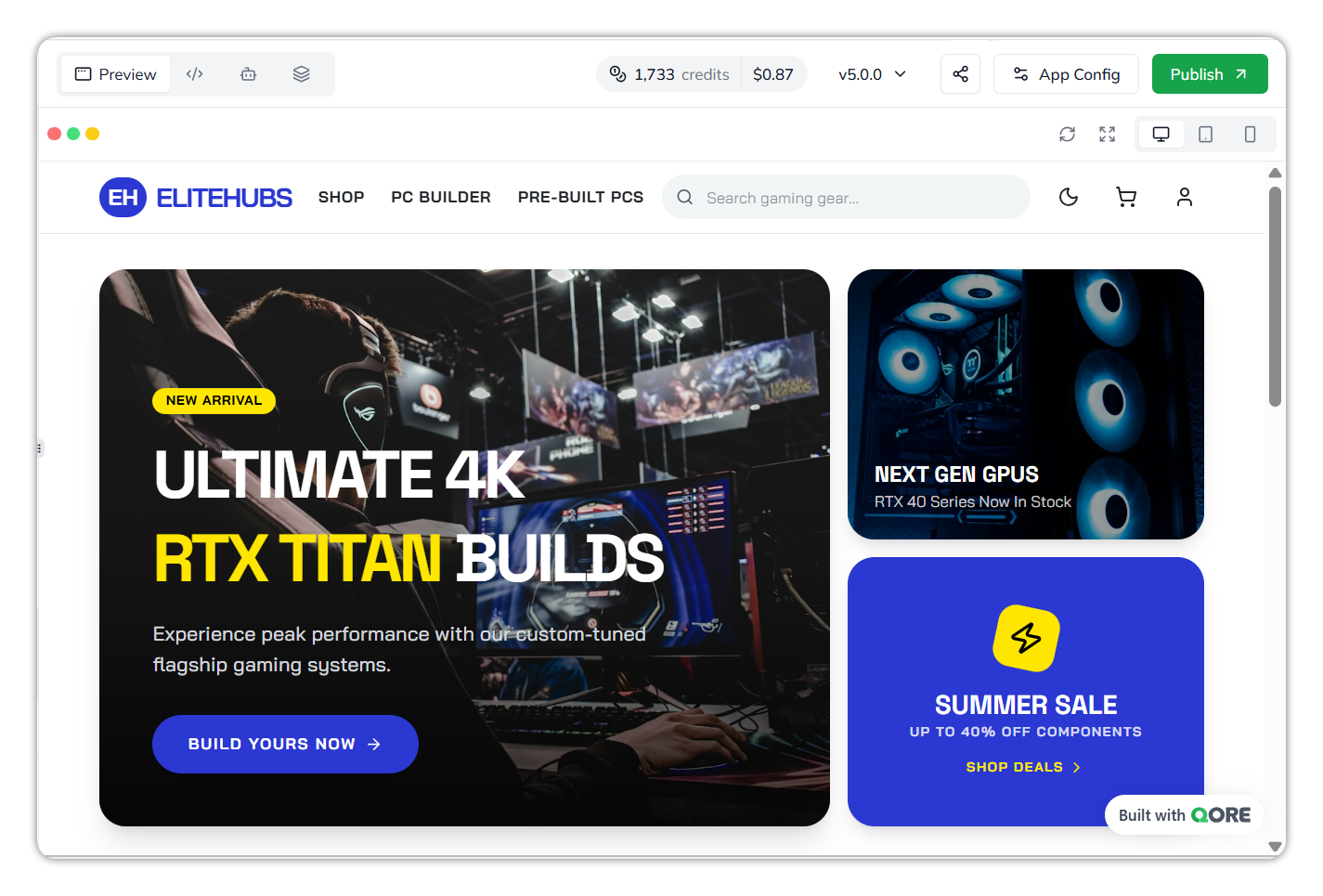
Use the live preview after every change. The toolbar above it has reload and full-screen icons, and desktop, tablet, and mobile widths to check responsiveness. Each preview includes a **Built with QORE** badge.
The live preview.
### Explore the workspace
Switch the centre panel between **Preview**, **Code**, and **Agents**.
#### Code
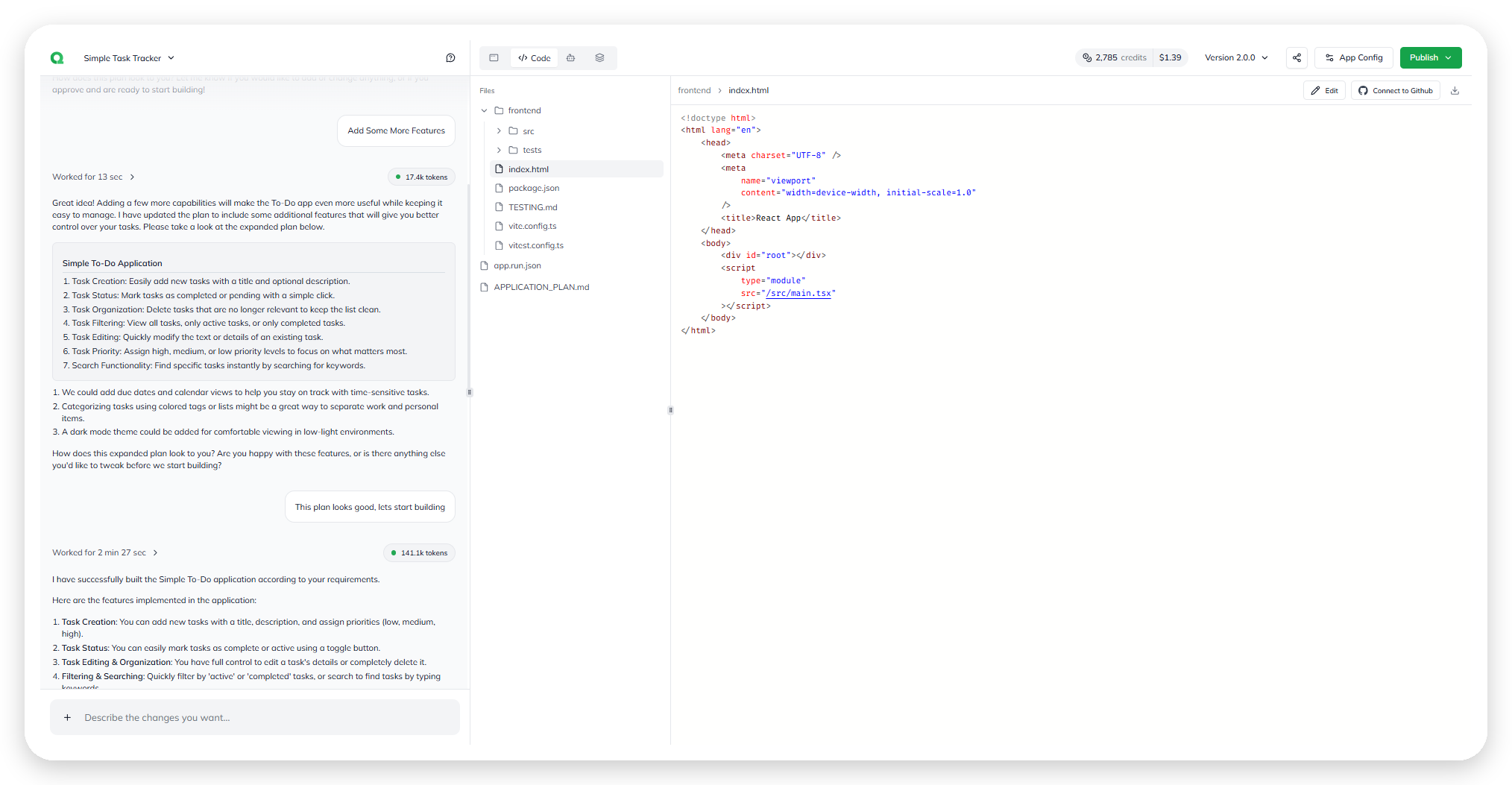
* Inspect the generated source in the file tree. It includes the frontend, tests, project configuration, `app.run.json`, and `APPLICATION_PLAN.md`.
* Select a file to read it, edit it, download it, or connect its repository to GitHub. To edit, select **Edit**, make your changes, then select **Save**. Saving an edit creates a new version.
* Use the build conversation for most app changes.
Inspecting and editing generated source in the Code panel.
#### Agents
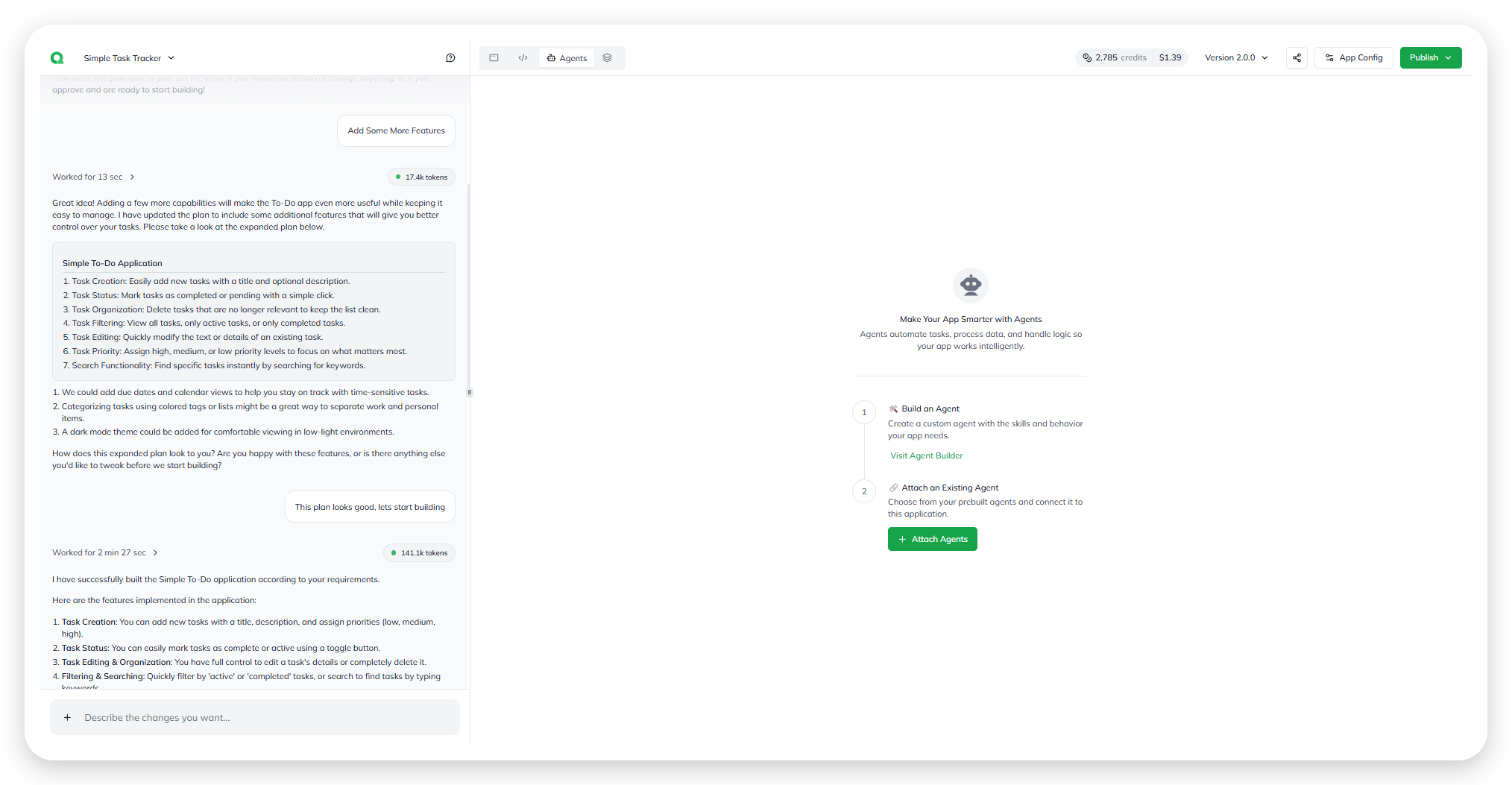
* Use **Agents** to add automation, data processing, and logic.
* Select **Build an Agent** for a new agent, or **Attach Agents** for an existing one.
* For attachment steps, see [Integrate an agent](/ai-workbench-qore/task-guides/integrate-an-agent.md).
Attaching an existing agent to the app.
### Credits
The Credits meter shows what this app has consumed—the Credits used, the Cost, and when the figure was last synced. Building an app spends credits, so keep an eye on it as you iterate. For account-wide usage and limits, see [Billing](/ai-workbench-qore/control-center/cost-control.md).
The Credits meter.
### Versions and publishing
The version selector lists builds newest first. **Latest** marks the newest build. **Published** marks the version users see. *Uncommitted changes* marks work outside a version.
The version selector.
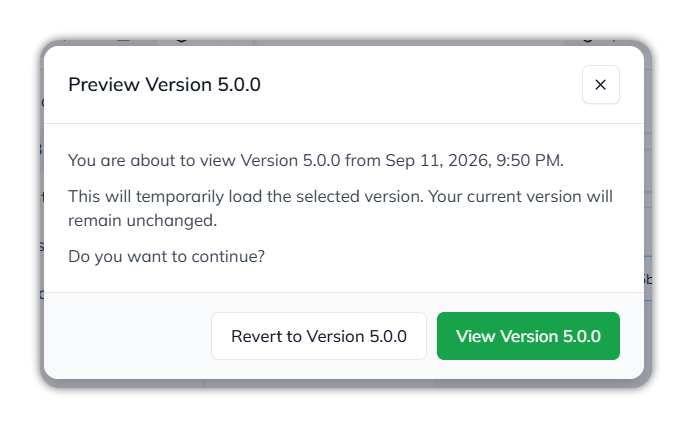
Select a version in the selector. **Preview Version** opens for it, for example: *You are about to view Version 5.0.0 from Sep 11, 2026, 9:50 PM. This will temporarily load the selected version. Your current version will remain unchanged.* Choose one:
* **View Version** (for example **View Version 5.0.0**) — loads that version temporarily.
* **Revert to Version** (for example **Revert to Version 5.0.0**) — reverts the app to that version.
Preview Version.
While you view an older version, a bar reads **Viewing Version** with the version number, for example **Viewing Version 5.0.0**. Select **Back to Latest** to return to the newest version, or **Revert to Version** to revert to the one you're viewing.
Viewing an older version.
To make a version live, follow [Deploy an app](/ai-workbench-qore/console/app-builder/deploy.md).
### Share
Select **Share**, beside the version selector, to share the app.
### Export
Select the export icon in the workspace top bar, beside **Share**, to bundle the app into one package: its frontend, backend, AI agent logic, database schema, and cloud storage configuration. You need the **Export App** capability; without it the button is disabled. It isn't shown while the app is still in its initial plan.
In the **Export App Package** dialog, tick **Include chat history in package** if you want the build conversation in the package (it's off by default), then select **Export Package**. The package isn't downloaded in your browser. Qore shows *Export started. You will receive an email when it is ready.*
Export App Package.
### More
The **More** menu reflects the selected build version. Use it to inspect:
* [Analytics](/ai-workbench-qore/console/app-builder/analytics.md) for published-app engagement
* [DB Explorer](/ai-workbench-qore/console/app-builder/build/db-explorer.md) and [Data Flow](/ai-workbench-qore/console/app-builder/build/data-flow.md) for app data and architecture
* [Testing](/ai-workbench-qore/console/app-builder/testing.md) and [Security Scans](/ai-workbench-qore/console/app-builder/security-scans.md) before release
***
{% columns %}
{% column width="83.33333333333334%" %}
Maintained by Abhishek Paul AI-assisted, human-approved
{% endcolumn %}
{% endcolumns %}
---
# Agent Instructions
This documentation is published with GitBook. GitBook is the documentation platform designed so that both humans and AI agents can read, navigate, and reason over technical content effectively. Learn more at gitbook.com.
## Querying This Documentation
If you need additional information that is not directly available in this page, you can query the documentation by asking a question.
Perform an HTTP GET request on the following URL with the `ask` and `goal` query parameters:
```
GET https://docs.uptiq.ai/ai-workbench-qore/console/app-builder/app-workspace.md?ask=&goal=
```
`ask` is the immediate question: it should be specific, self-contained, and written in natural language.
`goal` is what the user is ultimately trying to achieve, the reason they need the answer. Sharing it helps GitBook give you a better, more relevant answer. A goal is most helpful when it describes the outcome the user wants rather than restating the question. For example, with `ask=how do I create an API token`, a goal like `automate deployments from our CI pipeline` lets GitBook tailor the answer to that use case.
The response will contain a direct answer to the question and relevant excerpts and sources from the documentation.
Use this mechanism when the answer is not explicitly present in the current page, you need clarification or additional context, or you want to retrieve related documentation sections.