> For the complete documentation index, see [llms.txt](https://docs.uptiq.ai/llms.txt). Markdown versions of documentation pages are available by appending `.md` to page URLs; this page is available as [Markdown](https://docs.uptiq.ai/ai-workbench-qore/console/app-builder/deploy.md).
# Deploy
Publish tested app versions with required production configuration.
Deploy an app when its current version is ready for users. Review the live preview and test results first.
## Publish an app
{% hint style="warning" %}
Configure the database first. Without a database, the app can't be published. See [Connect the database](#connect-the-database).
{% endhint %}
{% stepper %}
{% step %}
### Confirm you want to publish
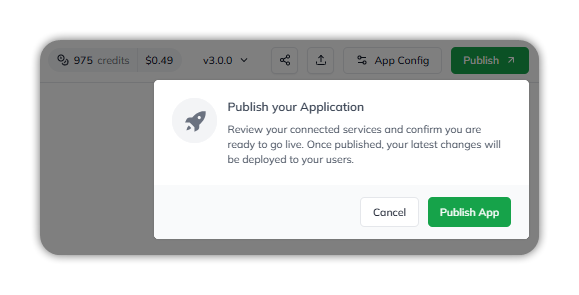
Select **Publish** in the app workspace. **Publish your Application** asks you to review your connected services and confirm you are ready to go live. Once published, your latest changes are deployed to your users.
Select **Publish App** to continue, or **Cancel**.
Publish your Application.
{% endstep %}
{% step %}
### Choose where each service runs
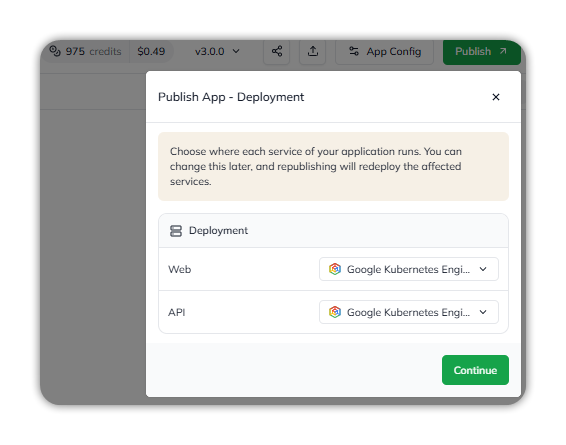
**Publish App - Deployment** lists each service of the app under **Deployment** — for example **Web** and **API** — with a menu beside each, such as **Google Kubernetes Engine**. Choose where each one runs, then select **Continue**.
You can change this later. Republishing redeploys the affected services.
Choosing where each service runs.
{% endstep %}
{% step %}
### Complete the publish checklist
The **Publish Checklist** lists the configurations you connected in preview. The published app needs them to work correctly. You can update them later in app settings.
* **Database** — **Required**. When its status is **Not Configured**, select **Connect**. See [Connect the database](#connect-the-database).
* **External Services Used** — each service, for **Preview** and **Publish**. With none, it reads *No external services connected.*
* **Environment Variables** — each variable, for **Preview** and **Publish**. With none, it reads *No environment variables configured.*
The publish checklist, before the database is connected.
When the database is connected, its status reads **Configured** and the action changes to **Manage**.
The publish checklist, with the database configured.
To change the database, domains, integrations, or environment variables, use [App Config](/ai-workbench-qore/console/app-builder/build/app-config.md).
{% endstep %}
{% step %}
### Publish
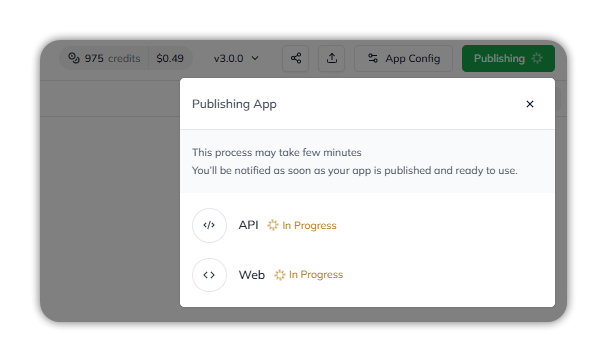
Select **Publish**. **Publishing App** shows each service — such as **API** and **Web** — as **In Progress**, and the **Publish** button reads **Publishing**. The process may take a few minutes. You're notified as soon as the app is published and ready to use.
Publishing in progress.
{% endstep %}
{% endstepper %}
### Publish a new version
When the app has been published before, **Publish** opens a panel with the last published version, its date, and the live URL. Open or copy the URL, or select **Manage Domains** to manage its domain. Review the checklist, then select **Publish Changes**. The platform deploys the current version and updates the live URL.
The publish panel for an app that has been published before.
### Connect the database
{% stepper %}
{% step %}
#### Open Manage Database
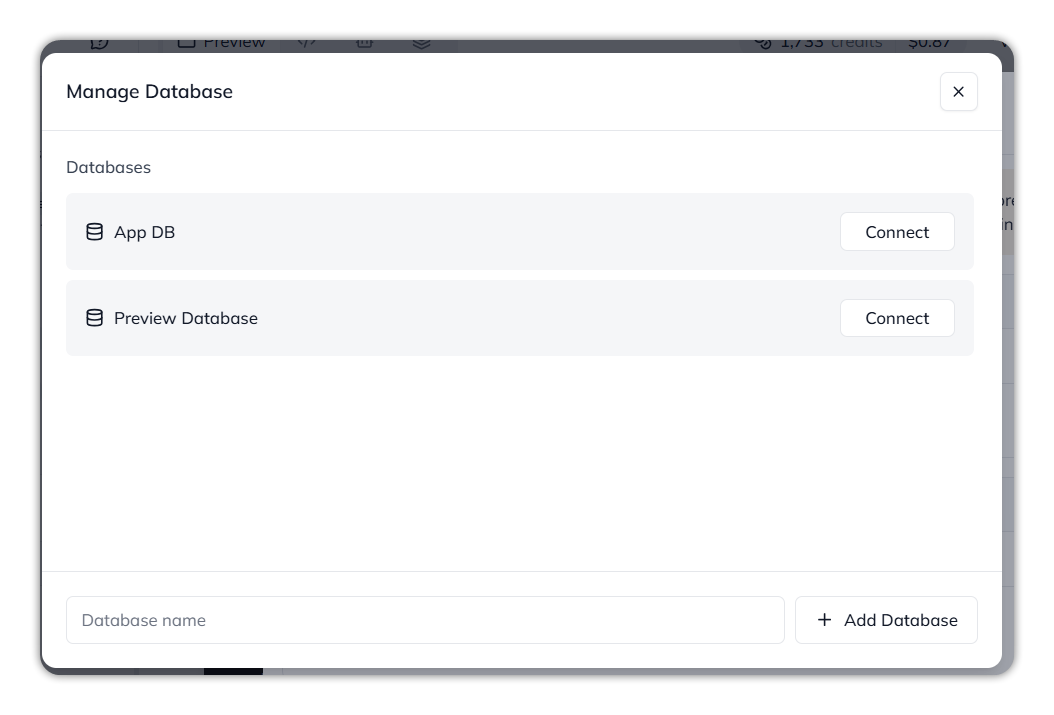
In the publish checklist, select **Connect** beside the database. **Manage Database** lists the available databases, such as **App DB** and **Preview Database**, each with **Connect**.
To add one, type a name in **Database name** and select **+ Add Database**.
Manage Database.
{% endstep %}
{% step %}
#### Choose a database
Select **Connect** beside the database. **Select Schema** opens, with the database name beneath the title.
{% endstep %}
{% step %}
#### Create a schema, or connect an existing one
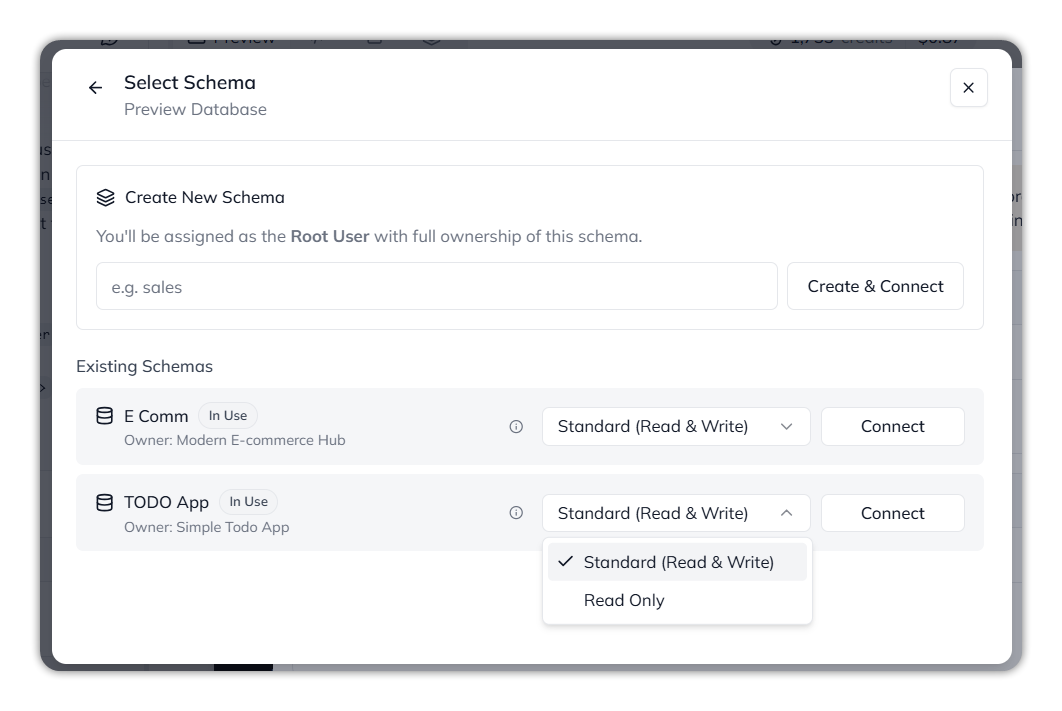
* **Create New Schema** — type a name, such as *sales*, and select **Create & Connect**. You're assigned as the **Root User**, with full ownership of the schema.
* **Existing Schemas** — each schema shows its status, such as **In Use**, and its owner app. Choose an access level — **Standard (Read & Write)** or **Read Only** — then select **Connect**.
Select Schema, with the access level menu open.
{% endstep %}
{% endstepper %}
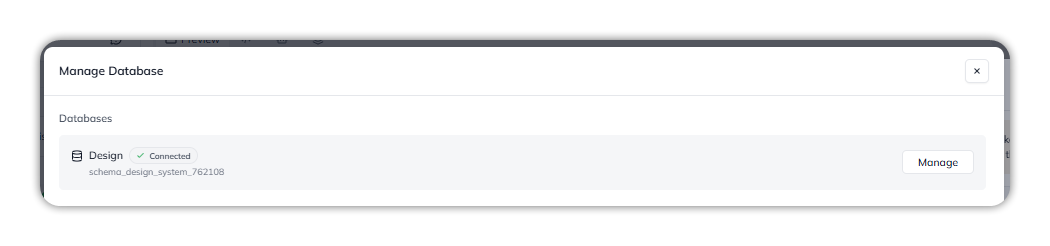
Once connected, **Manage Database** shows the database as **Connected**, with its schema name and a **Manage** button.
A connected database.
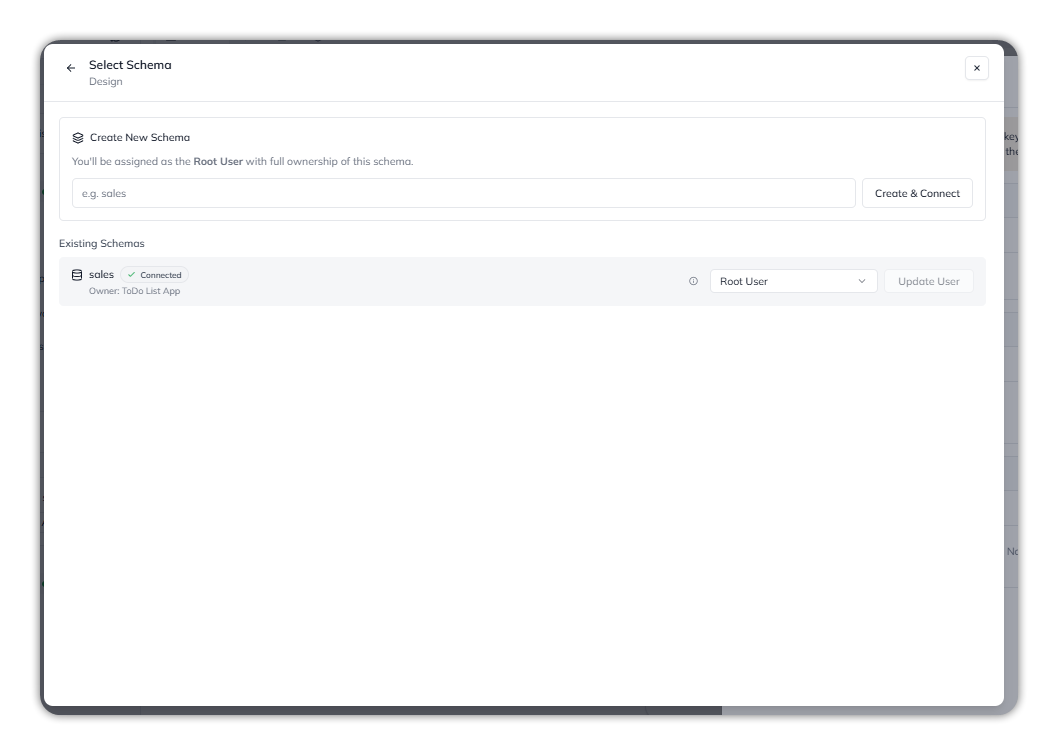
Select **Manage** to return to **Select Schema**. A connected schema shows **Connected** and its owner, with a user menu, such as **Root User**, and **Update User**.
A connected schema.
### Resolve a failed publish
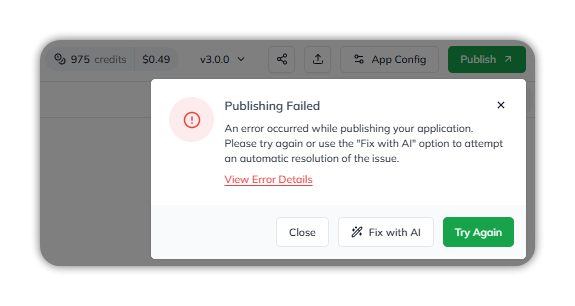
When publishing fails, **Publishing Failed** reads: *An error occurred while publishing your application. Please try again or use the "Fix with AI" option to attempt an automatic resolution of the issue.* Select one of these actions:
* **Try Again** to retry the publish
* **Fix with AI** to send the failure to the build agent
* **Close** to dismiss the notification
A failed publish, with recovery actions.
{% hint style="info" %}
**Fix with AI** sends the reported issue to Qore's build agent. Review the rebuilt preview before you continue.
{% endhint %}
With **Fix with AI**, the build agent works on the failure in the build conversation. It shows **Working…** and each step it takes. Select **Stop** to stop it. When it finishes, it summarizes the changes and shows **Live preview is ready**.
The build agent working on a publish failure.
Select **View Error Details** to open the deploy log. It shows numbered build steps and the underlying error. Use the log to fix the issue, then select **Try Again**.
The deploy log's error details.
For example, a missing `package.json` appears as an `npm install` failure with error code `ENOENT`.
## Versions
The version selector lists builds newest first. **Latest** marks the newest build. **Published** marks the live version. *Uncommitted changes* marks work outside a version.
Select a version to review or return to it. The published version can differ from the latest build.
## What ships
After testing, the platform packages the project as one deployment unit:
* **Frontend code** — UI components, state managers, and inline styles compile for production
* **Infrastructure settings** — connected database variables, storage links, and custom routing stay mapped to the container
* **Attached agents** — prompts, compliance skills, and reasoning logic travel with the app export package
## Enterprise publishing
The publishing engine supports high-concurrency environments and automates server configuration.
* **High-traffic infrastructure** — the pipeline manages concurrent enterprise publishing requests
* **Request queuing** — deployments process sequentially to prevent stuck states during peak periods
* **Zero-downtime rollouts** — infrastructure updates migrate in the background
* **Production stability** — backward-compatible upgrades preserve published apps through platform updates
## Staging and governance
* **Isolated staging controls** — deploy privately for compliance, risk, and security review
* **Performance-ready clusters** — published apps run on multi-region nodes optimized for sub-second load times
{% hint style="warning" %}
**Publish** is unavailable in **Plan Mode**. To gather feedback before compiling code, add reviewers as collaborators from **Share**. See [Plan](/ai-workbench-qore/console/app-builder/plan.md#collaboration).
{% endhint %}
***
After publishing, use [Operate](/ai-workbench-qore/console/app-builder/operate.md) to track costs and acquisition.
***
{% columns %}
{% column width="83.33333333333334%" %}
Maintained by Abhishek Paul AI-assisted, human-approved
{% endcolumn %}
{% endcolumns %}
---
# Agent Instructions
This documentation is published with GitBook. GitBook is the documentation platform designed so that both humans and AI agents can read, navigate, and reason over technical content effectively. Learn more at gitbook.com.
## Querying This Documentation
If you need additional information that is not directly available in this page, you can query the documentation by asking a question.
Perform an HTTP GET request on the following URL with the `ask` and `goal` query parameters:
```
GET https://docs.uptiq.ai/ai-workbench-qore/console/app-builder/deploy.md?ask=&goal=
```
`ask` is the immediate question: it should be specific, self-contained, and written in natural language.
`goal` is what the user is ultimately trying to achieve, the reason they need the answer. Sharing it helps GitBook give you a better, more relevant answer. A goal is most helpful when it describes the outcome the user wants rather than restating the question. For example, with `ask=how do I create an API token`, a goal like `automate deployments from our CI pipeline` lets GitBook tailor the answer to that use case.
The response will contain a direct answer to the question and relevant excerpts and sources from the documentation.
Use this mechanism when the answer is not explicitly present in the current page, you need clarification or additional context, or you want to retrieve related documentation sections.