> For the complete documentation index, see [llms.txt](https://docs.uptiq.ai/llms.txt). Markdown versions of documentation pages are available by appending `.md` to page URLs; this page is available as [Markdown](https://docs.uptiq.ai/task-guides/use-the-console-operator.md).
# Use the Console Operator
Every Console Operator task, from your first request to schedules, gates, agents, and connections.
This guide is organized by task. Find what you want to do in the list below, then follow the steps.
The Console Operator is the chat surface in Console. Describe your goal, and it plans the work, hands each part to the right agent, and returns the result in the same conversation. It works inside the selected project.
| Task | Go to |
| ------------------------------------------------- | ------------------------------------------------------------ |
| Ask the Operator for something | [Start a conversation](#start-a-conversation) |
| Start from a ready-made request | [Use a starter](#use-a-starter) |
| Go back to an earlier conversation | [Find a conversation](#find-an-earlier-conversation) |
| Start over | [New conversation](#start-a-new-conversation) |
| Attach a file to my request | [Attach a file](#attach-a-file) |
| Choose the model the Operator runs on | [Choose the model](#choose-the-model) |
| Choose how hard the Operator thinks | [Choose the effort](#choose-the-effort) |
| See how full the conversation is | [Context gauge](#see-how-full-the-conversation-is) |
| Follow what the Operator and its agents are doing | [Follow the work](#follow-the-work) |
| Answer a question an agent asks | [Answer a question](#answer-a-question-from-an-agent) |
| Keep going when a task runs long | [Long-running work](#keep-going-when-a-task-runs-long) |
| Find what the conversation built | [Outputs and artifacts](#find-what-the-conversation-built) |
| Build an app, agent, or knowledge base | [Build something](#build-an-app-agent-or-knowledge-base) |
| Work with documents | [Documents](#work-with-documents) |
| Create or change a design system | [Design systems](#create-or-change-a-design-system) |
| Ask about the account | [Account questions](#ask-about-the-account) |
| Stop the Operator using a system agent | [Turn off an agent](#stop-the-operator-using-a-system-agent) |
| Let the Operator use one of my agents | [Turn on my agent](#let-the-operator-use-one-of-my-agents) |
| Let the Operator act in a connected system | [Turn on a connection](#let-the-operator-use-a-connection) |
| Connect a new system | [Connect a system](#connect-a-new-system) |
| Run the Operator on a schedule | [Create a schedule](#run-the-operator-on-a-schedule) |
| Pause, edit, or delete a schedule | [Manage schedules](#pause-edit-or-delete-a-schedule) |
| See conversations waiting for me | [Gates](#see-conversations-waiting-for-me) |
| Work in a different project | [Switch project](#work-in-a-different-project) |
{% hint style="info" %}
The Operator acts as soon as you ask. There is no approval step.
{% endhint %}
***
## :play: Start
### Start a conversation
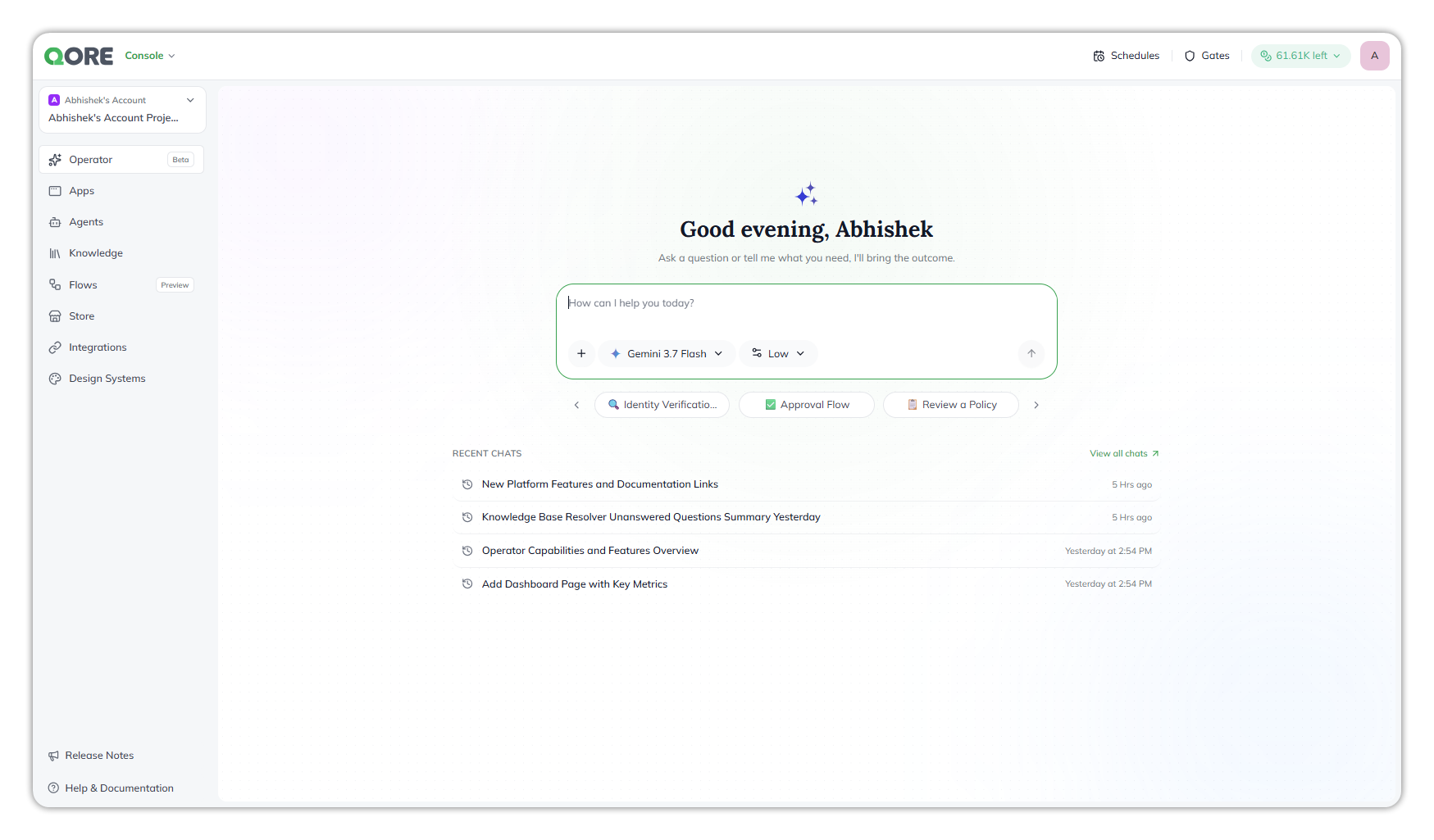
Select **Operator** in the Console sidebar. The home greets you by name, with *Ask a question or tell me what you need, I'll bring the outcome.* Type your request in **How can I help you today?** and send it.
The Operator home.
### Use a starter
Pick a starter from the row under the composer, such as **Approval Flow** or **Review a Policy**. The arrows either side scroll through them.
### Find an earlier conversation
* On the home, **Recent chats** lists your latest conversations. **View all chats** opens the full list.
* In a conversation, **Conversation History** on the left lists your conversations in the project, newest first. Conversations are specific to each user. Type in **Search conversations** to filter them by title.
### Start a new conversation
Select **+ New Conversation**, top right.
***
## :keyboard: The composer
The composer at the bottom holds your message and four controls. Your model and effort choice applies to each message you send, so you can switch mid-conversation. The composer remembers your last choice for your next conversation.
### Attach a file
Select **+**, then **Attach files**.
### Choose the model
Select the model control, then a model, such as **Gemini 3.7 Flash** or **GPT 5.4**.
### Choose the effort
Select the effort control, then **Minimal**, **Low**, **Medium**, or **High**. More effort usually gives better plans on complex requests, at the cost of time and credits.
{% hint style="info" %}
The model and effort apply to the Operator only. Agents it hands work to run on their own configured model and effort.
{% endhint %}
### See how full the conversation is
The context gauge shows how full the conversation's context is, such as `0%`. Hover over it for the detail, such as `18 / ~200.0K tokens`. When it fills up, start a new conversation.
***
## :comments: Work in a conversation
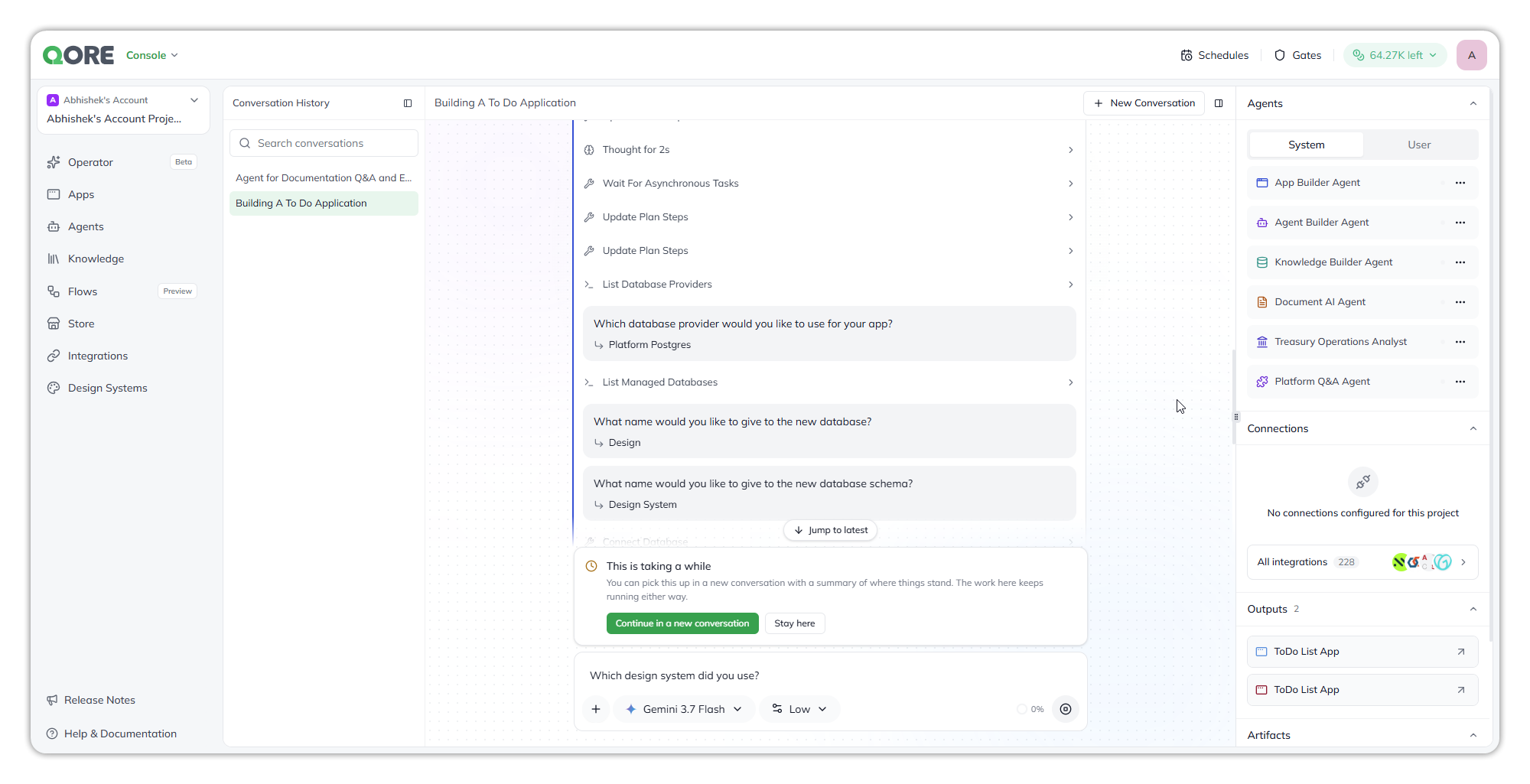
A conversation has three columns: **Conversation History** on the left, the transcript in the middle, and the side panel on the right.
A conversation.
### Follow the work
The transcript shows how long the Operator thought, each step it took, such as **Update Plan Steps**, and each question it asked with the answer beneath it.
When it hands work to an agent, the agent appears as a card with its step count, such as **App Builder Agent · 49 steps**, and a **Working** status while it runs.
* Select **Open full run** on the card to see every step the agent took.
* Select **Jump to latest** to return to the bottom.
### Answer a question from an agent
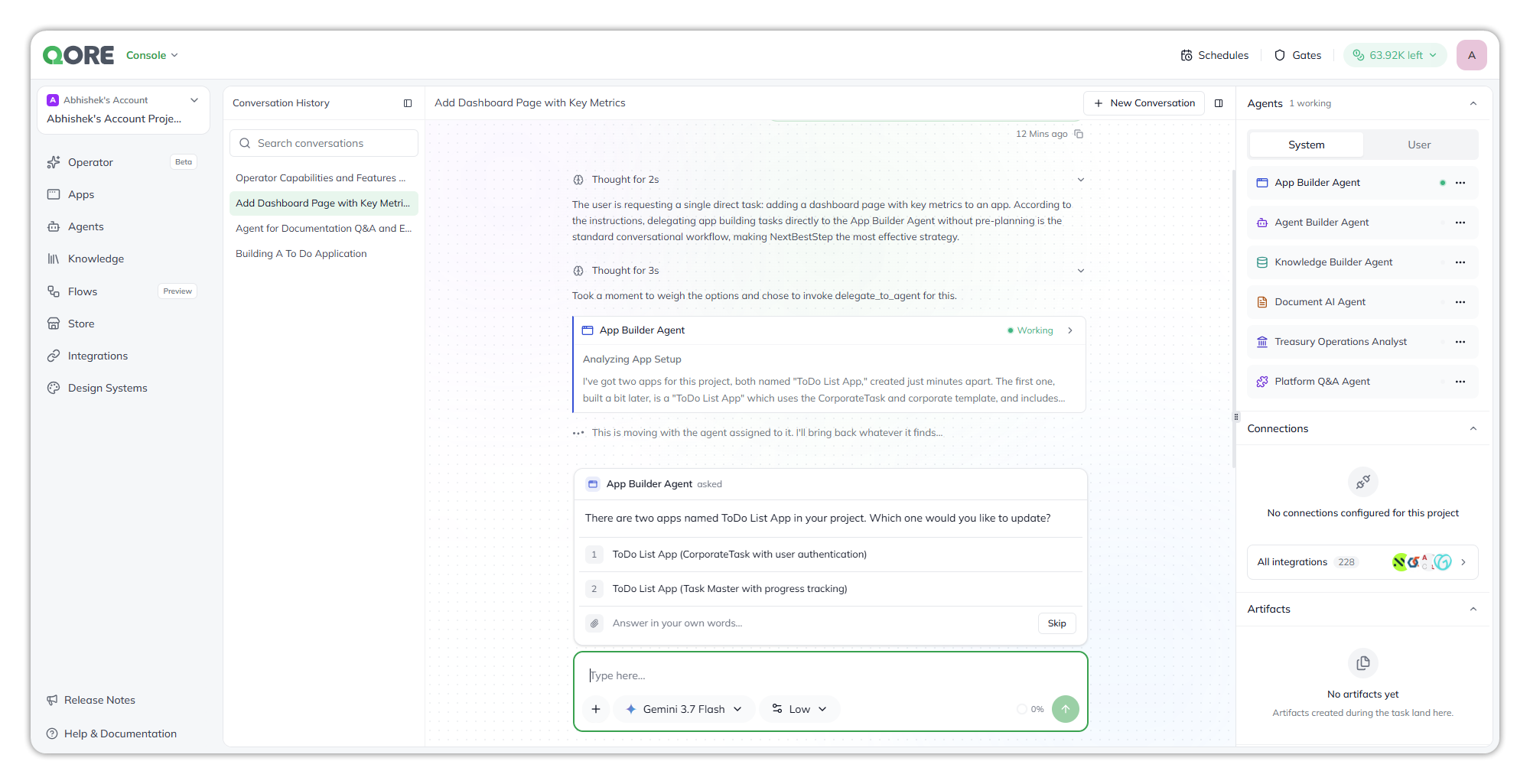
When an agent needs a decision, the question appears as a card above the composer. Choose one:
* Pick one of the numbered answers.
* Write your own in **Answer in your own words…**.
* Attach a file, when the agent asks for one, such as a brand guide.
* Select **Skip** to let the agent carry on without an answer.
A question from an agent.
A conversation that ends on a question also appears on [Gates](#see-conversations-waiting-for-me) until you answer.
### Keep going when a task runs long
When a turn runs long, **This is taking a while** appears above the composer. Choose one:
* **Continue in a new conversation** — carry on elsewhere, with a summary of where things stand.
* **Stay here** — keep watching.
The work keeps running whichever you choose.
### Find what the conversation built
In the side panel:
* **Outputs** — what the conversation built, such as an app, with a link to open it.
* **Artifacts** — files and documents created during the task.
If the side panel is hidden, select the panel icon beside **+ New Conversation**.
***
## :circle-question: What you can ask for
### Build an app, agent, or knowledge base
Ask for it, and the Operator creates it in the current project. You can test a new agent in the same conversation.
* **An app** — the App Builder Agent asks which of the project's design systems to use, or name one in your request.
* **Knowledge from a website** — give it a URL, and it can use the site's content to create a knowledge base.
Building an app or ingesting knowledge can take several minutes. The Operator reports the real outcome when the build finishes, even if the conversation was interrupted.
### Work with documents
Ask the **Document AI Agent** to extract data from documents, classify or summarise them, answer questions from them, or generate new ones. Before it generates a document, it lists the project's saved document templates and asks you to choose one.
### Create or change a design system
Ask the Operator to create, change, or delete one of the project's design systems, for example from a brand's website. To set a logo, attach the image to the conversation. See [Create a design system](/task-guides/create-a-design-system.md#create-or-change-a-design-system-in-the-console-operator).
### Ask about the account
Ask who is in the account and which teams it has. The Operator can tell you, but it can't add, remove, or change people or teams. That stays in [Users](/control-center/admin/users.md) and [Teams](/control-center/admin/teams.md). It can also manage the account's projects for you.
***
## :plug: Agents and connections
The side panel's **Agents** and **Connections** sections decide what the Operator may use.
### Stop the Operator using a system agent
Under **Agents** › **System**, select the agent's **⋯**, then turn it off. System agents start on.
The setting applies to you, in this project, and sticks across new conversations. A change takes effect on your next request. You can't turn an agent off while it is working on a run.
### Let the Operator use one of my agents
Under **Agents** › **User**, select the agent's **⋯**, then turn it on. Your own agents start off. Only agents on the current agent runtime are listed.
### Let the Operator use a connection
Under **Connections**, select the connection's **⋯**, then **Enable**. Every connection starts off. You can also select **+** › **Connections** in the composer.
The **⋯** menu also has:
* **Manage** — choose which of the connection's actions the Operator may use, and how closely each is supervised.
* **Manage in Integrations** — open the connection's details in the integrations catalog.
Only the Operator itself uses these connections. Agents it hands work to don't inherit them.
### Connect a new system
Under **Connections**, select **All integrations**. Connect one in the catalog. It appears in **Connections** when you close the window, turned off until you turn it on.
For the system agents and how each setting behaves, see [Agents & connections](/console/console-operator/agents-and-connections.md).
***
## :calendar-check: Schedules and gates
### Run the Operator on a schedule
{% stepper %}
{% step %}
#### Open Schedules
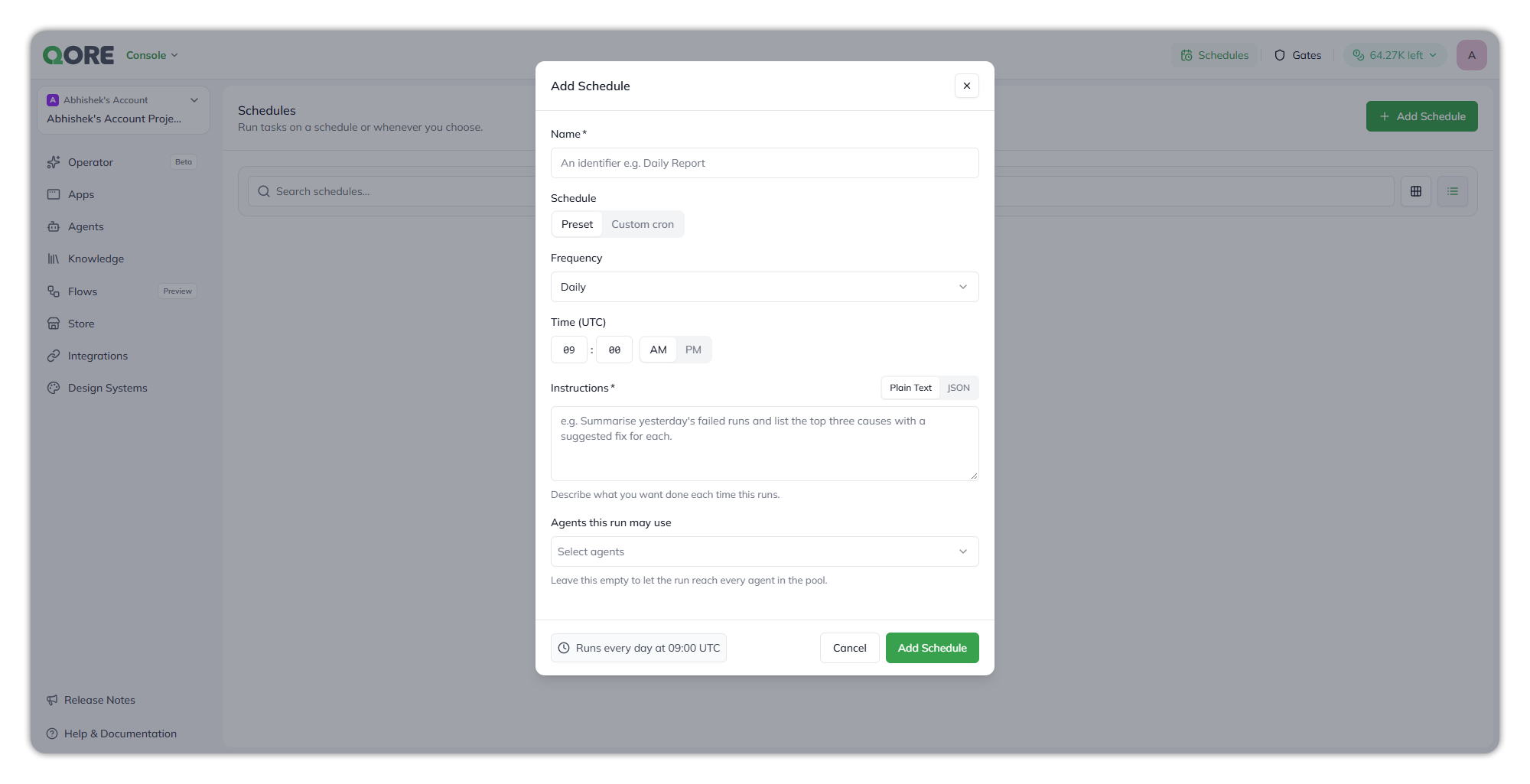
Select **Schedules** in the top bar, then **+ Add Schedule**.
{% endstep %}
{% step %}
#### Name it
Enter a **Name**, such as `Daily Report`. A name of only spaces isn't accepted.
{% endstep %}
{% step %}
#### Set when it runs
Under **Schedule**, choose **Preset** and pick a **Frequency** (**Hourly**, **Daily**, **Weekly**, or **Monthly**) and a **Time (UTC)**. Or choose **Custom cron** and enter a **Cron Expression**, such as `0 9 * * *`.
{% endstep %}
{% step %}
#### Write the instructions
In **Instructions**, describe what you want done each time it runs, in **Plain Text** or **JSON**.
{% endstep %}
{% step %}
#### Choose the agents
Under **Agents this run may use**, pick the agents each run can hand work to. Leave it empty to let the run reach every agent.
{% endstep %}
{% step %}
#### Save
Check the summary, such as **Runs every day at 09:00 UTC**, then select **Add Schedule**.
{% endstep %}
{% endstepper %}
Add Schedule.
{% hint style="warning" %}
A scheduled run acts with no one watching, and no one can answer its questions. Give it everything it needs in the instructions.
{% endhint %}
You can also describe the schedule in a conversation, for example *"Every Monday at 8 AM UTC, check which knowledge bases have files that need syncing and tell me."* The Operator sets it up for you.
### Pause, edit, or delete a schedule
On **Schedules**, select the schedule's **⋯**, then **Pause**, **Resume**, **Edit**, or **Delete**. Type in **Search schedules…** to find one. There is no **Run now**; to run the same instructions straight away, ask the Operator.
### See conversations waiting for me
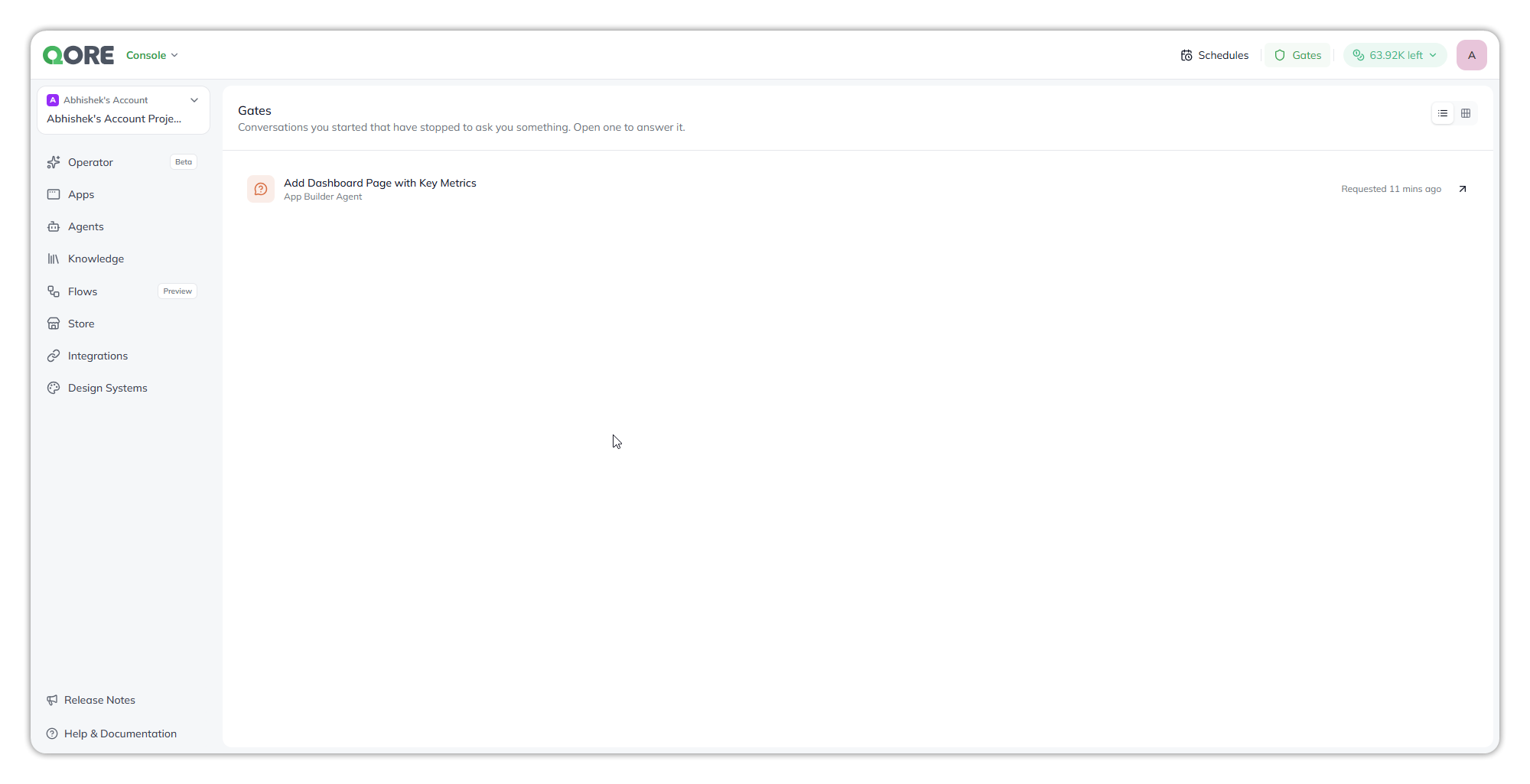
Select **Gates** in the top bar. It lists the conversations you started that have stopped to ask you something, each with its title, the agent asking, and how long it has waited. Select one to open the conversation at the question, then answer it.
Gates.
Only you can answer your requests. Once you answer, the request leaves **Gates** and the work continues.
### Work in a different project
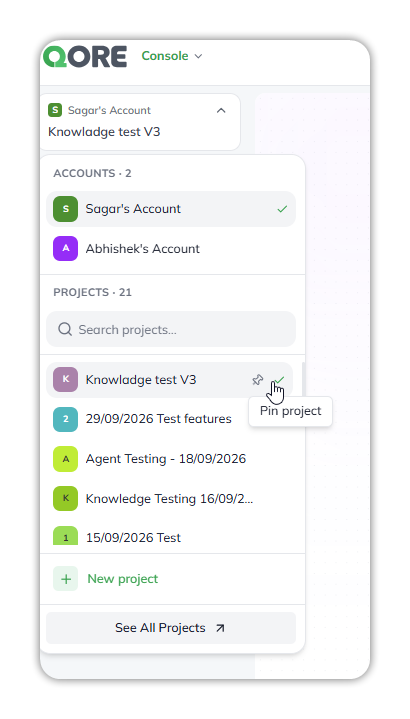
Open the account and project switcher at the top of the Console sidebar, then choose a project. Everything the Operator creates belongs to the selected project, so switching changes what it can reach.
The account and project switcher.
***
## :triangle-exclamation: Common issues
* **I can't see a colleague's conversation.** Conversations are specific to each user; you see only the ones you started.
* **The Operator didn't use my agent.** Your own agents start off. Turn it on under **Agents** › **User**. Agents on an older runtime aren't listed.
* **The Operator says it has no connection for a system.** Turn on the connection it names, or connect one from **All integrations**.
* **Something I started hasn't finished.** Check **Gates**: it may be waiting for your answer.
* **The context gauge is nearly full.** Start a new conversation.
* **A scheduled run didn't do what I expected.** Nobody can answer its questions. Put everything it needs in the instructions, and limit **Agents this run may use** to what the task needs.
***
## :link: Related pages
* [Console Operator](/console/console-operator.md), [Agents & connections](/console/console-operator/agents-and-connections.md), [Schedules](/console/console-operator/schedules.md), and [Gates](/console/console-operator/gates.md)
* [Create an app](/task-guides/create-an-app.md), [Create an agent](/task-guides/create-an-agent.md), [Create a knowledge base](/task-guides/create-a-knowledge.md), and [Create a design system](/task-guides/create-a-design-system.md)
***
{% columns %}
{% column width="83.33333333333334%" %}
Maintained by Abhishek Paul AI-assisted, human-approved
{% endcolumn %}
{% endcolumns %}
---
# Agent Instructions
This documentation is published with GitBook. GitBook is the documentation platform designed so that both humans and AI agents can read, navigate, and reason over technical content effectively. Learn more at gitbook.com.
## Querying This Documentation
If you need additional information that is not directly available in this page, you can query the documentation dynamically by asking a question.
Perform an HTTP GET request on the current page URL with the `ask` query parameter, and the optional `goal` query parameter:
```
GET https://docs.uptiq.ai/task-guides/use-the-console-operator.md?ask=&goal=
```
`ask` is the immediate question: it should be specific, self-contained, and written in natural language.
`goal` is optional and describes the broader end goal you are ultimately trying to accomplish on behalf of the user. GitBook uses it to tailor the answer towards what is most useful for that goal.
The response will contain a direct answer to the question and relevant excerpts and sources from the documentation.
Use this mechanism when the answer is not explicitly present in the current page, you need clarification or additional context, or you want to retrieve related documentation sections.