> For the complete documentation index, see [llms.txt](https://docs.uptiq.ai/llms.txt). Markdown versions of documentation pages are available by appending `.md` to page URLs; this page is available as [Markdown](https://docs.uptiq.ai/task-guides/manage-costs-and-limits.md).
# Manage costs and limits
Every Cost Control task in Control Center: review credit usage and history, set hard limits, and get alerted before a cap.
This guide is organized by task. Find what you want to do in the list below, then follow the steps. Each task links to the reference page it comes from.
| Task | Go to |
| --------------------------------------------- | ----------------------------------------------------------- |
| See how many credits are available and used | [Credit usage](#see-available-and-used-credits) |
| See which apps, agents, or models use credits | [Resource usage](#see-what-used-the-credits) |
| See every credit and debit | [Credit history](#see-every-credit-and-debit) |
| Cap credit consumption | [Add a limit](#cap-credit-consumption) |
| Change or remove a limit | [Edit a limit](#change-or-remove-a-limit) |
| Get an email before usage reaches a cap | [Add an alert](#get-alerted-when-usage-crosses-a-threshold) |
| Report on spend by project | [Credit report](#report-on-spend-by-project) |
| Export credit usage data | [Export](#export-credit-usage-data) |
***
## :coins: Credit usage
### See available and used credits
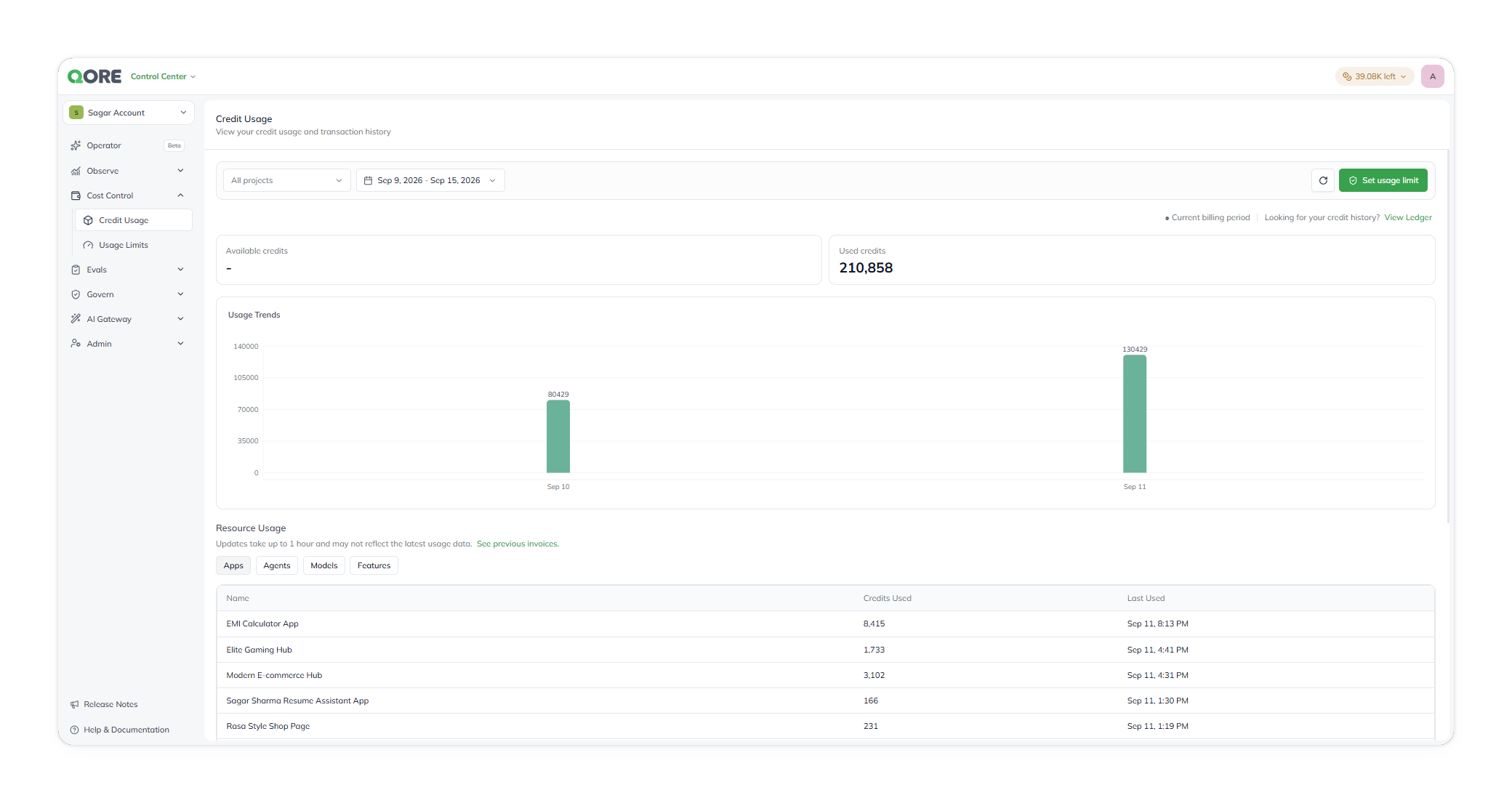
Open **Cost Control** › **Credit Usage**. Narrow by project and date range. The page shows **Available credits** and **Used credits** for the period, and **Usage Trends** plots consumption over time.
Credit Usage.
### See what used the credits
Under **Resource Usage**, choose a tab: **Apps**, **Agents**, **Models**, or **Features**. Each row lists a resource's **Name**, **Credits Used**, and **Last Used**.
* Online Eval scoring is billed on its own, as `OnlineEval` on the **Features** tab, and isn't counted on the **Agents** tab.
* Resource usage can lag live activity by up to one hour.
* Usage against a UPTIQ managed key in AI Gateway draws on your credit balance; with your own key, the provider bills you directly.
Reference: [Credit Usage](/control-center/cost-control/credit-usage.md).
### See every credit and debit
On **Credit Usage**, select **View Ledger**. **Credit History** lists every transaction, with its **Operation Type** (**Debit** or **Credit**), **Additional Details** (such as *Action Deduction* or *Credits Addition*), **Credit Change**, **Balance Credit**, and **Timestamp**.
Credit History.
***
## :bell: Limits and alerts
{% hint style="info" %}
Credit limits exist at three levels, and the strictest applicable one wins: an organization-wide cap, the per-account limits and alerts on **Usage Limits**, and a per-agent credit guardrail set in Agent Builder. Every account starts with a default weekly hard limit until you replace it.
{% endhint %}
### Cap credit consumption
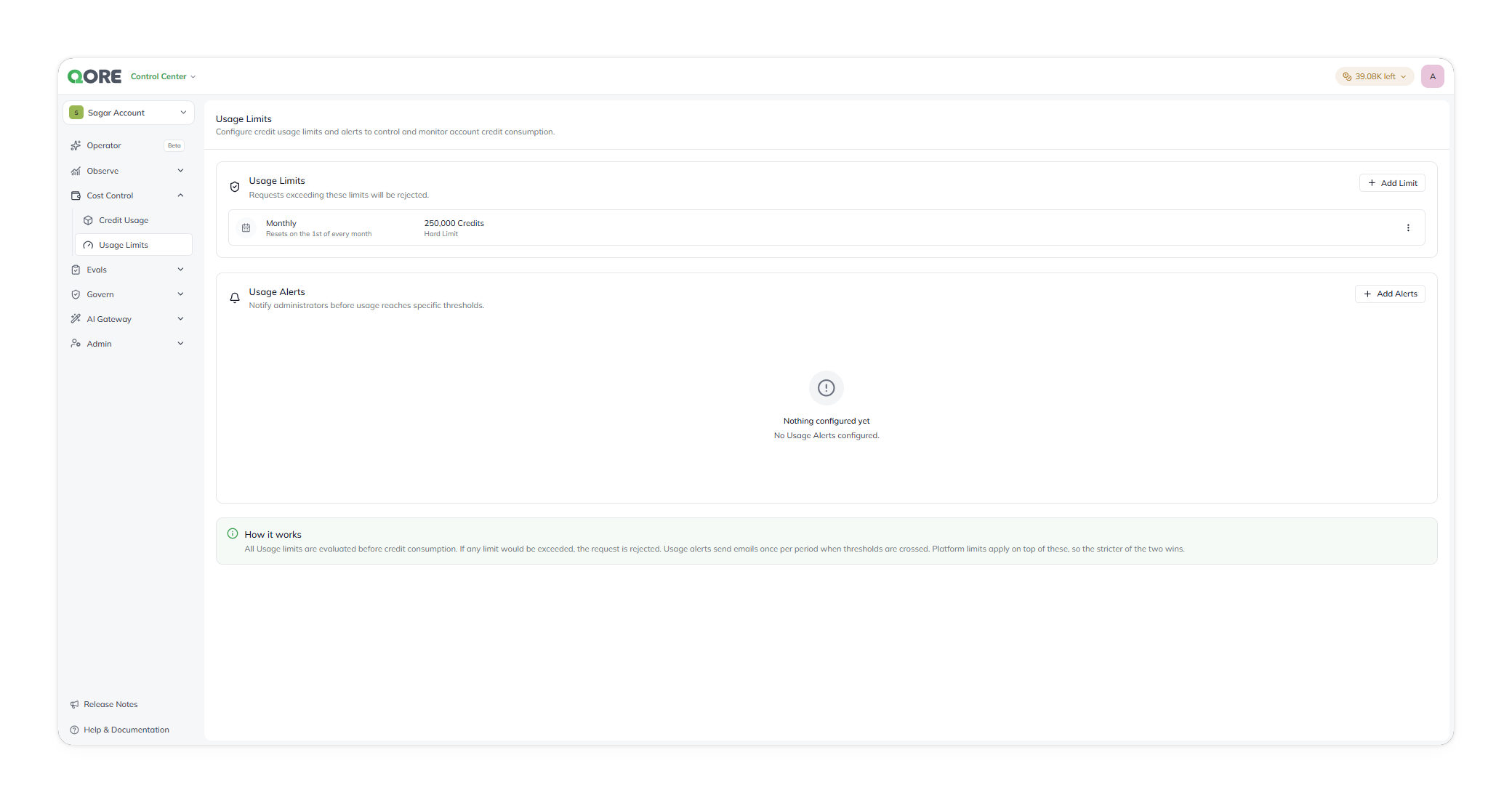
Open **Cost Control** › **Usage Limits**, or select **Set usage limit** on **Credit Usage**. Select **+ Add Limit**.
Usage limits are hard caps: a request that would exceed a limit is rejected. Each limit shows its period, cap, and type; for example, a **Monthly** **Hard Limit** of `80,000 Credits` resets on the first day of each month.
Usage Limits.
### Change or remove a limit
On **Usage Limits**, use the limit's row menu to edit or remove it.
### Get alerted when usage crosses a threshold
{% stepper %}
{% step %}
#### Open Add Alert
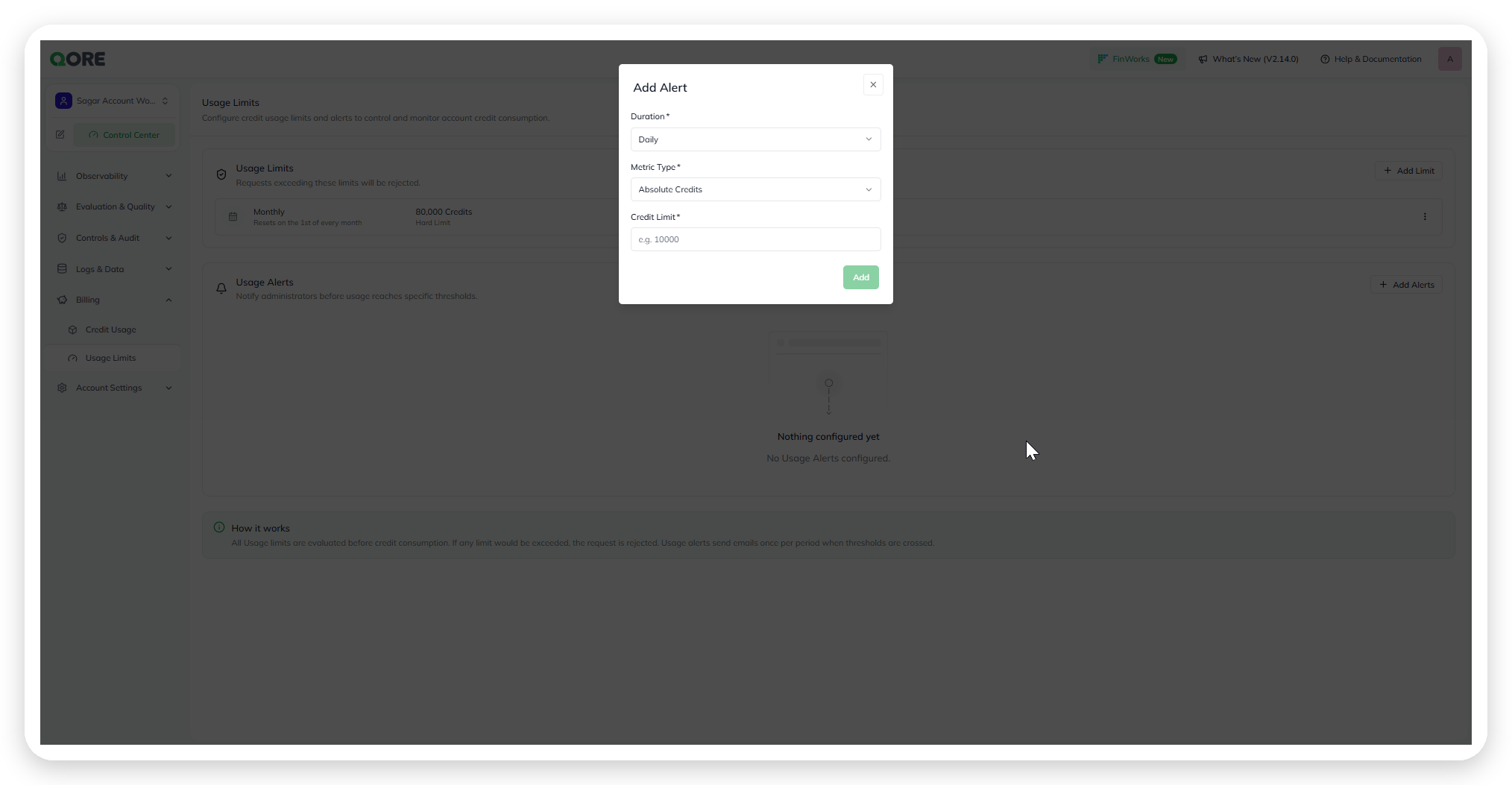
On **Usage Limits**, select **+ Add Alerts**.
{% endstep %}
{% step %}
#### Fill in the alert
* **Duration** — required. The alert period, such as **Daily**.
* **Metric Type** — required. **Absolute Credits** (a credit count) or **Percentage of Limit** (a share of a configured limit).
* **Credit Limit** or threshold — required. A credit count, or a percentage.
{% endstep %}
{% step %}
#### Save
Save the alert.
{% endstep %}
{% endstepper %}
Add Alert.
The alert emails every **Account Admin** on the account once per period after usage crosses the threshold. Reference: [Usage Limits](/control-center/cost-control/usage-limits.md).
***
## :file-lines: Reporting
### Report on spend by project
Open **Observe** › **Reports** and use the **Credit Usage Report**: spend and activity per project, with **Apps**, **Agent Executions**, **$ Spend — Apps**, and **$ Spend — Agent Executions**. Choose the project scope and date range, then generate it, or choose a format and email it. Set the date range explicitly for billing-critical reporting. See [Monitor activity › Reports](/task-guides/monitor-activity.md#review-a-usage-or-execution-report).
### Export credit usage data
Open **Observe** › **Export** and choose the **Credit Usage** dataset: consumption by app, agent, and model over the period. Run it once or on a schedule. See [Monitor activity › Export](/task-guides/monitor-activity.md#export-activity-data).
***
## :link: Related pages
* [Cost Control](/control-center/cost-control.md), [Credit Usage](/control-center/cost-control/credit-usage.md), and [Usage Limits](/control-center/cost-control/usage-limits.md)
* Who can view usage and set limits: [Roles](/control-center/admin/roles.md)
***
{% columns %}
{% column width="83.33333333333334%" %}
Maintained by Abhishek Paul AI-assisted, human-approved
{% endcolumn %}
{% endcolumns %}
---
# Agent Instructions
This documentation is published with GitBook. GitBook is the documentation platform designed so that both humans and AI agents can read, navigate, and reason over technical content effectively. Learn more at gitbook.com.
## Querying This Documentation
If you need additional information that is not directly available in this page, you can query the documentation dynamically by asking a question.
Perform an HTTP GET request on the current page URL with the `ask` query parameter, and the optional `goal` query parameter:
```
GET https://docs.uptiq.ai/task-guides/manage-costs-and-limits.md?ask=&goal=
```
`ask` is the immediate question: it should be specific, self-contained, and written in natural language.
`goal` is optional and describes the broader end goal you are ultimately trying to accomplish on behalf of the user. GitBook uses it to tailor the answer towards what is most useful for that goal.
The response will contain a direct answer to the question and relevant excerpts and sources from the documentation.
Use this mechanism when the answer is not explicitly present in the current page, you need clarification or additional context, or you want to retrieve related documentation sections.