For the complete documentation index, see llms.txt. This page is also available as Markdown.

Evaluators

Create scoring methods and configure confidence-based review routing.

An evaluator is a named scoring method backed by a judge model, defined at the account level. Open Control Center → Evals → Evaluators to view, edit, or create evaluators. Use Agent enablement to attach an account's evaluators to individual agents — an evaluator isn't created per agent or per project, so the same one can serve every agent that enables it.

At the top, the page summarizes your setup:

  • Evaluators: how many exist, and how many are active

  • Judge models: how many models are available to judge, and their providers (such as Anthropic, Google, and OpenAI)

  • Online eval agents: agents scoring live traffic out of all agents, such as 9 / 71

Use Evaluators to manage scoring methods. Use Agent enablement to enable evaluators for each agent.

The Evaluators tab: summary cards for evaluators, judge models and online eval agents, above a table of evaluators with their framework, judge models and confidence threshold
Evaluators are the named scoring methods available to your agents.

Evaluator fields

Field
What it shows

Evaluator

The evaluator name and its Active status, with its method and the number of agents using it beneath.

Framework

The scoring approach: Single judge (one model) or Jury (several models, weighted vote), shown with its model count, such as Jury (5).

Judge model(s)

The model or models that score, such as Claude Haiku 4.5.

Confidence Threshold

The confidence below which a score can route to Human Review, such as 95%.

Actions

A menu for editing or removing the evaluator.

Create an evaluator

1

Open the creation dialog

Select + New evaluator. You need the Build Evals capability; without it the button is disabled.

2

Configure the evaluator

Complete the following fields:

  • Evaluator name — Required. Use a label such as Answer relevancy.

  • Framework — Single judge scores each output with one model. Jury scores it with several judge models and takes a weighted vote. See Choose a framework below.

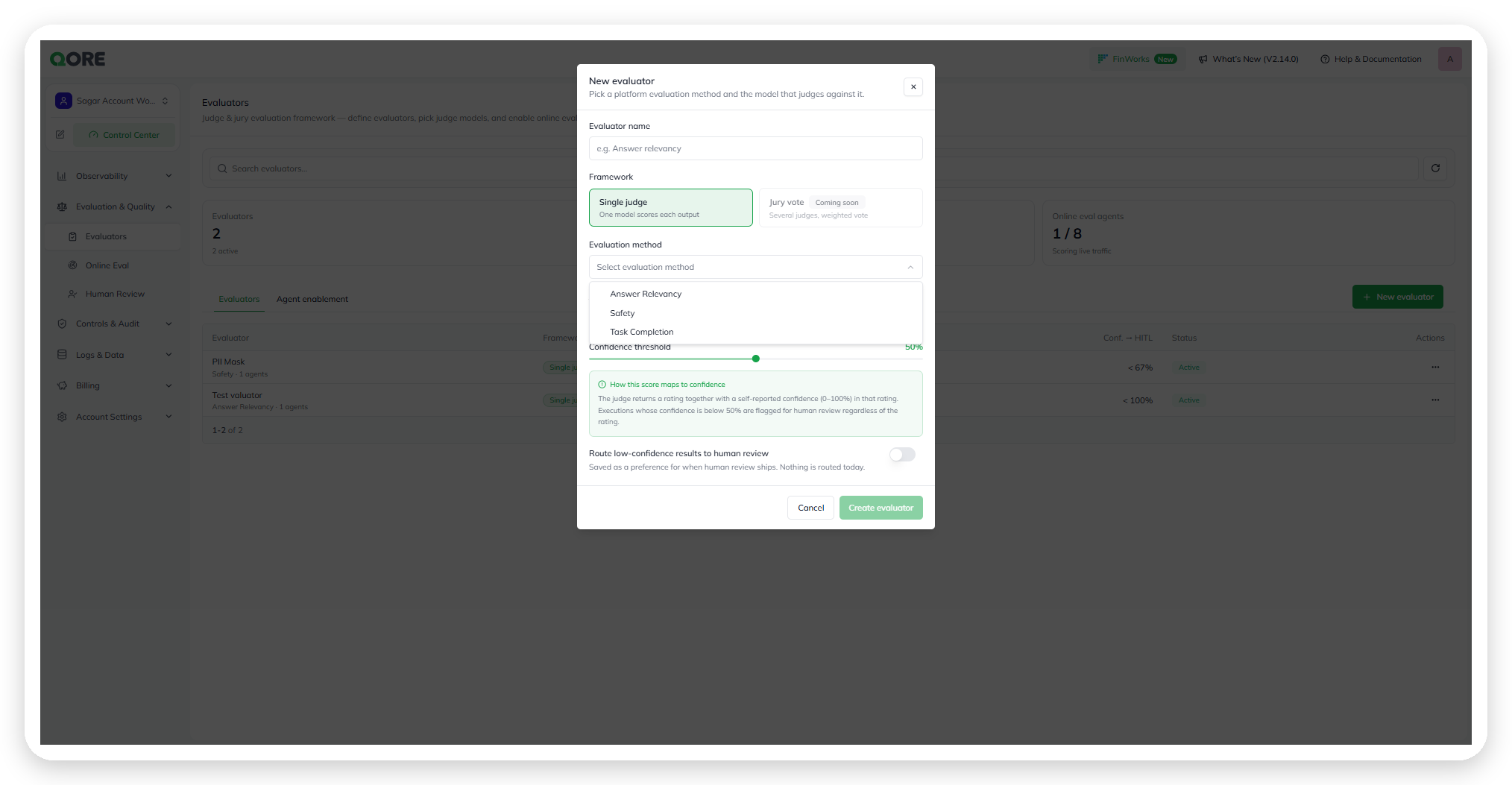
  • Evaluation method — Select Answer Relevancy, Faithfulness, Safety, or Task Completion. See Faithfulness below.

The New evaluator dialog with Single judge selected: evaluator name, framework, evaluation method, judge model, a 50% confidence threshold, and the route-to-human-review toggle
Configure a new evaluator.
The Evaluation method menu shows Answer Relevancy, Safety, and Task Completion.
Select an evaluation method.
  • Judge model (Single judge) or Jury models (Jury) — Required. Select one model, or 2 to 5 for a jury. A jury's models can come from different providers.

The New evaluator dialog with Jury selected, showing the Jury models field with the hint Pick 2–5 models
A jury takes 2 to 5 models.
  • Confidence threshold — Defaults to 50%. The judge (or jury) returns a rating and a confidence from 0–100%. Results below this threshold are flagged for human review, regardless of rating.

  • Route low-confidence results to human review — Off by default. Turn it on to send below-threshold results to Human Review. While it's off, low-confidence results are still scored but are auto-accepted.

3

Save the evaluator

Select Create to save the evaluator, or Create & assign agents to save it and go straight to choosing the agents it scores. Both buttons are enabled once you set a name, a method, and the judge model or jury models.

Faithfulness

Faithfulness rates how much of what the agent said is supported by the context it was given: the retrieved context for a turn, the results of the tools it called, and what the user said in the conversation. Nothing else counts as support.

The judge breaks each agent response into its individual factual claims. A claim is supported if the context states it or directly entails it, and unsupported if the context contradicts it or is silent on it. The score is the number of supported claims divided by the total number of factual claims, shown in Online Eval as a percentage.

  • It judges support, not usefulness or correctness. A claim that is true but absent from the context is unsupported.

  • Some replies aren't counted either way. Questions, clarifications, refusals, and statements about what the agent itself is doing carry no factual claim. If the agent correctly says it doesn't know something, that is supported.

  • A turn with no retrieved context and no tool results isn't scored as a failure on that basis alone. The judge evaluates whatever the user supplied and reports a lower certainty.

Choose a framework

Framework
Judge models
Scoring
Best for

Single judge

One model

That model scores each output directly.

Fast, low-cost scoring where one capable model's judgment is enough.

Jury

Several models

Each judge model scores independently and reports its own confidence (0–100%). Qore combines the votes into one weighted verdict.

Higher-stakes evaluation methods, where no single model's judgment should decide the outcome alone.

The Edit evaluator dialog with Jury selected, showing five jury models (Claude Haiku 4.5, Claude Sonnet 4.5, GPT 5.1, Gemini 3.1 Pro Preview, GPT 4o) and a 95% confidence threshold
A Jury evaluator with five judge models and its own confidence threshold.
The Edit evaluator dialog with Single judge selected, showing one judge model and a 90% confidence threshold
A Single judge evaluator, for comparison.
A Jury evaluator's confidence threshold is independent of every other evaluator's. In the table above, Jury Answer Relevancy routes below 95% while the Single judge evaluator Test on the same page routes below 100%. Set each evaluator's threshold for its own judge model(s), not to match its neighbors.

Agent enablement

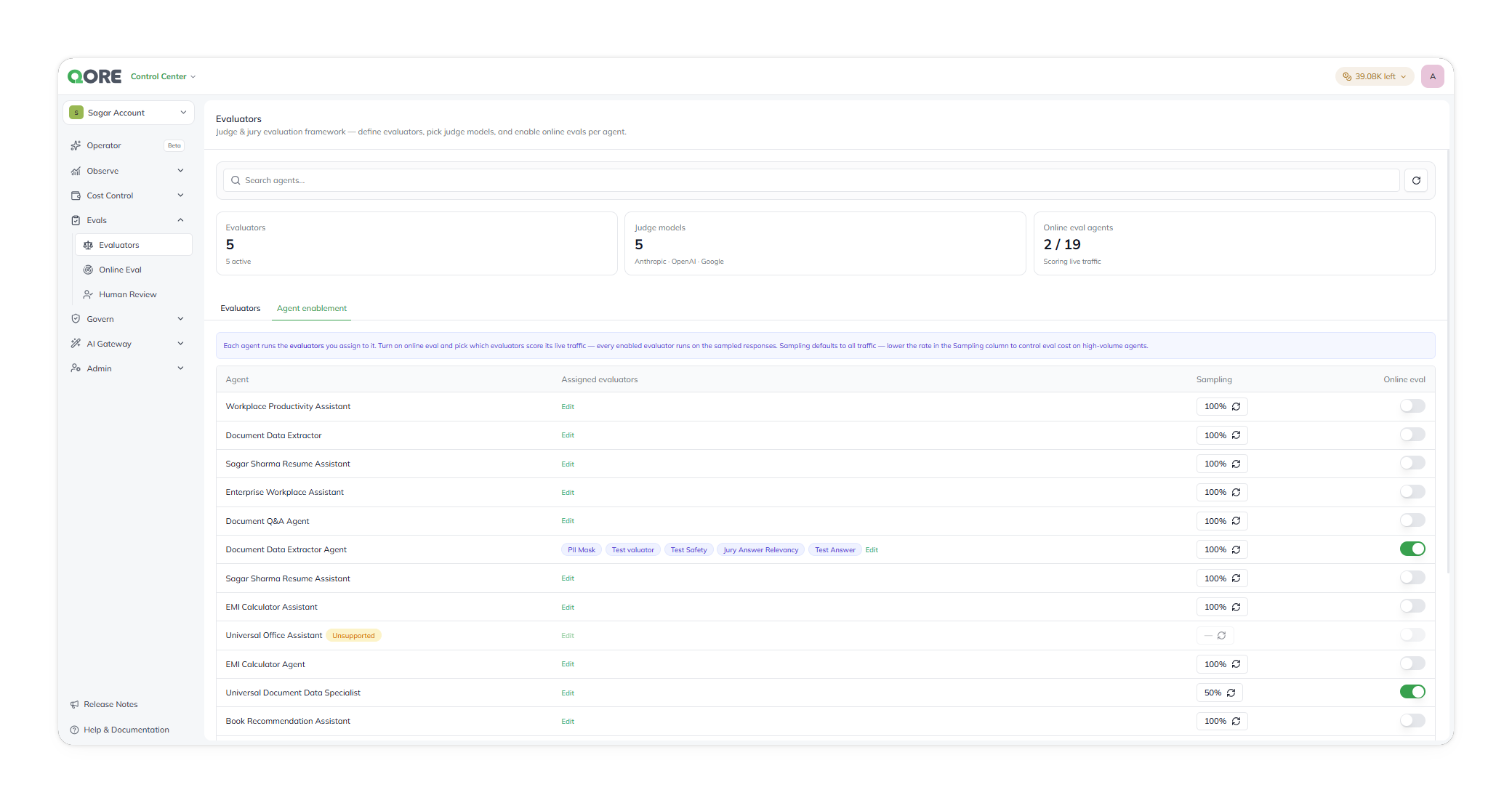
Use the Agent enablement tab to turn on Online Eval for an agent and choose which evaluators score its live traffic. Each agent runs only the evaluators you assign to it. Filter the list by project, or search for an agent.

The Agent enablement tab, listing agents with their project, assigned evaluators, a sampling percentage, and an Online eval toggle
Turn on Online Eval per agent and choose its evaluators.

Each row shows:

Field
What it shows

Agent

The agent this row configures.

Project

The project the agent belongs to. An agent with the same name in two projects has two rows.

Assigned evaluators

The evaluators assigned to this agent, as chips. Select Edit to change them.

Sampling

The chance that each live conversation is evaluated. Defaults to 100%; lower it on high-traffic agents to keep judge costs down.

Online eval

The toggle that turns live-traffic scoring on or off for this agent. While it's on, every enabled evaluator assigned to the agent scores the sampled share of its conversations.

Assign evaluators to an agent

Select Edit in the agent's Assigned evaluators cell. The Assign evaluators dialog lists every evaluator in the account. Tick the ones that should score this agent, then select Save. The chips in the row update to match.

The Assign evaluators dialog for an agent, with a checkbox for each evaluator in the account and Cancel and Save buttons
Pick the evaluators that score this agent.

Assigning evaluators doesn't start scoring on its own. Turn on the agent's Online eval toggle as well.

An agent can show Unsupported instead of a sampling control and toggle. That agent's type doesn't support Online Eval yet — its Edit link still lets you pre-assign evaluators for when support ships.


Maintained by Abhishek Paul AI-assisted, human-approved

Last updated

Was this helpful?