> For the complete documentation index, see [llms.txt](https://docs.uptiq.ai/llms.txt). Markdown versions of documentation pages are available by appending `.md` to page URLs; this page is available as [Markdown](https://docs.uptiq.ai/control-center/admin/teams.md).

# Teams

Teams group account members, scope them to spaces, and grant them access to specific agents and apps. They also route [Human Review](/control-center/evals/human-review.md) assignments. Open **Admin → Teams**.

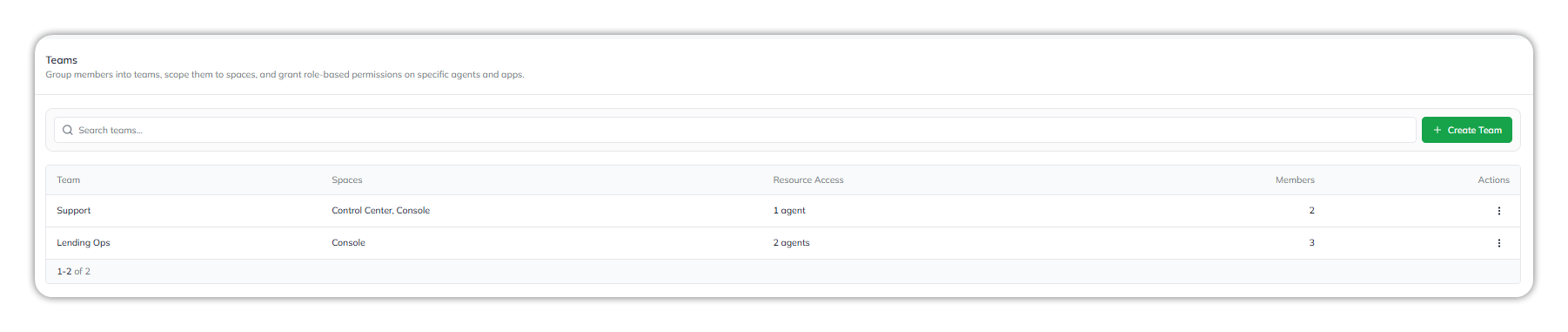
<figure><img src="https://1326225582-files.gitbook.io/~/files/v0/b/gitbook-x-prod.appspot.com/o/spaces%2F0qmgQjJ5aArDTj2ACFHG%2Fuploads%2Fgit-blob-0875453e309f1859008d0758c5a154b92a38a7c2%2F006_teams_list.png?alt=media" alt="The Teams list, with a Search teams field, a Create Team button, and columns for Team, Spaces, Resource Access, Members, and Actions; the Support team shows Control Center, Console and 1 agent, and Lending Ops shows Console and 2 agents"><figcaption><p>The Teams list. Resource Access counts the agents and apps each team can access.</p></figcaption></figure>

Each team shows its **Team** name, **Spaces**, **Resource Access** (how many agents and apps it can access, for example *2 agents*), **Members** count, and an **Actions** menu. Use **Search teams** to find a team.

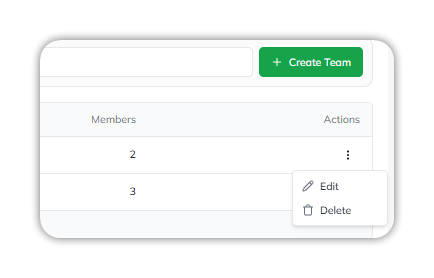
The **Actions** menu has two options:

* **Edit** — open the team to change its members and data permissions. See [Manage an existing team](#manage-an-existing-team).
* **Delete** — delete the team.

<figure><img src="https://1326225582-files.gitbook.io/~/files/v0/b/gitbook-x-prod.appspot.com/o/spaces%2F0qmgQjJ5aArDTj2ACFHG%2Fuploads%2Fgit-blob-a867b06de6381871eb26d08a62cc8fc3204818bc%2F007_teams_row_actions.png?alt=media" alt="A team row&#x27;s Actions menu open, showing Edit and Delete"><figcaption><p>Each team's Actions menu.</p></figcaption></figure>

A team's members can access the agents and apps in its **Data Permissions**. What each person can do with them still comes from their account-wide [roles](/control-center/admin/roles.md).

### Manage an existing team

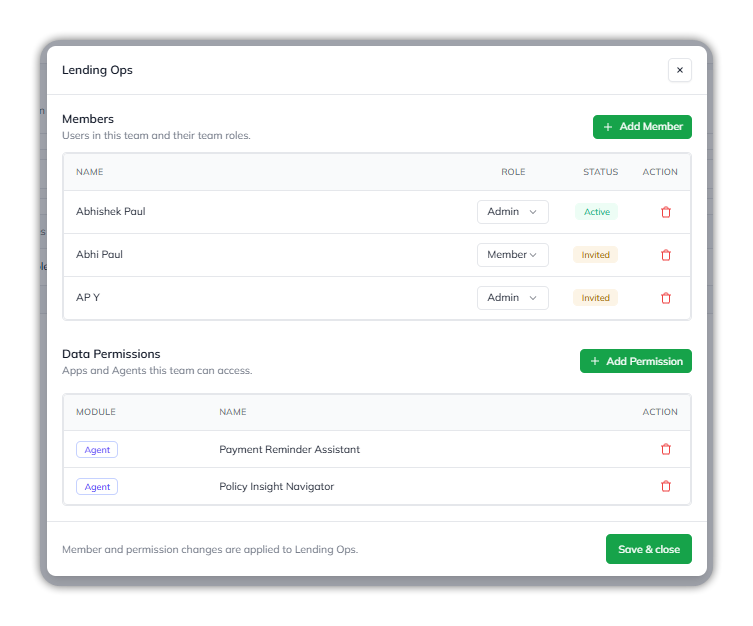
Select a team's row, or select **Edit** from its **Actions** menu, to open it. The dialog is titled with the team's name and has two sections.

<figure><img src="https://1326225582-files.gitbook.io/~/files/v0/b/gitbook-x-prod.appspot.com/o/spaces%2F0qmgQjJ5aArDTj2ACFHG%2Fuploads%2Fgit-blob-c6b380d7fa97d8f22a39651fa35c6bf7b46ae58f%2F012_teams_detail_view.png?alt=media" alt="The Lending Ops team dialog, with a Members table (Name, Role, Status, Action) above a Data Permissions table (Module, Name, Action), and a Save &#x26; close button at the bottom"><figcaption><p>A team's dialog: Members above, Data Permissions below. Changes apply when you select <strong>Save &#x26; close</strong>.</p></figcaption></figure>

Changes you make here apply to the team only when you select **Save & close**.

#### Members

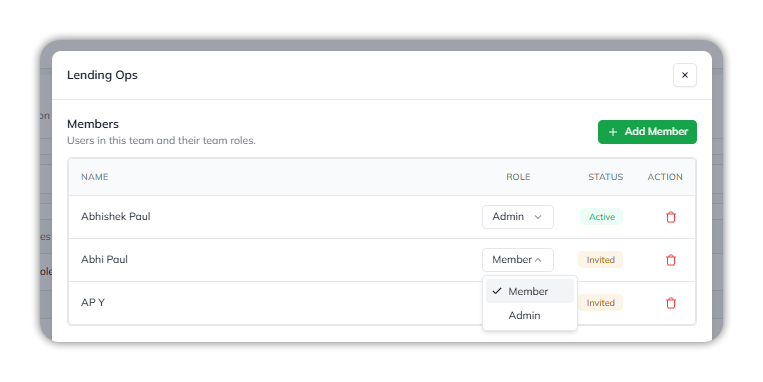
The Members table lists everyone on the team, with their **team role** (**Admin** or **Member**), **Status** (**Active** or **Invited**), and a delete action. To change someone's team role, open the **Role** dropdown in their row and select **Member** or **Admin**.

<figure><img src="https://1326225582-files.gitbook.io/~/files/v0/b/gitbook-x-prod.appspot.com/o/spaces%2F0qmgQjJ5aArDTj2ACFHG%2Fuploads%2Fgit-blob-15521eae783a45dce78cc9c08008f010f7245e00%2F013_teams_member_team_role.png?alt=media" alt="The Role dropdown open in a member&#x27;s row, with Member checked and Admin as the other option"><figcaption><p>Change a member's team role from the <strong>Role</strong> dropdown.</p></figcaption></figure>

{% hint style="info" %}
A member's team role (Admin/Member) is separate from their account-wide [roles](/control-center/admin/roles.md) (Developer, Account Admin, and so on). The team role only affects what they can do within this team; their account roles still govern everything else.
{% endhint %}

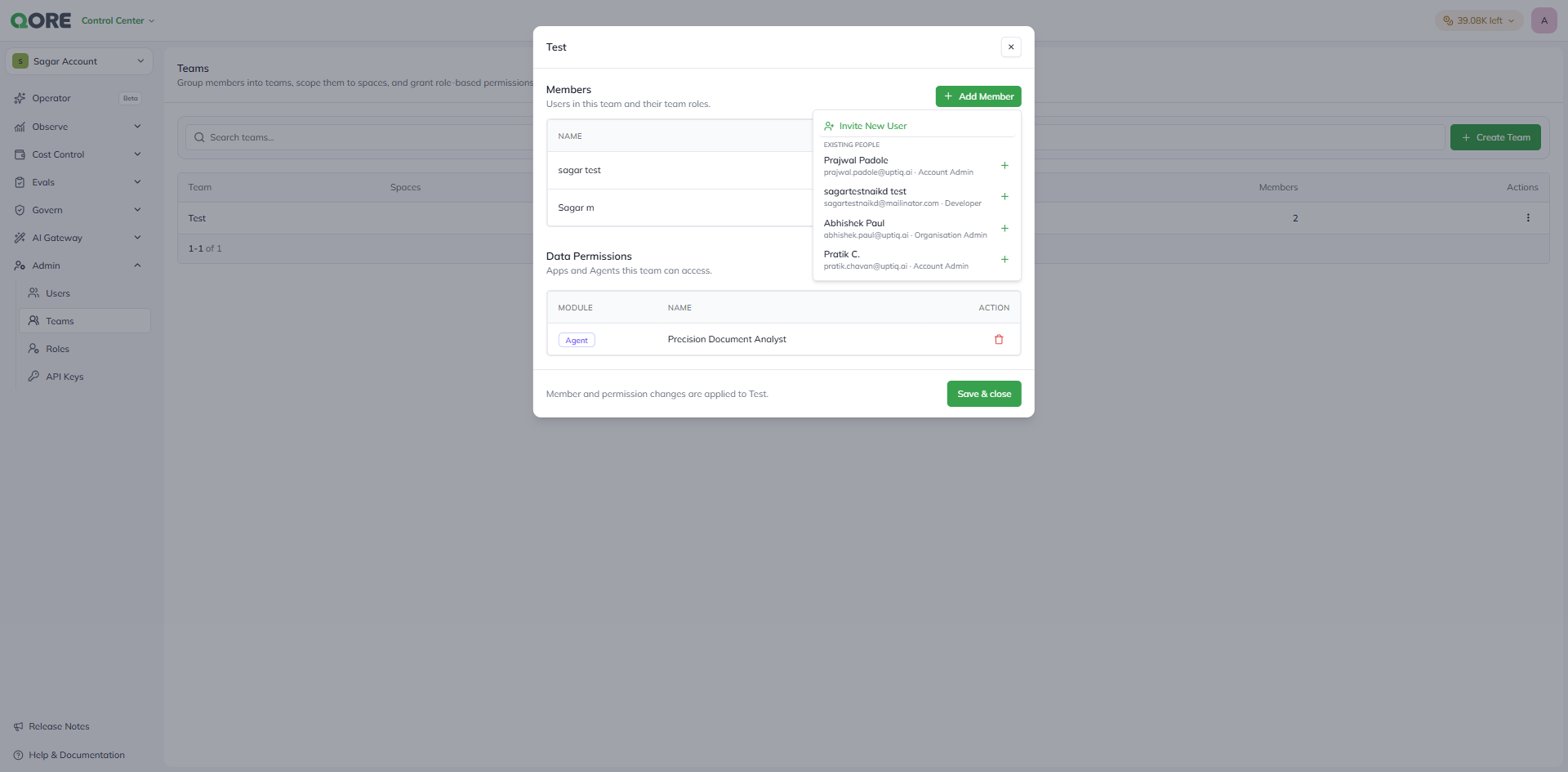
Select **+ Add Member** to open the list of everyone on the account. Each row shows the person's name, email, and current account role. Select the **+** next to a person to add them.

<figure><img src="https://1326225582-files.gitbook.io/~/files/v0/b/gitbook-x-prod.appspot.com/o/spaces%2F0qmgQjJ5aArDTj2ACFHG%2Fuploads%2Fgit-blob-273d9312c2691ca12cdd4bbc1a9bc99ee99ed6be%2F002_teams_add_member_dropdown.png?alt=media" alt="The Add Member dropdown, listing existing account members with their name, email, and account role, plus an Invite New User option at the top"><figcaption><p>Add an existing account member, or select <strong>Invite New User</strong> to bring in someone new.</p></figcaption></figure>

To bring in someone who isn't on the account yet, select **Invite New User** at the top of the list. This opens a form for their **First Name**, **Last Name**, **Email**, and the account-wide [roles](/control-center/admin/roles.md) they'll hold once they accept. They're added to this team automatically when they join.

#### Data Permissions

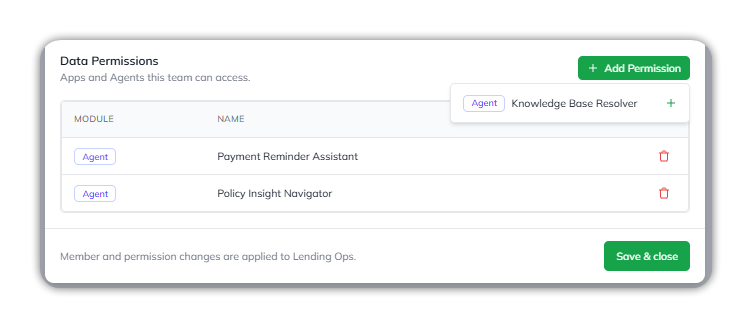
The Data Permissions table lists the apps and agents the team can access, by **Module** (for example **Agent**) and **Name**, with a delete action.

Select **+ Add Permission** to search the account's agents and apps and select the **+** next to any you want to add.

<figure><img src="https://1326225582-files.gitbook.io/~/files/v0/b/gitbook-x-prod.appspot.com/o/spaces%2F0qmgQjJ5aArDTj2ACFHG%2Fuploads%2Fgit-blob-799a6e44eacfc0641480b4e0eee770f0f4c3b1ab%2F014_teams_add_permission.png?alt=media" alt="The Add Permission dropdown open above the Data Permissions table, offering the Knowledge Base Resolver agent with a + action; two agents are already listed"><figcaption><p>Search the account's agents and apps and add the ones this team needs.</p></figcaption></figure>

### Create a team

Select **+ Create Team**. The dialog has two steps.

{% stepper %}
{% step %}

### Set up the team

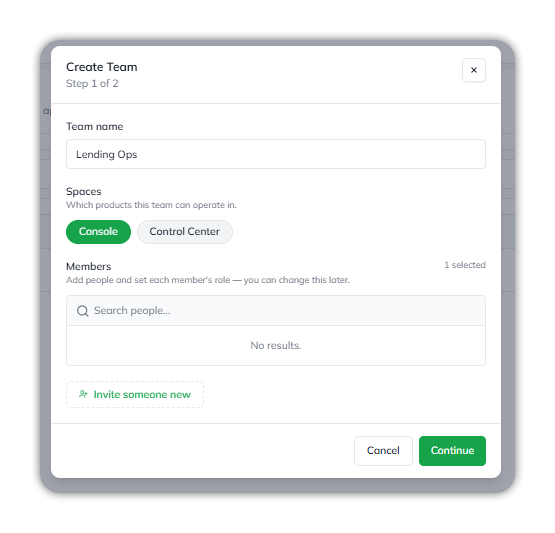
* **Team name** — a label, such as *Lending Ops*.
* **Spaces** — which products this team can operate in: select **Console**, **Control Center**, or both. This is separate from the agent and app permissions you set in step 2.
* **Members** — search the account's people and check the ones to add. The count of people selected shows beside the heading. You can change members and their team roles later. Select **Invite someone new** to invite a person who isn't on the account yet.

Select **Continue**.
{% endstep %}

{% step %}

### Set agent and app permissions

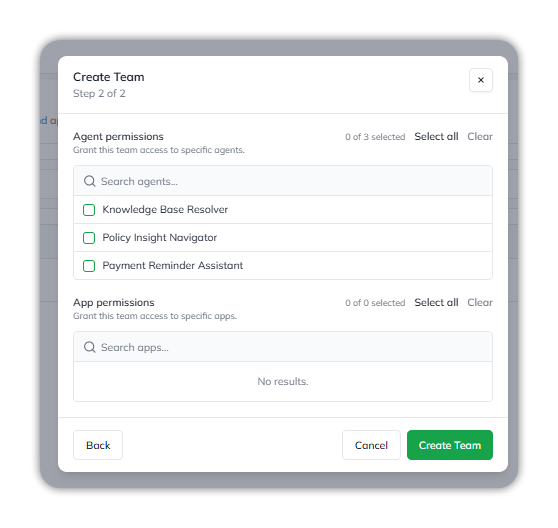
Choose what the team can access, in two lists:

* **Agent permissions** — the specific agents to grant this team access to.
* **App permissions** — the specific apps to grant this team access to.

Each list has a search field, a count such as *0 of 3 selected*, and **Select all** and **Clear**. Select **Create Team** to finish, or **Back** to return to step 1.
{% endstep %}
{% endstepper %}

<figure><img src="https://1326225582-files.gitbook.io/~/files/v0/b/gitbook-x-prod.appspot.com/o/spaces%2F0qmgQjJ5aArDTj2ACFHG%2Fuploads%2Fgit-blob-f69cf247364853c0e77bf3b72aa00147f645084b%2F008_teams_create_team_step1.png?alt=media" alt="Create Team step 1 of 2, with the Team name field set to Lending Ops, Console and Control Center buttons for Spaces with Console selected, a Members search showing 1 selected, and an Invite someone new link"><figcaption><p>Step 1: name the team, pick its spaces, and choose its members.</p></figcaption></figure>

<figure><img src="https://1326225582-files.gitbook.io/~/files/v0/b/gitbook-x-prod.appspot.com/o/spaces%2F0qmgQjJ5aArDTj2ACFHG%2Fuploads%2Fgit-blob-58769f5050bd121721690cf0731b07a11ffa084f%2F009_teams_create_team_step2.png?alt=media" alt="Create Team step 2 of 2, with an Agent permissions list of three agents (0 of 3 selected) and an App permissions list, each with search, Select all and Clear, and Back, Cancel and Create Team buttons"><figcaption><p>Step 2: grant the team access to specific agents and apps.</p></figcaption></figure>

{% hint style="info" %}
Complete both steps. The team's agent and app selections aren't saved until you select **Create Team** in the second step.
{% endhint %}

#### Invite someone new

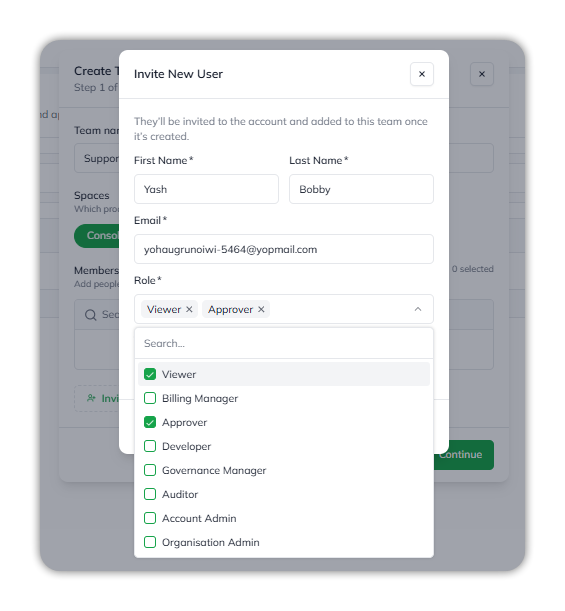
Selecting **Invite someone new** in step 1 opens **Invite New User**. The person is invited to the account and added to this team once the team is created. Every field is required.

* **First Name** and **Last Name**.
* **Email** — the address they'll sign in with. See [How invited people sign in](/control-center/admin/users.md#how-invited-people-sign-in).
* **Role** — one or more account-wide [roles](/control-center/admin/roles.md), such as **Viewer** and **Approver**.
* **Team Role** — **Member** or **Admin** within this team.

<figure><img src="https://1326225582-files.gitbook.io/~/files/v0/b/gitbook-x-prod.appspot.com/o/spaces%2F0qmgQjJ5aArDTj2ACFHG%2Fuploads%2Fgit-blob-a3e78e432201517f7aa006ff61ac5f85d68cd9ca%2F010_teams_invite_new_user_roles.png?alt=media" alt="The Invite New User form with First Name, Last Name and Email filled, and the Role dropdown open listing Viewer, Billing Manager, Approver, Developer, Governance Manager, Auditor, Account Admin, and Organisation Admin, with Viewer and Approver checked"><figcaption><p>Select one or more account roles for the person you invite.</p></figcaption></figure>

<figure><img src="https://1326225582-files.gitbook.io/~/files/v0/b/gitbook-x-prod.appspot.com/o/spaces%2F0qmgQjJ5aArDTj2ACFHG%2Fuploads%2Fgit-blob-617f3ba68446e1320e8c81952aa634ff398da1ff%2F011_teams_invite_new_user_team_role.png?alt=media" alt="The Invite New User form with Viewer and Approver selected as roles and the Team Role dropdown open, showing Member checked and Admin"><figcaption><p>Set their team role as well as their account roles.</p></figcaption></figure>


---

# Agent Instructions
This documentation is published with GitBook. GitBook is the documentation platform designed so that both humans and AI agents can read, navigate, and reason over technical content effectively. Learn more at gitbook.com.

## Querying This Documentation
If you need additional information that is not directly available in this page, you can query the documentation dynamically by asking a question.

Perform an HTTP GET request on the current page URL with the `ask` query parameter, and the optional `goal` query parameter:

```
GET https://docs.uptiq.ai/control-center/admin/teams.md?ask=<question>&goal=<endgoal>
```

`ask` is the immediate question: it should be specific, self-contained, and written in natural language.
`goal` is optional and describes the broader end goal you are ultimately trying to accomplish on behalf of the user. GitBook uses it to tailor the answer towards what is most useful for that goal.

The response will contain a direct answer to the question and relevant excerpts and sources from the documentation.

Use this mechanism when the answer is not explicitly present in the current page, you need clarification or additional context, or you want to retrieve related documentation sections.