For the complete documentation index, see llms.txt. This page is also available as Markdown.
New

Importing apps

Create apps from prompts, packages, repositories, or your own IDE.

There are four ways to get an app into App Builder:

  • Describe a new one from a prompt

  • Import a project you already have

  • Bring in a Git repository

  • Connect your own IDE

This page covers each.

Create a new app from a prompt

On the App Builder home, describe the app you want to build in the Describe the app you want to create… box, choose whether it targets Web or Mobile (Mobile is in beta), pick the model that builds it, and start the build. Qore opens the app workspace and works through your request. If you'd rather not start from scratch, pick one of the starter templates offered beneath the prompt.

The app creation prompt box, with Web/Mobile target and model selection
Describing a new app and choosing its target and model.

Import an existing app

Choose Import an existing app to bring in an app you already have. You can supply it three ways:

  • Upload a package or project — drag in, or select, a ZIP file up to 500 MB.

  • GitHub — import a repository.

  • GitLab — import a project.

The Import an existing app dialog, with Upload, GitHub, and GitLab options
The three ways to import an existing app.

A Qore Platform package is restored as-is — it comes back exactly as it was. Anything else — a Git repository, or a project exported from Lovable, v0, Bolt, or Figma Make — is converted into a Platform app. Expect a conversion step, not a byte-for-byte restore, for non-Platform sources.

Import from GitHub

Choose GitHub, then:

1

Pick the connected account

2

Choose a Repository

3

Choose a Branch

This only becomes available once you've selected a repository.

4

Select Continue

Import that repository and branch.

The App Builder home, with the app creation prompt and the option to import an existing app
Starting a new app or importing an existing one from App Builder's home.
The GitHub import flow, with account, repository, and branch selection
Importing a repository from GitHub.

Import from GitLab

Choose GitLab. If your GitLab account isn't connected yet, select Connect GitLab first, authorize Qore, and return to the tab to browse your projects.

GitHub lets you select a repository and branch right away. GitLab requires an account connection before you can browse projects.

The GitLab import flow, with project selection
Importing a project from GitLab.

Connecting GitHub or GitLab grants Qore access to your source account. Connect only the account you intend to import from.

Build from your IDE

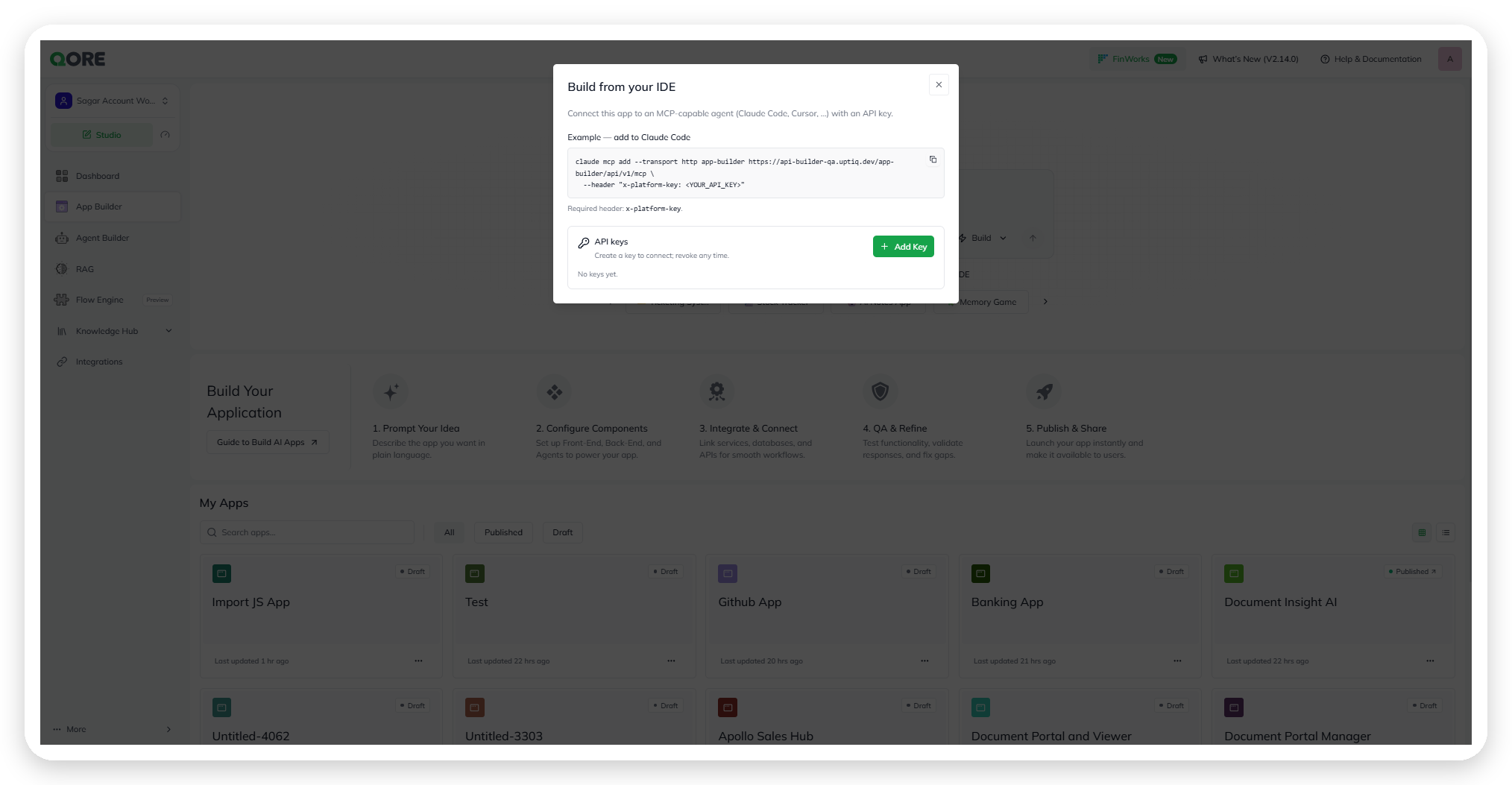
Choose Build from your IDE to connect an app to an MCP-capable coding agent — for example Claude Code or Cursor — so you can build it from your own editor.

The Build from your IDE dialog, with API keys and the MCP server connection command
The Build from your IDE dialog.
1

Create an API key

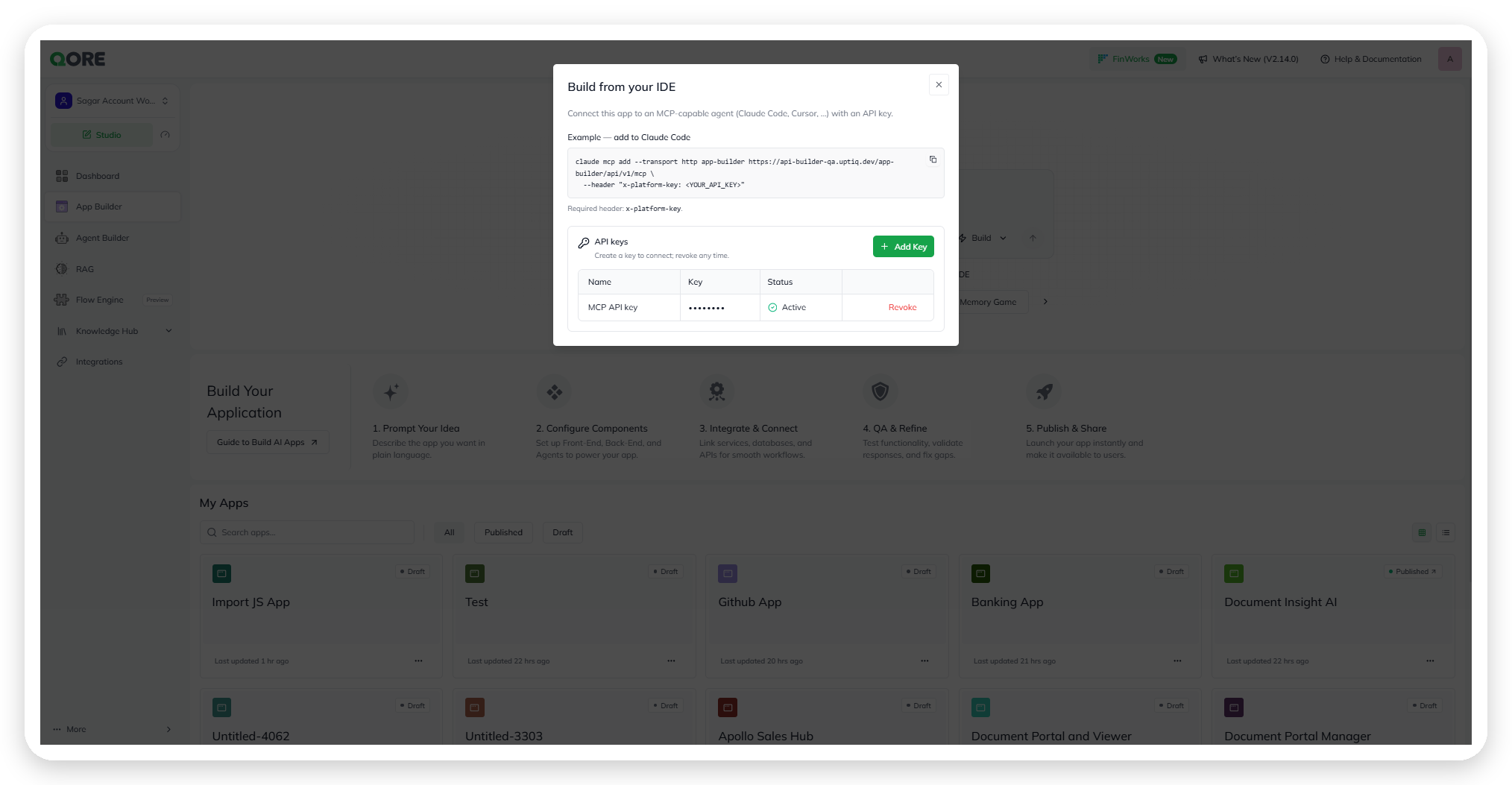
In the Build from your IDE dialog, under API keys, select + Add Key and name it. The key connects your editor to this app. Each key shows its Name, a masked value, and a Status, and can be revoked at any time with Revoke. Before you've made one, the list reads No keys yet.

The API keys list in the Build from your IDE dialog, showing name, masked value, status, and Revoke action
Managing API keys for IDE access, including Revoke.
2

Add the App Builder MCP server to your editor

Copy the connection command and run it in your coding agent, replacing <YOUR_API_KEY> with the key you created. The endpoint is <BASE_URL>/app-builder/api/v1/mcp and every request must carry the header x-platform-key. Replace <BASE_URL> with the Qore API host your organization uses — confirm it with your platform administrator, as it differs by deployment.

3

Build from your editor

With the server connected, your coding agent can build this app directly from your IDE.

Why this matters

  • You can start an app however suits you — a prompt, a package, a repository, or your own editor.

  • What you import determines what you get: a Platform package restores exactly; everything else is converted.

App Workspace

Last updated