> For the complete documentation index, see [llms.txt](https://docs.uptiq.ai/llms.txt). Markdown versions of documentation pages are available by appending `.md` to page URLs; this page is available as [Markdown](https://docs.uptiq.ai/console/app-builder/build/app-config.md).
# App Config
Configure identity, data, domains, branding, integrations, and app preferences.
App Config holds an app's settings — its identity, its database, its domains and branding, its environment variables and integrations, and developer and notification preferences. Open it with **App Config** in the workspace action bar.
App Config has eight sections: Basic Config, Database, Domains, Brand Guidelines, Environment Variables, Integrations, Developer Tools, and Preferences. Several settings distinguish the **Preview** build from the **Published** one — so check which scope you're editing.
## Basic Config
Set the app's **App Name** (required — the app can't be saved without it) and its **App Description**, then **Save**. The name is how the app is identified across Console.
Basic Config.
## Database
Choose the database the app uses. Qore offers **Uptiq Managed DB** — a managed PostgreSQL database — which shows as **Connected** when in use, and **Supabase** (Postgres plus auth and APIs) as an alternative.
Choosing the app's database.
{% hint style="info" %}
The managed database is the simplest path — Qore runs it for you. Connect Supabase instead when you need its auth and API features.
{% endhint %}
## Domains
Under **Connected Domains**, use **Connect New Domain** to attach a domain from a third-party provider, so the published app serves from your own domain rather than the default Qore URL.
Connecting a custom domain.
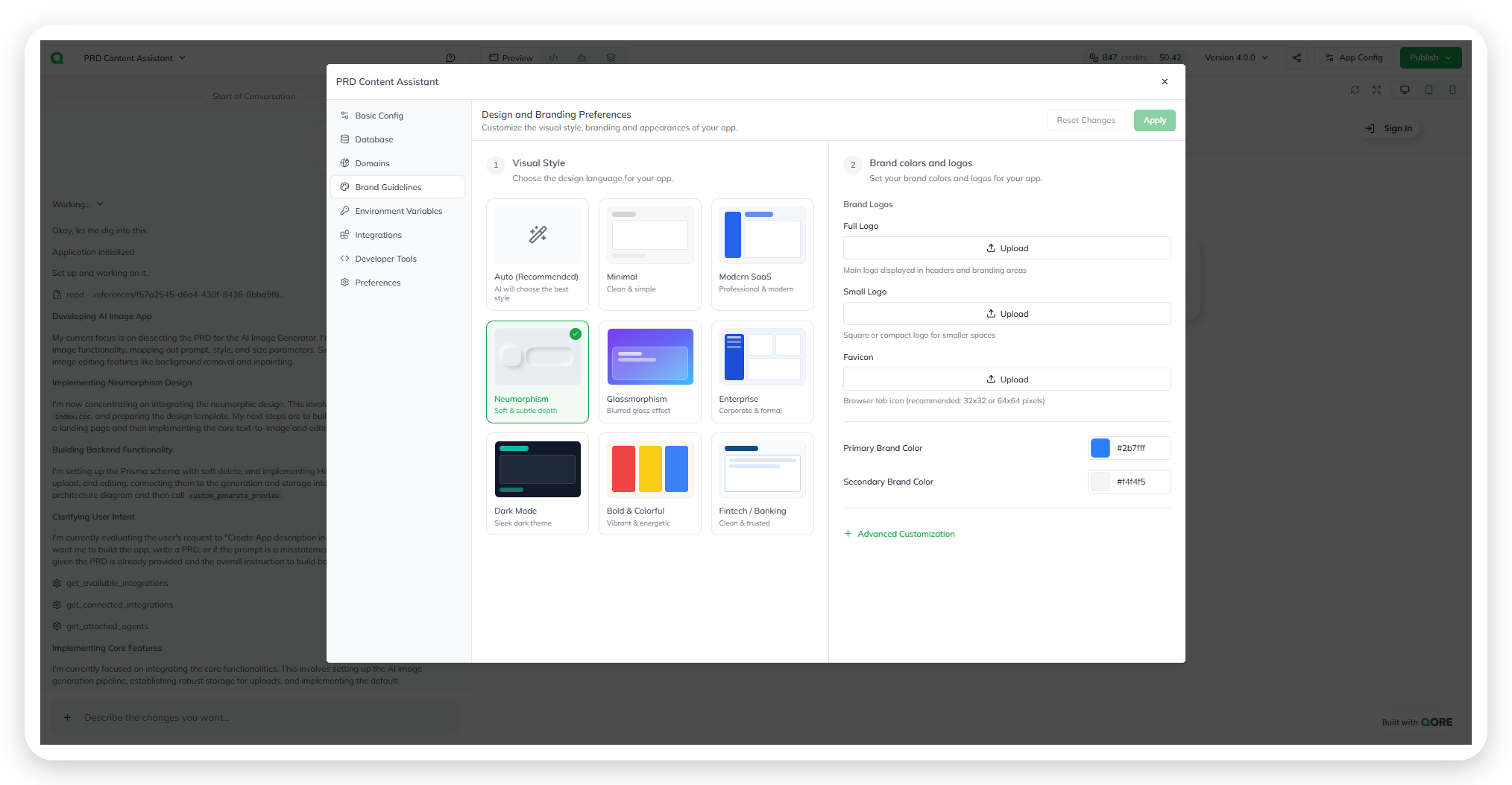
## Brand Guidelines
Set the app's visual style and branding.
* **Visual Style** — choose the design language: **Auto (Recommended)** lets Qore pick, or select one of **Minimal**, **Modern SaaS**, **Neumorphism**, **Glassmorphism**, **Enterprise**, **Dark Mode**, **Bold & Colorful**, or **Fintech / Banking**.
* **Brand Logos** — upload a **Full Logo** (headers and branding), a **Small Logo** (compact spaces), and a **Favicon** (browser-tab icon, best at 32×32 or 64×64 px).
* **Brand colors** — set the **Primary Brand Color** and **Secondary Brand Color** (for example, `#2b7fff` and `#f4f4f5`), with **Advanced Customization** for finer control.
Brand Guidelines.
Use **Apply** to save, or **Reset Changes** to discard.
## Environment Variables
Store the API keys, tokens, and credentials your app's integrations need. Values are **encrypted** and injected as environment variables at runtime. Add each as a **Key** and **Value** with **Add Variable**. A **Preview / Publish** toggle lets you set different values for the preview build and the published build.
Environment Variables.
{% hint style="warning" %}
Environment variables hold secrets. They're encrypted at rest and only injected at runtime, but treat the values as sensitive — set them here rather than hard-coding them into the app.
{% endhint %}
## Integrations
Connect the app to outside tools and platforms. The catalog holds 73 connectors across categories such as Storage, Authentication, LLM, Payments, CRM, Accountancy, Email Notification, Messaging, and Banking — for example Airtable, Confluence, DocuSign, the Google Workspace apps, and the Microsoft 365 apps. Search or narrow by category, then **Connect** the ones you need.
The Integrations catalog.
{% hint style="info" %}
Connecting an integration grants the app access to that service. Connect only what the app actually uses.
{% endhint %}
## Developer Tools
Turn on **Enable Developer Tools** to inspect the app's runtime behavior in the preview — useful while debugging, off by default.
Developer Tools.
## Preferences
Turn on **Build Notifications** to be notified when a project build completes, so you don't have to watch the workspace to know a build finished.
Preferences.
## App Config sections
| Element | Description | When to use it |
| ------------------------- | ----------------------------------------------------- | -------------------------------------------------------------- |
| **Basic Config** | The app's name and description | Rename the app or update its description; App Name is required |
| **Database** | The connected database (Uptiq Managed DB or Supabase) | Choose or switch the app's database |
| **Domains** | Custom domains for the published app | Serve the app from your own domain |
| **Brand Guidelines** | Visual style, logos, and brand colors | Set the app's look and branding |
| **Environment Variables** | Encrypted secrets injected at runtime | Store API keys and credentials; set per Preview/Publish |
| **Integrations** | The 73-connector catalog | Connect the tools the app uses |
| **Developer Tools** | Runtime inspection in the preview | Turn on while debugging |
| **Preferences** | Build-completion notifications | Get notified when a build finishes |
## Why this matters
* App Config is where an app's identity, data, connections, and look are all set.
* Several settings differ between the **Preview** and **Published** builds — confirm the scope before you change one.
* The database, domain, integration, and environment-variable sections grant access or hold secrets; treat them with more care than the cosmetic ones.
## Related
{% content-ref url="/pages/bc7662d99efc00ab94438c3b32248b84a7af247f" %}
[App Workspace](/console/app-builder/app-workspace.md)
{% endcontent-ref %}
{% content-ref url="/pages/6CB3ux2H16RPihpNE3qg" %}
[Integrations Hub](/integrations/integrations-hub.md)
{% endcontent-ref %}
---
# Agent Instructions
This documentation is published with GitBook. GitBook is the documentation platform designed so that both humans and AI agents can read, navigate, and reason over technical content effectively. Learn more at gitbook.com.
## Querying This Documentation
If you need additional information that is not directly available in this page, you can query the documentation dynamically by asking a question.
Perform an HTTP GET request on the current page URL with the `ask` query parameter, and the optional `goal` query parameter:
```
GET https://docs.uptiq.ai/console/app-builder/build/app-config.md?ask=&goal=
```
`ask` is the immediate question: it should be specific, self-contained, and written in natural language.
`goal` is optional and describes the broader end goal you are ultimately trying to accomplish on behalf of the user. GitBook uses it to tailor the answer towards what is most useful for that goal.
The response will contain a direct answer to the question and relevant excerpts and sources from the documentation.
Use this mechanism when the answer is not explicitly present in the current page, you need clarification or additional context, or you want to retrieve related documentation sections.