App Workspace
Build, preview, inspect, test, version, and share your app.
The app workspace is where you build, inspect, test, and share an app. Describe a change, review the live preview, then move through the App Builder workflow.

Describe and build
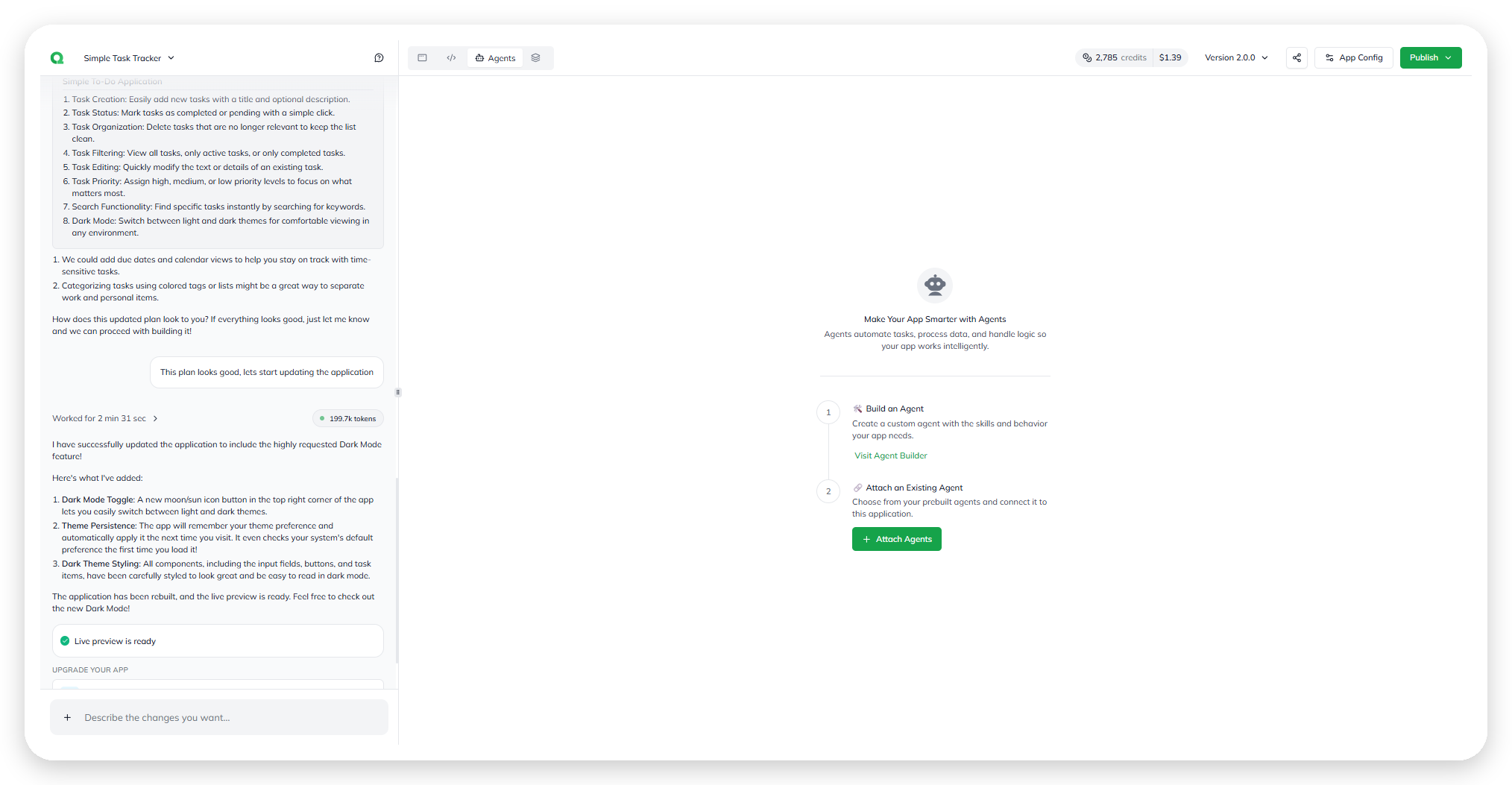
Use the conversation to describe the change you want. Qore plans the work, waits for your approval, builds the app, and confirms when Live preview is ready.

Each turn shows its work time and token usage. Open the token total for model-level input and output usage.

Fix errors
Forward a preview error to the build agent. The request includes the error type and message. Qore fixes the app and rebuilds the preview.
Continue building
Choose a suggested next step, or enter another request. Upgrade your app can add a database for persistent data or an AI agent for app intelligence.
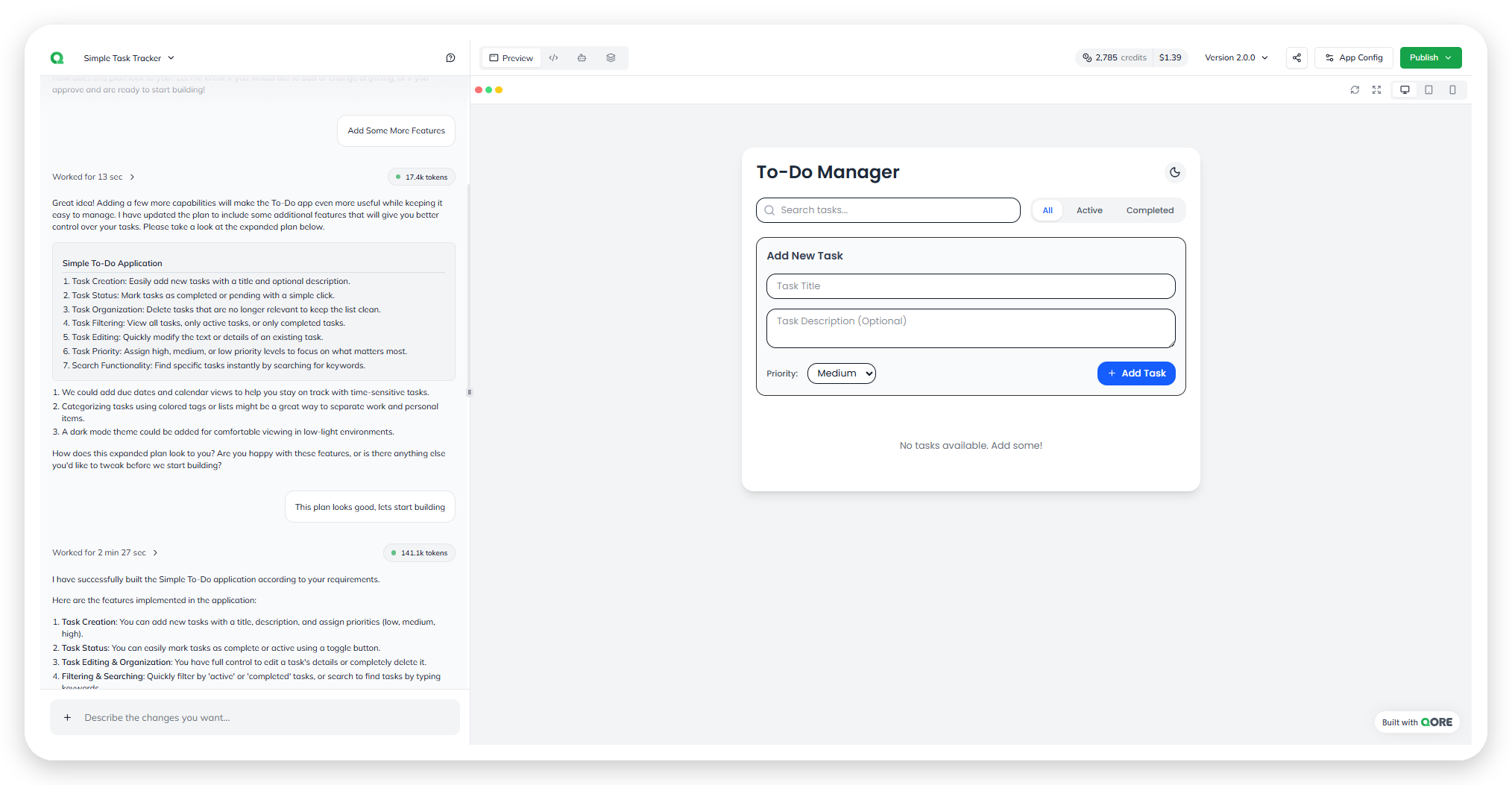
Preview
Use the live preview after every change. Switch between desktop, tablet, and mobile widths to check responsiveness. Each preview includes a Built with QORE badge.

Explore the workspace
Switch the centre panel between Preview, Code, and Agents.
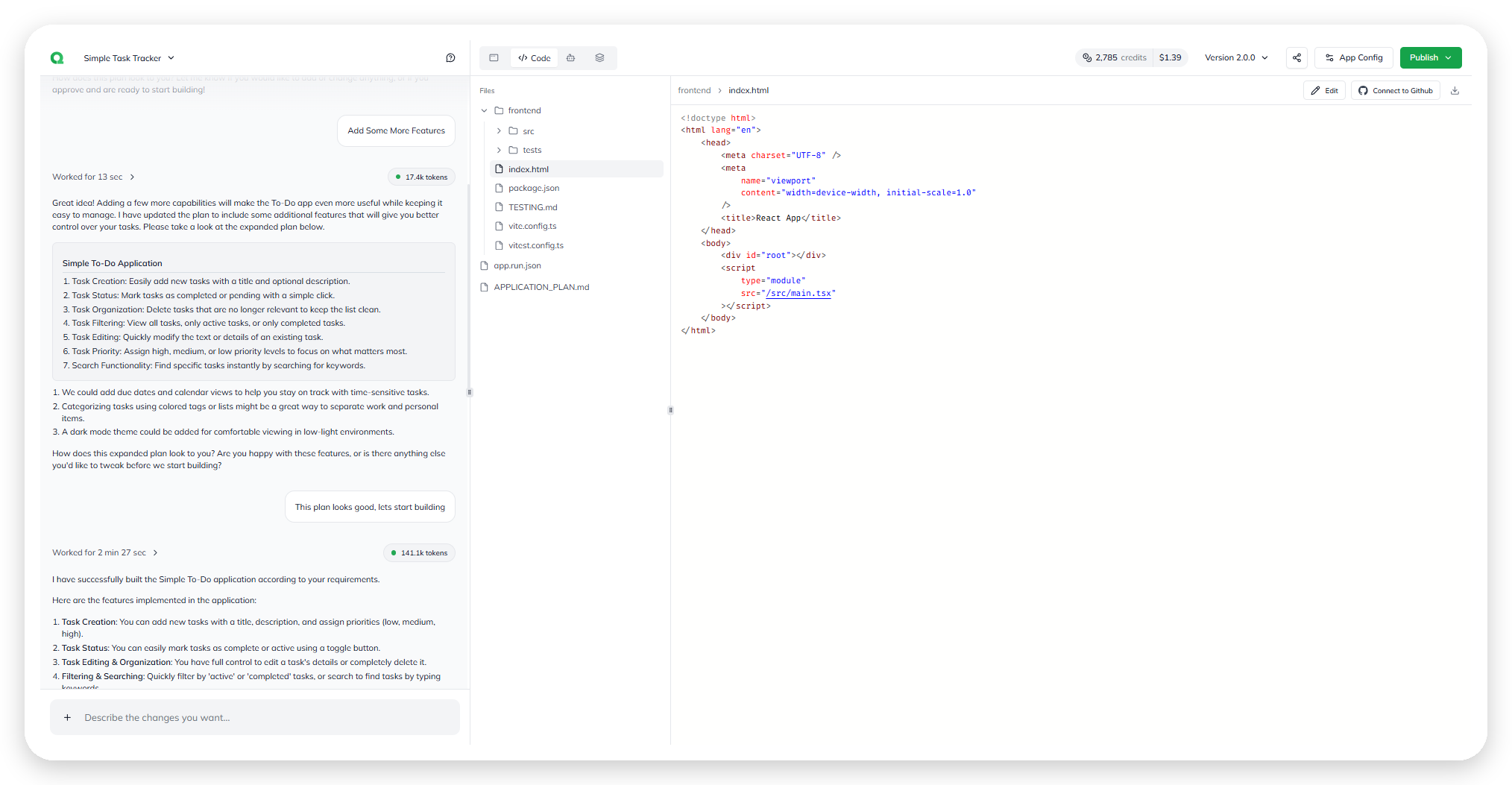
Code
Inspect the generated source in the file tree. It includes the frontend, tests, project configuration,
app.run.json, andAPPLICATION_PLAN.md.Select a file to read it, edit it, download it, or connect its repository to GitHub.
Use the build conversation for most app changes.
For repository workflows, see Code Access & Git Integration.

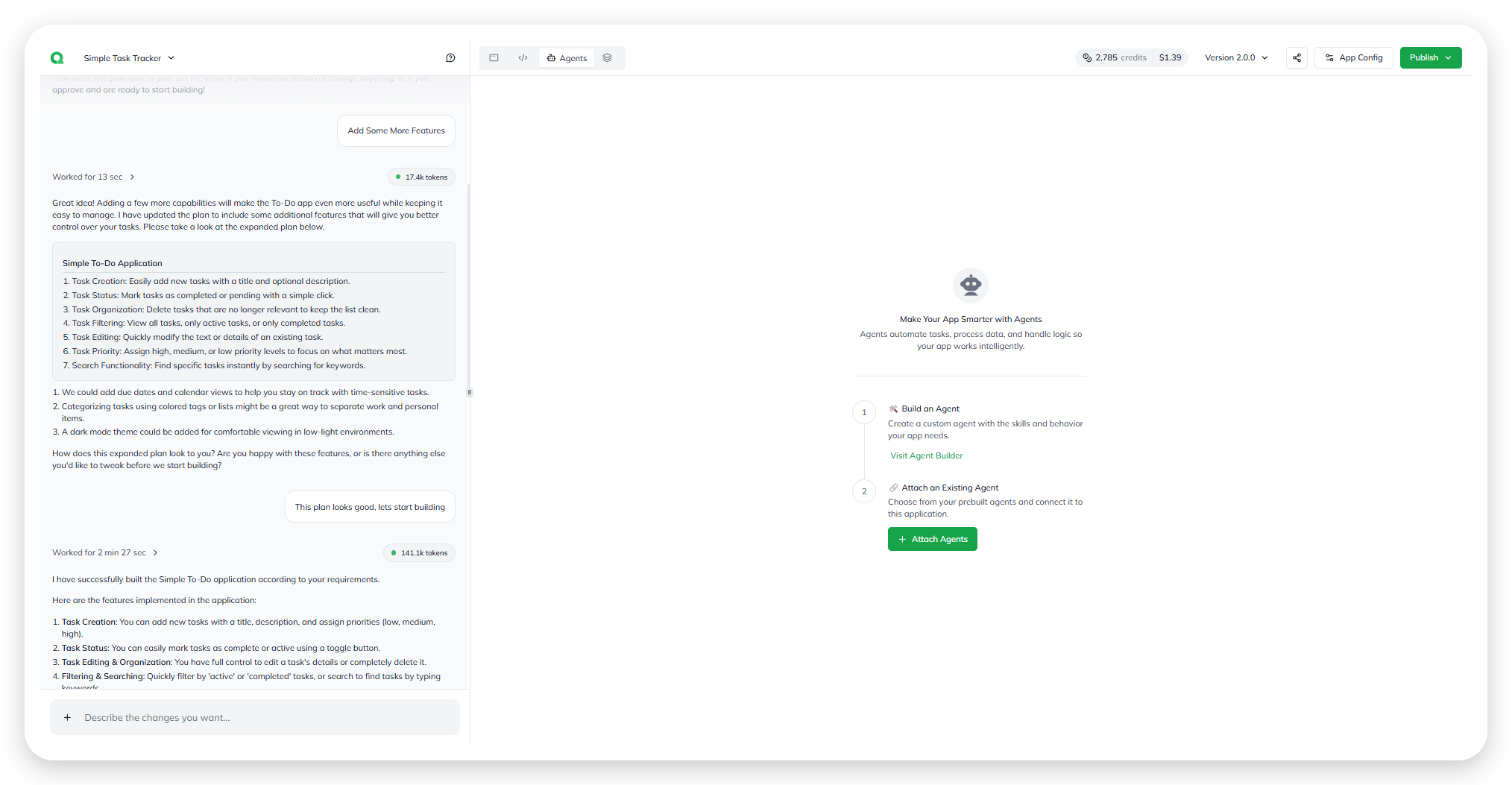
Agents
Use Agents to add automation, data processing, and logic.
Select Build an Agent for a new agent, or Attach Agents for an existing one.
For attachment steps, see Integrate an agent.

Credits
The Credits meter shows what this app has consumed—the Credits used, the Cost, and when the figure was last synced. Building an app spends credits, so keep an eye on it as you iterate. For account-wide usage and limits, see Billing.

Versions and publishing
The version selector lists builds newest first. Latest marks the newest build. Published marks the version users see. Uncommitted changes marks work outside a version.

Select a version to review or return to it. To make one live, follow Deploy an app.
Share
Select Share, beside the version selector, to share the app.
More
The More menu reflects the selected build version. Use it to inspect:
Analytics for published-app engagement
DB Explorer and Data Flow for app data and architecture
Testing and Security Scans before release
Last updated