> For the complete documentation index, see [llms.txt](https://docs.uptiq.ai/llms.txt). Markdown versions of documentation pages are available by appending `.md` to page URLs; this page is available as [Markdown](https://docs.uptiq.ai/console/agent-builder/the-canvas.md).
# The Canvas
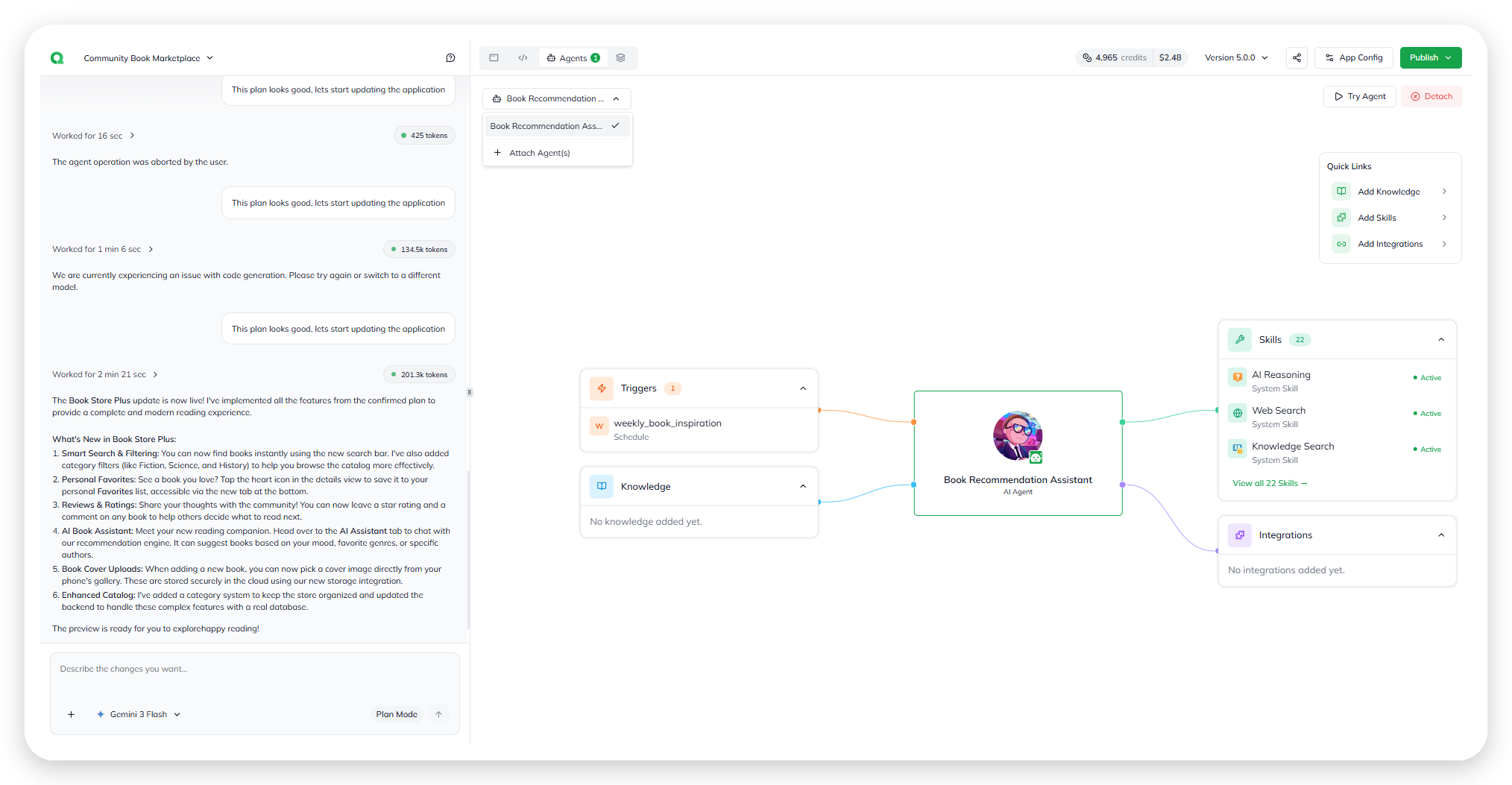
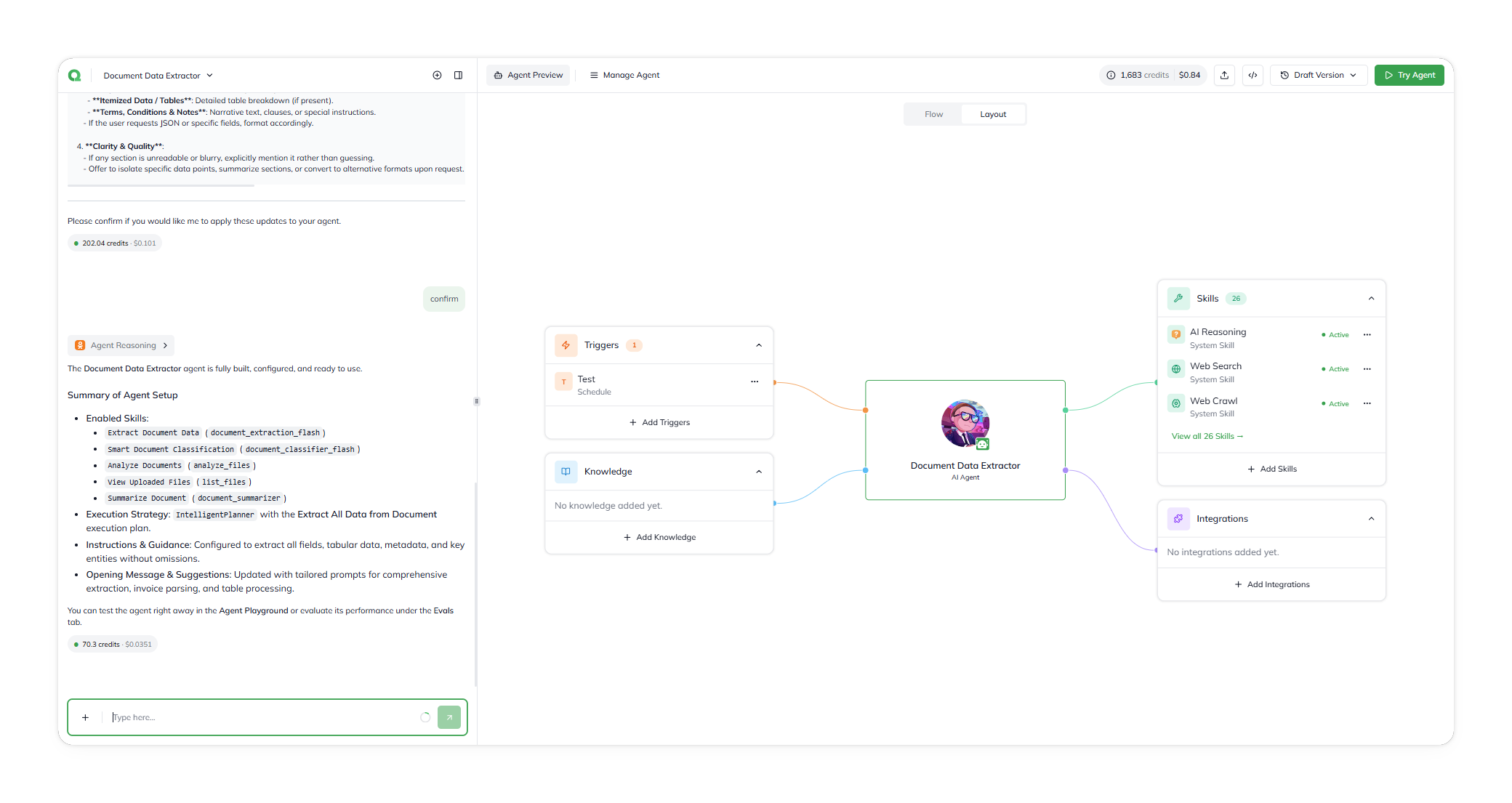
The Builder Canvas is the visual overview of the agent configuration inside the UPTIQ Qore Platform Agent Builder. It presents the agent at the center, with its connected knowledge, skills, triggers, and integrations arranged around it in a structured layout.
The Builder Canvas.
The canvas acts as a high-level representation of how the agent has been configured. At a glance, you can quickly understand:
* What knowledge sources are attached
* Which skills and connectors are available
* How many triggers are configured
* What runtime capabilities the agent has access to
Most configuration changes happen through **Manage Agent**, but the canvas serves as the primary navigation surface for understanding the agent setup and accessing related workflows.
***
## The core layout
The canvas follows a simple mental model: one agent with connected capabilities around it.
### Agent
The agent appears at the center of the layout with its avatar, name, and agent type.
### Knowledge
Knowledge sources appear above the agent. These represent the files, documents, and connected data sources the agent can reference during execution.
### Skills and Integrations
Skills and connected integrations appear below the agent. These include platform-provided skills, MCP-based integrations, external connectors, and additional capabilities attached to the agent.
### Triggers
Triggers appear alongside the agent as a summarized count. Triggers define the events or actions that can initiate agent execution.
### Header Actions
The header above the canvas contains global agent actions such as:
* Agent selection and rename
* Manage Agent
* Version
* Try Agent
Each section in this guide maps back to one of these areas of the canvas.
***
## Plan and Layout tabs
The canvas includes two tabs:
### Layout
The default view that displays the visual agent structure and connected components.
The Layout tab, the canvas's default view.
### Plan
The Plan view displays the agent’s decomposed execution flow as a milestone-based sequence of steps the agent may follow during runtime.
Instead of showing the visual layout of connected components, the Plan tab focuses on how the agent approaches task execution. It breaks the workflow into structured milestones, helping you understand:
* How the agent plans to solve a task
* The sequence of execution stages
* Which skills or integrations may be used during execution
* How larger workflows are decomposed into smaller operational steps
This view is useful for understanding orchestration logic, validating execution behavior, and reviewing how the agent is expected to progress through a task.
## Interactive Areas on the Canvas
The canvas primarily acts as a visual overview rather than a direct editing surface.
Most nodes are informational summaries of the current agent state. Configuration changes are managed through **Manage Agent** and related setup flows.
Some sections act as shortcuts into deeper workflows, such as:
* Adding knowledge
* Managing skills
* Configuring integrations
* Setting triggers
The visual layout helps you quickly understand what is connected to the agent and identify what may still need configuration.
***
## Why this matters
The Builder Canvas serves as the central navigation and visualization layer for the agent.
Understanding this layout makes it easier to:
* Review the current agent setup
* Navigate to the correct configuration area
* Validate attached knowledge and integrations
* Identify missing runtime capabilities
* Troubleshoot agent behavior during testing
Most pages in this guide either explain a section visible on the canvas or describe the configuration flows launched from it.
---
# Agent Instructions
This documentation is published with GitBook. GitBook is the documentation platform designed so that both humans and AI agents can read, navigate, and reason over technical content effectively. Learn more at gitbook.com.
## Querying This Documentation
If you need additional information that is not directly available in this page, you can query the documentation dynamically by asking a question.
Perform an HTTP GET request on the current page URL with the `ask` query parameter, and the optional `goal` query parameter:
```
GET https://docs.uptiq.ai/console/agent-builder/the-canvas.md?ask=&goal=
```
`ask` is the immediate question: it should be specific, self-contained, and written in natural language.
`goal` is optional and describes the broader end goal you are ultimately trying to accomplish on behalf of the user. GitBook uses it to tailor the answer towards what is most useful for that goal.
The response will contain a direct answer to the question and relevant excerpts and sources from the documentation.
Use this mechanism when the answer is not explicitly present in the current page, you need clarification or additional context, or you want to retrieve related documentation sections.