> For the complete documentation index, see [llms.txt](https://docs.uptiq.ai/llms.txt). Markdown versions of documentation pages are available by appending `.md` to page URLs; this page is available as [Markdown](https://docs.uptiq.ai/console/agent-builder/deploy/guardrails/tool-execution.md).
# Tool execution
Tool Execution Approval adds human approval before an agent runs selected skills. A tool is a skill available to the agent.
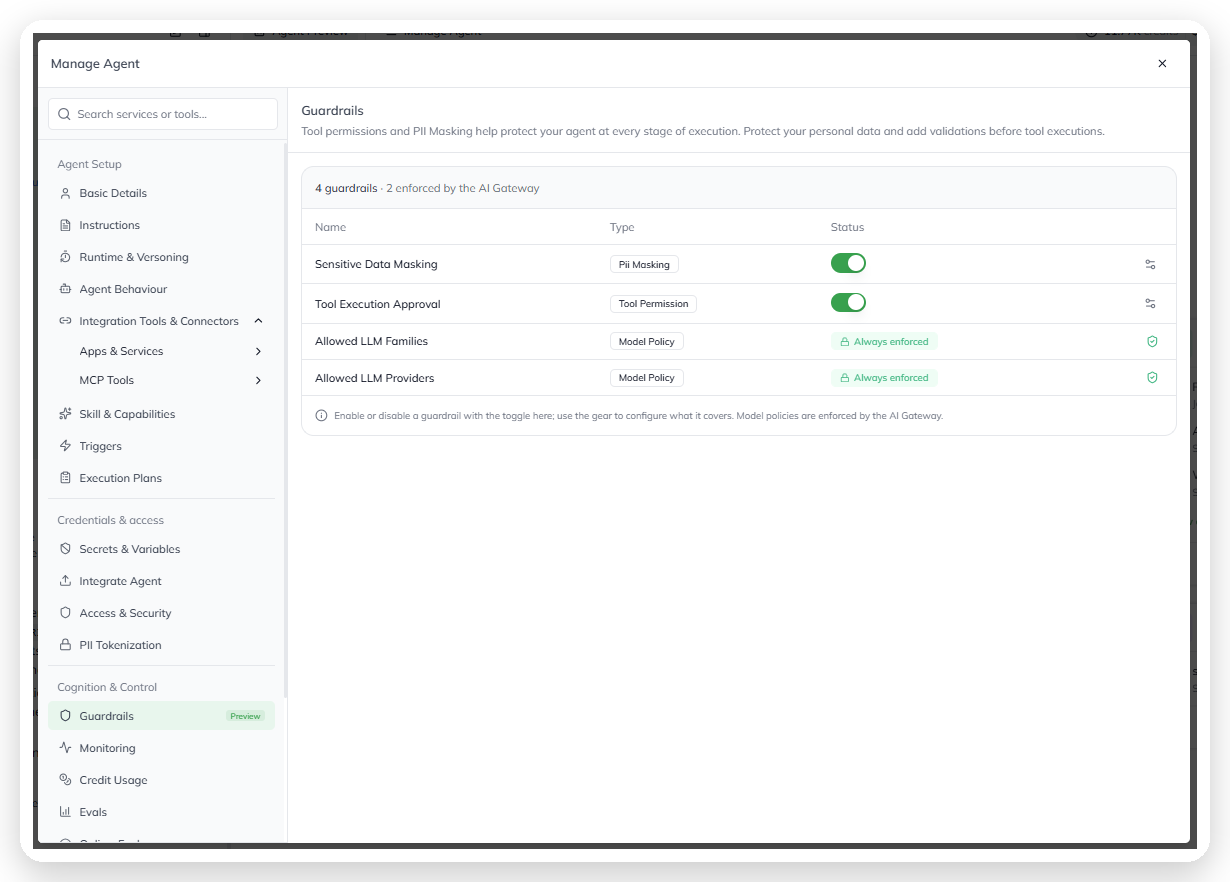
To configure approval, open **Manage Agent → Guardrails**. Turn on **Tool Execution Approval**, then select the **gear** in that row.
## Choose tools that need approval
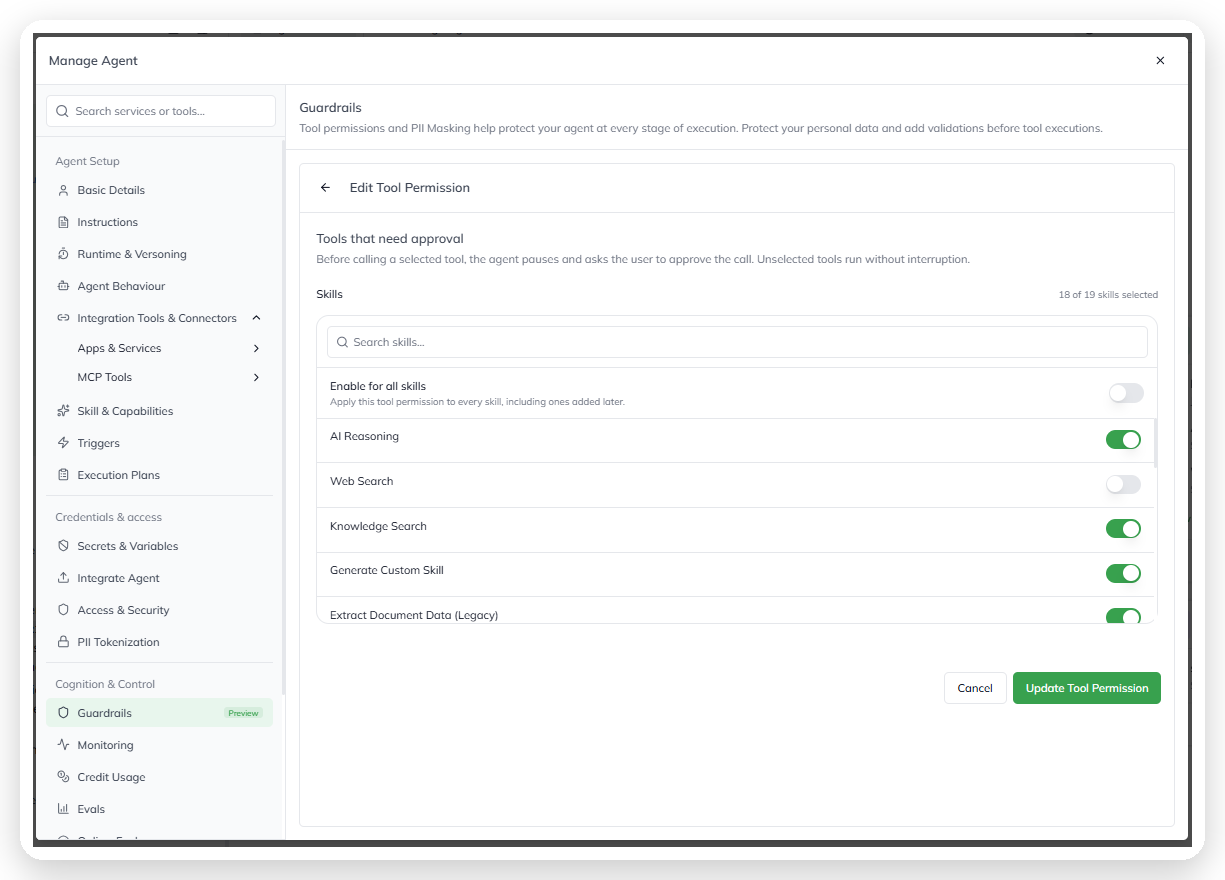
The **Edit Tool Permission** screen lists every skill available to the agent. Each skill has its own approval toggle. A counter shows the number selected, such as *“18 of 19 skills selected.”*
The Edit Tool Permission screen.
* **Enable for all skills** requires approval for every current and future skill. It overrides individual toggles.
* **Per-skill toggles** require approval for selected skills only.
* **Search skills** filters a large skill list by name.
The list includes built-in and added skills. Built-in examples include AI Reasoning, Web Search, Knowledge Search, Generate Custom Skill, and Extract Document Data (Legacy). The available set varies by agent.
Custom skills appear automatically. With **Enable for all skills** on, newly added skills inherit the approval requirement.
Select **Update Tool Permission** to save changes. Select **Cancel** to discard them.
Saving changes with Update Tool Permission.
## What users see
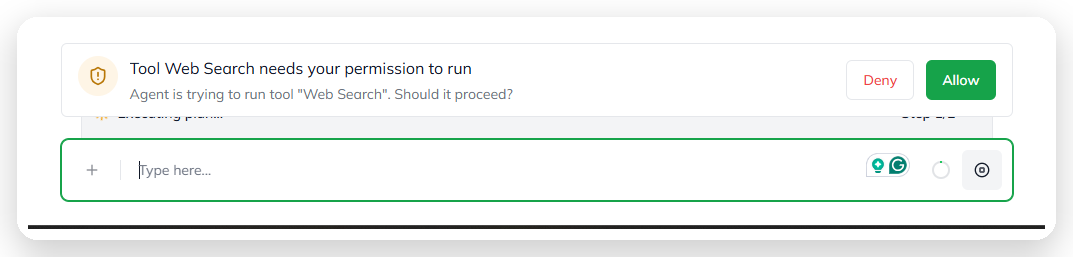
When the agent reaches an approved tool, it pauses before the call. The chat shows guardrail activity, such as *“Running tool-permission guardrail for ‘Web Search’.”* It then asks the user whether the tool should proceed.
The runtime approval prompt for a paused tool call.
* **Allow** runs the tool and continues the agent run.
* **Deny** blocks the tool call. The agent continues without it.
## Choose an approval strategy
Require approval for tools that take external actions or access sensitive data. Individual approvals work well when only a few skills need review.
Use **Enable for all skills** when every tool call requires confirmation. This setting also protects skills added after initial configuration.
For the parent-level overview, see [Guardrails](/console/agent-builder/deploy/guardrails.md).
---
# Agent Instructions
This documentation is published with GitBook. GitBook is the documentation platform designed so that both humans and AI agents can read, navigate, and reason over technical content effectively. Learn more at gitbook.com.
## Querying This Documentation
If you need additional information that is not directly available in this page, you can query the documentation dynamically by asking a question.
Perform an HTTP GET request on the current page URL with the `ask` query parameter, and the optional `goal` query parameter:
```
GET https://docs.uptiq.ai/console/agent-builder/deploy/guardrails/tool-execution.md?ask=&goal=
```
`ask` is the immediate question: it should be specific, self-contained, and written in natural language.
`goal` is optional and describes the broader end goal you are ultimately trying to accomplish on behalf of the user. GitBook uses it to tailor the answer towards what is most useful for that goal.
The response will contain a direct answer to the question and relevant excerpts and sources from the documentation.
Use this mechanism when the answer is not explicitly present in the current page, you need clarification or additional context, or you want to retrieve related documentation sections.