> For the complete documentation index, see [llms.txt](https://docs.uptiq.ai/llms.txt). Markdown versions of documentation pages are available by appending `.md` to page URLs; this page is available as [Markdown](https://docs.uptiq.ai/ai-workbench-qore/console/projects.md).
# Projects
Organize related apps, agents, knowledge bases, and design systems in one shared workspace.
Projects live in **Console**, under **Accounts**. They keep the artifacts for one product together. Each project has shared context, a database, infrastructure, and a design system.
Use separate projects for unrelated work. This keeps their artifacts and context isolated.
{% hint style="info" %}
Projects aren't available from **Control Center**. Open **Console**, then select **Accounts**.
{% endhint %}
### Project scope
{% columns %}
{% column %}
#### Project artifacts
Projects contain apps, agents, knowledge bases, and design systems. These artifacts stay within the project.
{% endcolumn %}
{% column %}
#### Account controls
Accounts manage **Cost Control**, access, governance, and other controls across their projects.
{% endcolumn %}
{% endcolumns %}
{% hint style="warning" %}
Create a separate project when artifacts must not share context.
{% endhint %}
Open Projects from Accounts in Console.
### Find projects
Open **Console**, then open the account and project switcher at the top of the sidebar. **Projects** lists the current account's projects, with a check mark on the one you're in. Select a project to open it.
To search every project in the account, select **See All Projects**. The **Projects** dialog describes a project as *One container for every app, agent and knowledge base that belongs to the same product — sharing one database, one infra instance and one design system.*
Choose a project from available Projects in the Account to open.
### Pin a project
Pin a project and Qore opens it when you sign in.
1. Open the account and project switcher at the top of the Console sidebar.
2. Hover over the project and select the pin icon, **Pin project**.
Qore confirms with *Pinned ‹project name›*. The pinned project moves to the top of the project list, both in the switcher and in **See All Projects**, and keeps a filled pin icon.
You can pin one project at a time, across all your accounts. Pinning another project, even one in a different account, replaces the pin. To unpin, select the filled pin again (**Unpin project**). You can pin and unpin only from the switcher; **See All Projects** shows the pin but doesn't change it.
The pin decides where you land when you sign in: Qore opens the pinned project and switches to its account if needed. A link to a specific project still opens that project instead. Between sign-ins, Qore keeps you in whichever project you last selected. The pin is yours alone; it doesn't change what other members of the account see.
### Create a project
Create a project before you create artifacts for a new product.
1. Open the account and project switcher at the top of the Console sidebar. Under **Accounts**, select the account the project belongs to.
2. Select **New project**. **See All Projects** has the same option, **New Project**.
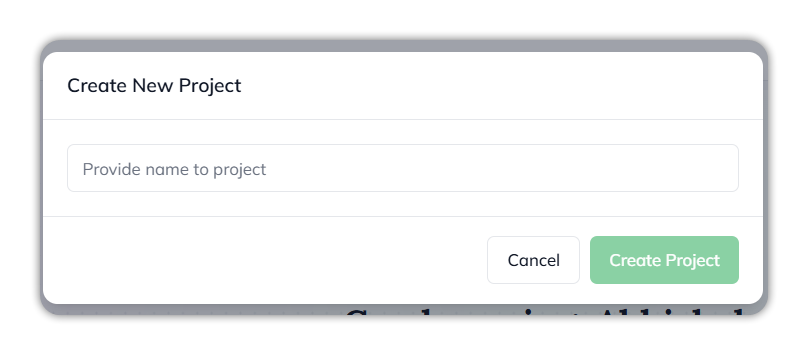
3. In **Create New Project**, enter a name. Project names are unique within an account.
4. Select **Create Project**.
Qore confirms with *Project added successfully*. The project is created in the current account and appears under **Projects** in the switcher. In the switcher, **New project** shows only to roles with **Create a project**: **Developer**, **Account Admin**, and **Organisation Admin**.
Create New Project.
{% hint style="info" %}
An account can contain multiple projects. Select the project that matches the product you are building.
{% endhint %}
Create a new Project from Accounts in Console.
### Work in a project
Select a project to open its workspace. Its navigation provides these artifact areas:
| Area | Use it for |
| ------------------- | ----------------------------------------------- |
| **Overview** | Review the project at a glance. |
| **Apps** | Build and manage project apps. |
| **Agents** | Build and manage project agents. |
| **Knowledge Bases** | Create and manage project knowledge. |
| **Design Systems** | Create reusable visual styles for project apps. |
Project artifacts are available from the project workspace.
### Add an artifact
1. Open the project where the artifact belongs.
2. Select **New artifact**.
3. Select the artifact type.
The artifact is added to the selected project. It can use the project's shared context.
### Related resources
{% content-ref url="/pages/c9LqRJACw0U64C4Joa5F" %}
[Accounts, Projects, Spaces](/ai-workbench-qore/start-here/how-qore-is-organized.md)
{% endcontent-ref %}
***
{% columns %}
{% column width="83.33333333333334%" %}
Maintained by Abhishek Paul AI-assisted, human-approved
{% endcolumn %}
{% endcolumns %}
---
# Agent Instructions
This documentation is published with GitBook. GitBook is the documentation platform designed so that both humans and AI agents can read, navigate, and reason over technical content effectively. Learn more at gitbook.com.
## Querying This Documentation
If you need additional information that is not directly available in this page, you can query the documentation by asking a question.
Perform an HTTP GET request on the following URL with the `ask` and `goal` query parameters:
```
GET https://docs.uptiq.ai/ai-workbench-qore/console/projects.md?ask=&goal=
```
`ask` is the immediate question: it should be specific, self-contained, and written in natural language.
`goal` is what the user is ultimately trying to achieve, the reason they need the answer. Sharing it helps GitBook give you a better, more relevant answer. A goal is most helpful when it describes the outcome the user wants rather than restating the question. For example, with `ask=how do I create an API token`, a goal like `automate deployments from our CI pipeline` lets GitBook tailor the answer to that use case.
The response will contain a direct answer to the question and relevant excerpts and sources from the documentation.
Use this mechanism when the answer is not explicitly present in the current page, you need clarification or additional context, or you want to retrieve related documentation sections.