> For the complete documentation index, see [llms.txt](https://docs.uptiq.ai/llms.txt). Markdown versions of documentation pages are available by appending `.md` to page URLs; this page is available as [Markdown](https://docs.uptiq.ai/ai-workbench-qore/console/design-systems.md).
# Design Systems
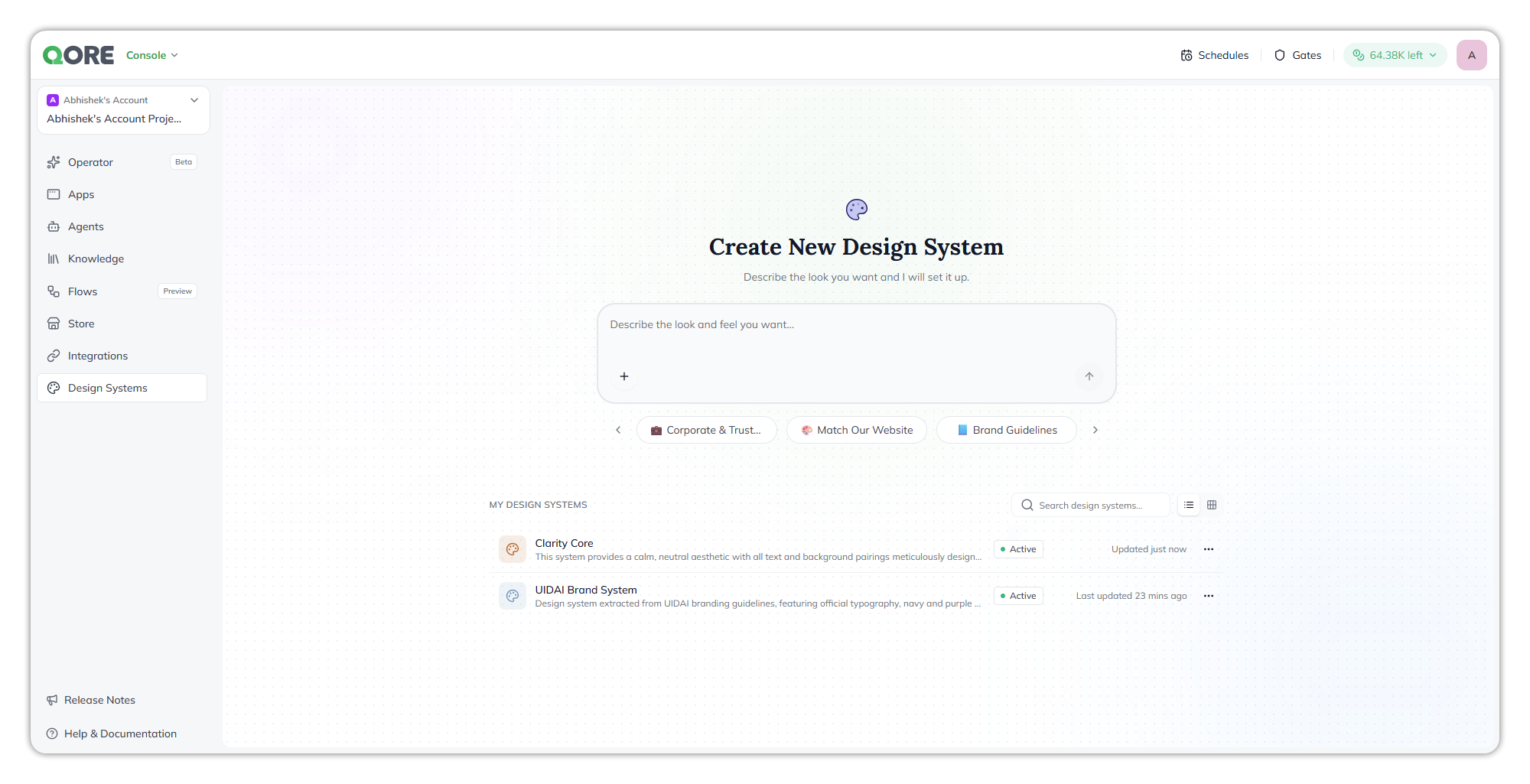
Describe a brand's look and Qore builds a reusable design system for your apps.
A design system stores the visual identity for apps in one project. It includes a visual style, logos, fonts, and colors. Describe the brand, then refine the generated system manually or through the Design System Builder agent.
Use **Console** → **Design Systems** to create, manage, and apply project design systems. For every task in one place, see [Create a design system](/ai-workbench-qore/task-guides/create-a-design-system.md).
Describe a new design system at the top. Your existing ones are listed below.
{% hint style="info" %}
**Project scope:** Apps can use design systems from their own project only.
{% endhint %}
## At a glance
| Task | Where | Result |
| ---------------------------- | ------------------------------------------------------------------ | ------------------------------------------------------------- |
| Create a design system | The **Create New Design System** prompt | A design system, set up by the builder agent |
| Change one | Select it in **MY DESIGN SYSTEMS** | Chat and configurable settings |
| Set fonts | The builder → **Typography** | Sans serif, serif and monospace fonts that generated apps use |
| Go back to an earlier look | The builder's **vN ▾** menu | The earlier version restored as a new version |
| Use it in an app | App Builder, or the App Builder Agent in Console Operator | An app styled by the design system |
| Create or change one in chat | [Console Operator](/ai-workbench-qore/console/console-operator.md) | The design system saved to the project |
| Brand a generated document | Console Operator, when it generates a document | A document in the design system's colors |
## Create a design system
Create systems from a description. You can also ask [Console Operator](#design-systems-in-console-operator) to create one. Include your brand characteristics, such as colors, typography, logo usage, or a public website. You can also attach files, such as a brand guide or logo files, and the agent takes colors and logos from them.
> *"Build a design system from our brand guidelines — primary and accent colors, typography, and logo usage."*
Ready-to-use templates help you start with common visual directions. Choose a template, then tailor the generated system to your brand.
{% stepper %}
{% step %}
#### Describe the brand
Enter a description, choose a template, or provide a website URL.
{% endstep %}
{% step %}
#### Answer follow-up questions
Provide requested brand details. You can skip a question when needed.
{% endstep %}
{% step %}
#### Review and save
Review the visual style, colors, fonts, and logos. Save when the system matches your brand.
The agent names the new design system from your description. Rename it from its name menu in the builder.
{% endstep %}
{% endstepper %}
{% hint style="warning" %}
**Verify generated values.** Compare colors, fonts, and logos with your brand guidance before building an app.
{% endhint %}
## Find your design systems
**MY DESIGN SYSTEMS** shows the design systems available to the current project.
* Search by name.
* Switch between list and card views.
* Open a system to edit it.
* Use **More options** to open or delete it. Edit a design system in its builder.
* Each design system shows **Active**. The status is for display only; a design system can't be deactivated.
Rename a design system from its name menu in the builder.
## Work in the builder
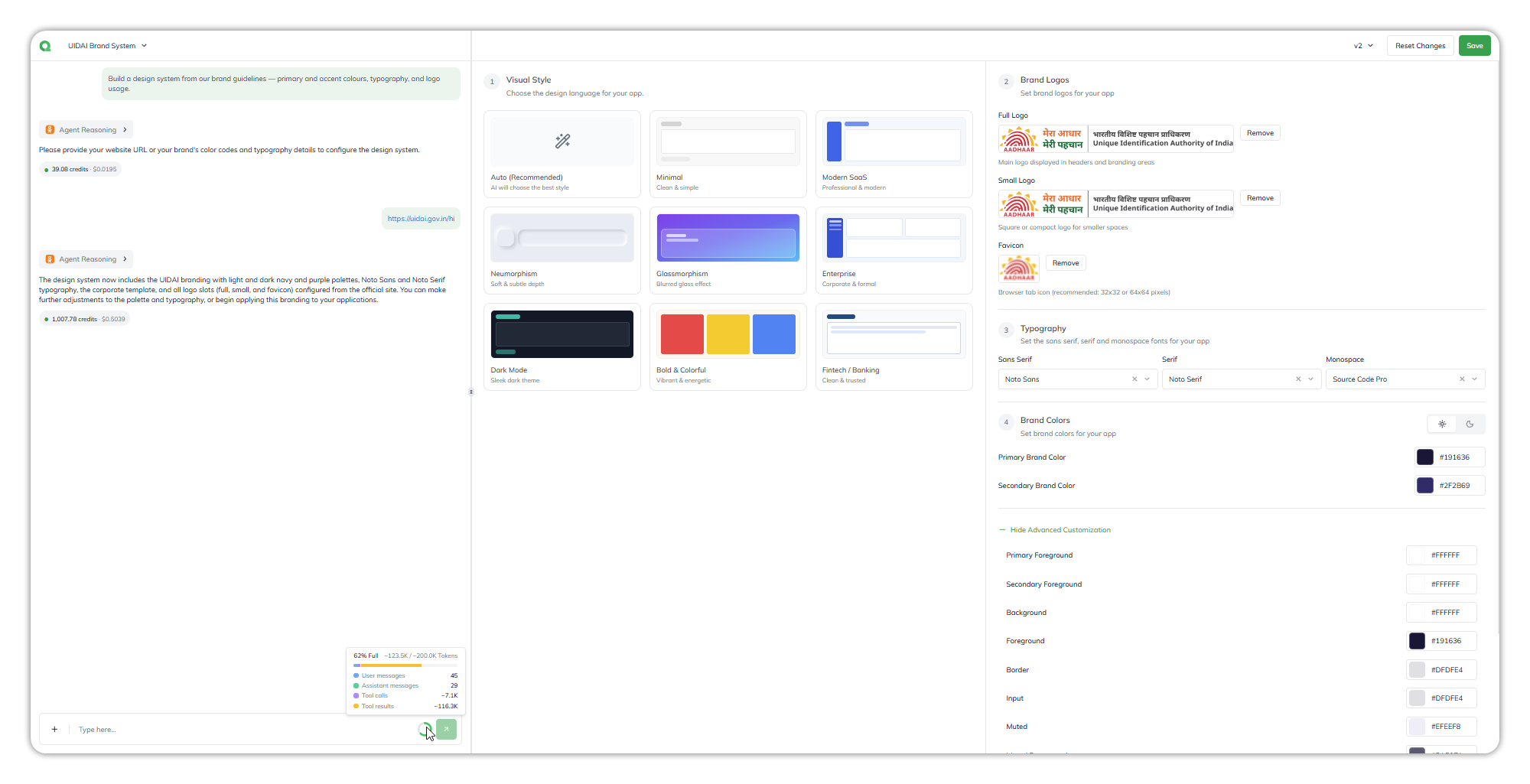
Open a design system to update it through conversation or direct settings.
Ask the agent for changes on the left, or edit the settings on the right.
{% columns %}
{% column %}
#### Ask the builder
Describe the change in plain language. For example, ask to lighten a secondary color or use a serif heading font.
{% endcolumn %}
{% column %}
#### Edit settings
Configure **Visual Style**, **Brand Logos**, **Typography**, and **Brand Colors** directly.
{% endcolumn %}
{% endcolumns %}
Each design system keeps one builder chat. Reopening the design system continues the same conversation. When the agent changes one setting, such as a single color, every other setting stays as it was.
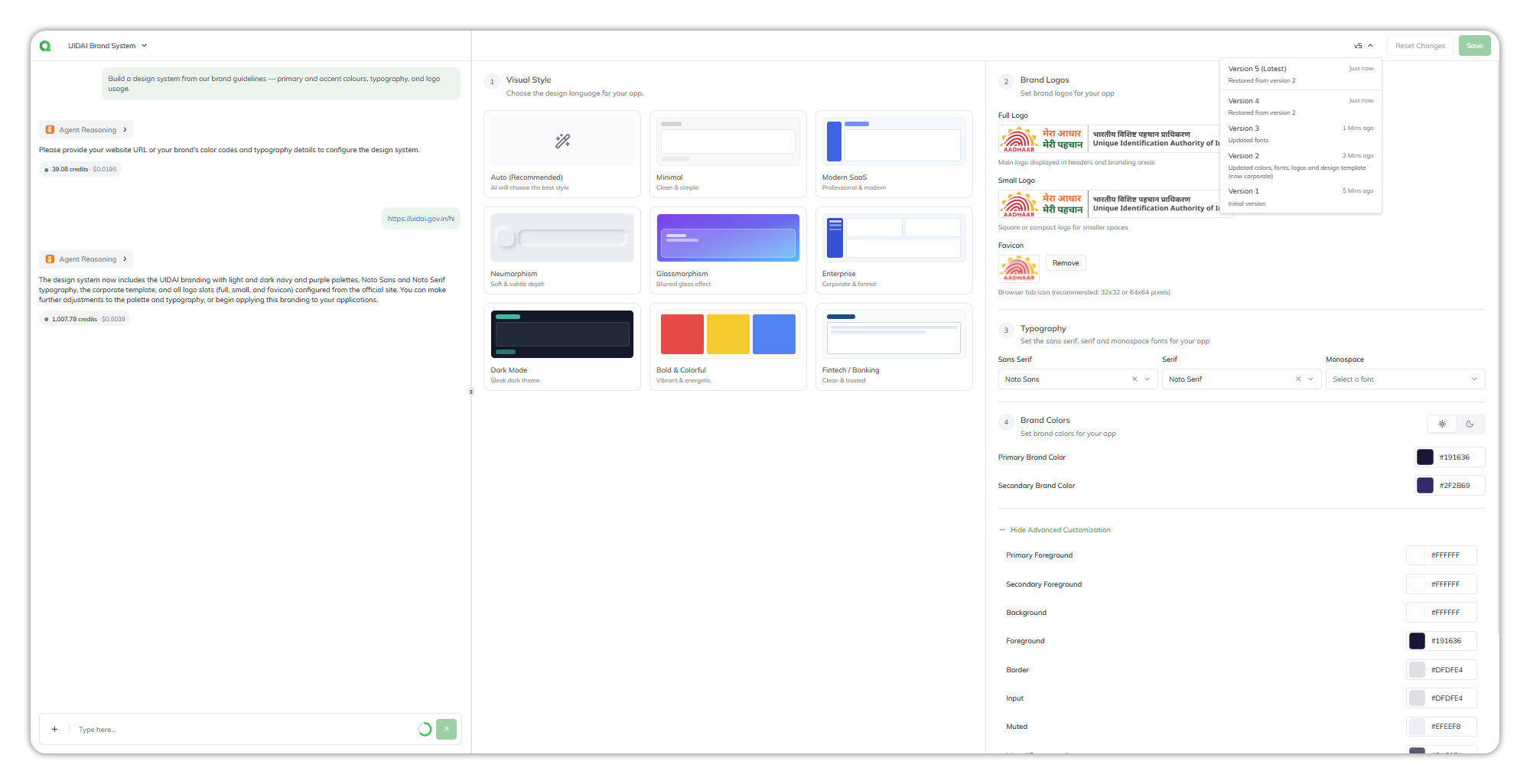
Use **Save** to create a new version. Use **Reset Changes** to discard unsaved edits. Open the version menu to view or restore previous versions.
## Choose a visual style
Visual Style defines the app's overall design language. It works independently from brand colors. Select one style for the design system.
| Style | Best for |
| ---------------------- | ------------------------------------------------------------ |
| **Auto (Recommended)** | Let the system choose a suitable style. This is the default. |
| **Minimal** | A clean, simple interface. |
| **Modern SaaS** | A professional, modern product experience. |
| **Neumorphism** | Soft surfaces and subtle depth. |
| **Glassmorphism** | Blurred, glass-like effects. |
| **Enterprise** | Corporate and formal applications. |
| **Dark Mode** | A sleek, dark-first interface. |
| **Bold & Colorful** | Vibrant, energetic experiences. |
| **Fintech / Banking** | Clean, trust-focused products. |
{% hint style="info" %}
Changing visual style does not overwrite saved brand colors. You can combine any style with any palette.
{% endhint %}
## Add brand logos
Brand Logos provide visual assets for generated apps. All logo fields are optional. Upload or remove each asset independently.
| Asset | Usage |
| -------------- | ------------------------------------------------------------------ |
| **Full Logo** | Your primary logo for headers and branding areas. |
| **Small Logo** | A square or compact logo for constrained spaces. |
| **Favicon** | The icon displayed in browser tabs. Use 32 × 32 or 64 × 64 pixels. |
{% hint style="success" %}
Use a small logo when your full logo loses clarity at compact sizes.
{% endhint %}
## Set fonts
Typography sets the sans serif, serif, and monospace fonts used by generated apps.
| Font type | Use |
| -------------- | ------------------------------ |
| **Sans serif** | Interface text |
| **Serif** | Formal or editorial content |
| **Monospace** | Code, IDs, and aligned figures |
Choose from the built-in font list. Clear a selection to use the default. Custom font uploads are not supported.
{% hint style="info" %}
Set fonts before building an app. Existing apps keep the fonts used during their build.
{% endhint %}
## Configure brand colors
Brand Colors define the palette inherited by apps using this design system. Set primary and secondary colors, then optionally configure individual tokens.
{% tabs %}
{% tab title="Basic colors" %}
Two fields are always visible. Each has a color swatch and editable hex value.
| Color | Purpose | Default |
| ------------------------- | ----------------------- | ----------------------- |
| **Primary Brand Color** | Main brand color. | `#2b7fff` |
| **Secondary Brand Color** | Supporting brand color. | `#f4f4f5` in light mode |
Both fields include valid defaults. Change only the values your brand requires.
{% endtab %}
{% tab title="Light and dark mode" %}
Use the sun and moon toggle beside **Brand Colors**. It switches the palette you are editing.
Set values for both modes when your app supports theme switching.
{% endtab %}
{% endtabs %}
### Advanced customization
Configure advanced color tokens
Expand **Advanced Customization** to set optional tokens. Each token has a color swatch and editable hexadecimal value.
| Token | Purpose |
| ------------------------ | -------------------------------------- |
| **Primary Foreground** | Text and icons on the primary color. |
| **Secondary Foreground** | Text and icons on the secondary color. |
| **Background** | Base app background. |
| **Foreground** | Default text and icon color. |
| **Border** | Dividing lines and borders. |
| **Input** | Form input borders or backgrounds. |
| **Muted** | Low-emphasis background surface. |
| **Muted Foreground** | Text and icons on muted surfaces. |
| **Accent** | Secondary highlight color. |
| **Accent Foreground** | Text and icons on accent surfaces. |
| **Sidebar** | Sidebar navigation background. |
| **Sidebar Foreground** | Text and icons in the sidebar. |
## Versions
Each save creates a new version. Changes made by the builder agent also create versions. Open the version menu to view versions, newest first, with an age and change summary.
A version records a change to colors, fonts, logos, or the visual style. Renaming a design system or changing its description doesn't create one.
Each version notes what changed.
### Restore an earlier version
{% stepper %}
{% step %}
#### Select a version
Open the version menu and select the version to restore.
{% endstep %}
{% step %}
#### Confirm the restore
Select **Restore**, or select **Cancel** to leave the current version unchanged.
{% endstep %}
{% endstepper %}
The restore creates a new version. Version history remains intact. You can't restore the version that is already current.
{% hint style="warning" %}
**Restoring does not restyle existing apps.** Apps already built from the design system keep the look they were built with. Only apps built after the restore use the restored version.
{% endhint %}
If you have unsaved edits when you restore, they stay in the form. **Reset Changes** then loads the restored version.
## Use a design system in an app
Choose a project design system when setting an app theme in **App Builder**.
{% hint style="info" %}
Changes made inside an app affect that app only. Edit the design system here to affect future app builds.
{% endhint %}
## Design systems in Console Operator
[Console Operator](/ai-workbench-qore/console/console-operator.md) works with the same project design systems.
### Build an app with one
Ask for an app. The Operator asks which project design system to apply. Name the design system in the request to skip that question.
If an existing system fits the requested branding, the Operator reuses it. Otherwise, it creates and saves a new project design system during the build.
### Create, change or delete one in chat
Ask the Operator to create, update, or delete a design system. It can look up a brand on the web first. Saved changes apply to apps built from that system afterwards.
To set a logo from the Operator, attach the image to the conversation. The Operator asks which slot it fills: **Full Logo**, **Small Logo** or **Favicon**. Logos can be PNG, JPEG, GIF, WebP or SVG, up to 5 MB. Changing one logo leaves the others in place.
### Brand a generated document
When you request a document, such as a report or PDF, the Operator asks which project design system to use. Name one in the request to skip the question.
## Key considerations
* **Existing apps keep their styling.** Saving or restoring affects apps built afterwards.
* **Fonts come from a built-in list.** Custom font uploads are not supported.
* **Documents use colors only.** A branded document uses the light palette's primary, secondary, and accent colors. Fonts, logos, and layout use document defaults. Request-level font and color choices take precedence.
* **Capabilities control access.** Creating and editing needs **Manage design systems**. Viewing needs **View design systems**. See [Roles](/ai-workbench-qore/control-center/admin/roles.md).
## FAQs
Who can create and edit design systems?
**Manage design systems**: Developer, Account Admin, and Organisation Admin. Every standard role can view them. See [Roles](/ai-workbench-qore/control-center/admin/roles.md).
Can an app use a design system from another project?
No. Apps can use design systems from their own project only.
Does saving a design system restyle existing apps?
No. Saving or restoring affects apps built afterwards; existing apps keep the look they were built with. See [Key considerations](#key-considerations).
What creates a new version?
Each save, and each change the builder agent makes, to colors, fonts, logos, or the visual style. Renaming a design system or changing its description doesn't create one. See [Versions](#versions).
Can I deactivate a design system?
No. Each design system shows **Active**, but the status is for display only. Use **More options** to open or delete one. See [Find your design systems](#find-your-design-systems).
Can I upload a custom font?
No. Fonts come from the built-in list. Clear a selection to use the default. See [Set fonts](#set-fonts).
Which logo files does the Console Operator accept?
PNG, JPEG, GIF, WebP, or SVG, up to 5 MB. Attach the image to the conversation, and the Operator asks which slot it fills: **Full Logo**, **Small Logo**, or **Favicon**. See [Design systems in Console Operator](#design-systems-in-console-operator).
What does a design system change in a generated document?
Its colors only: the light palette's primary, secondary, and accent colors. Fonts, logos, and layout use document defaults, and font and color choices in the request take precedence. See [Key considerations](#key-considerations).
## Troubleshooting
My app didn't change after I saved the design system
Existing apps keep their styling. Only apps built after the save use the change. See [Key considerations](#key-considerations).
An app still uses the old fonts
Existing apps keep the fonts used during their build. Set fonts before building an app. See [Set fonts](#set-fonts).
The generated colors don't match my brand
Change them in **Brand Colors**, or ask the builder, then save. See [Configure brand colors](#configure-brand-colors).
A generated document doesn't use my fonts or logo
Documents take the design system's colors only. See [Key considerations](#key-considerations).
Restore isn't available for a version
You can't restore the version that's already current. See [Restore an earlier version](#restore-an-earlier-version).
My unsaved edits are still there after restoring a version
Unsaved edits stay in the form after a restore. Select **Reset Changes** to load the restored version. See [Restore an earlier version](#restore-an-earlier-version).
I can't create or edit a design system
Hovering shows *You don't have access to create or edit design systems*. Creating and editing needs **Manage design systems**. See [Roles](/ai-workbench-qore/control-center/admin/roles.md).
### Related
{% endcolumn %}
{% endcolumns %}
---
# Agent Instructions
This documentation is published with GitBook. GitBook is the documentation platform designed so that both humans and AI agents can read, navigate, and reason over technical content effectively. Learn more at gitbook.com.
## Querying This Documentation
If you need additional information that is not directly available in this page, you can query the documentation by asking a question.
Perform an HTTP GET request on the following URL with the `ask` and `goal` query parameters:
```
GET https://docs.uptiq.ai/ai-workbench-qore/console/design-systems.md?ask=&goal=
```
`ask` is the immediate question: it should be specific, self-contained, and written in natural language.
`goal` is what the user is ultimately trying to achieve, the reason they need the answer. Sharing it helps GitBook give you a better, more relevant answer. A goal is most helpful when it describes the outcome the user wants rather than restating the question. For example, with `ask=how do I create an API token`, a goal like `automate deployments from our CI pipeline` lets GitBook tailor the answer to that use case.
The response will contain a direct answer to the question and relevant excerpts and sources from the documentation.
Use this mechanism when the answer is not explicitly present in the current page, you need clarification or additional context, or you want to retrieve related documentation sections.