> For the complete documentation index, see [llms.txt](https://docs.uptiq.ai/llms.txt). Markdown versions of documentation pages are available by appending `.md` to page URLs; this page is available as [Markdown](https://docs.uptiq.ai/ai-workbench-qore/console/console-assistant.md). Agents can also search and read this documentation through its [MCP server](https://docs.uptiq.ai/~gitbook/mcp).
# Console assistant
The Console assistant—build and run work from one chat, scoped to a project.
The Console assistant is the chat surface in Console. Describe your goal, and it plans the work, hands each part to the right agent, and returns the result in the same conversation.
Use it to build and use apps, agents, knowledge bases, and agentic applications. It can also search the web, crawl a website, answer questions about data, generate documents, and run on a schedule.
It replaced the Console dashboard. The dashboard listed existing assets. The assistant gives you one place to ask and act.
For general orchestration, see [Assistant](https://docs.uptiq.ai/ai-workbench-qore/core-concepts/assistant.md). This page covers Console behavior. For every task in one place, see [Use the Console assistant](https://docs.uptiq.ai/ai-workbench-qore/task-guides/use-the-console-assistant.md).
## Console assistant location and scope
* **Where:** **Assistant** in the Console sidebar, in your selected project
* **Scope:** **Project** apps, agents, knowledge bases, design systems, and context
* **Acts:** immediately. It dispatches when you ask. In Copilot mode it may ask you a question first; in Auto it never does. See [Auto and Copilot](#auto-and-copilot)
* **Also builds:** apps, agents, knowledge bases, and agentic applications
* **Searches:** the web and public websites
* **Runs on its own:** on a schedule you set. See [Schedules](https://docs.uptiq.ai/ai-workbench-qore/console/console-assistant/schedules.md)
* **Waits for you:** when an agent needs an answer. See [Gates](https://docs.uptiq.ai/ai-workbench-qore/console/console-assistant/gates.md)
## Start a conversation
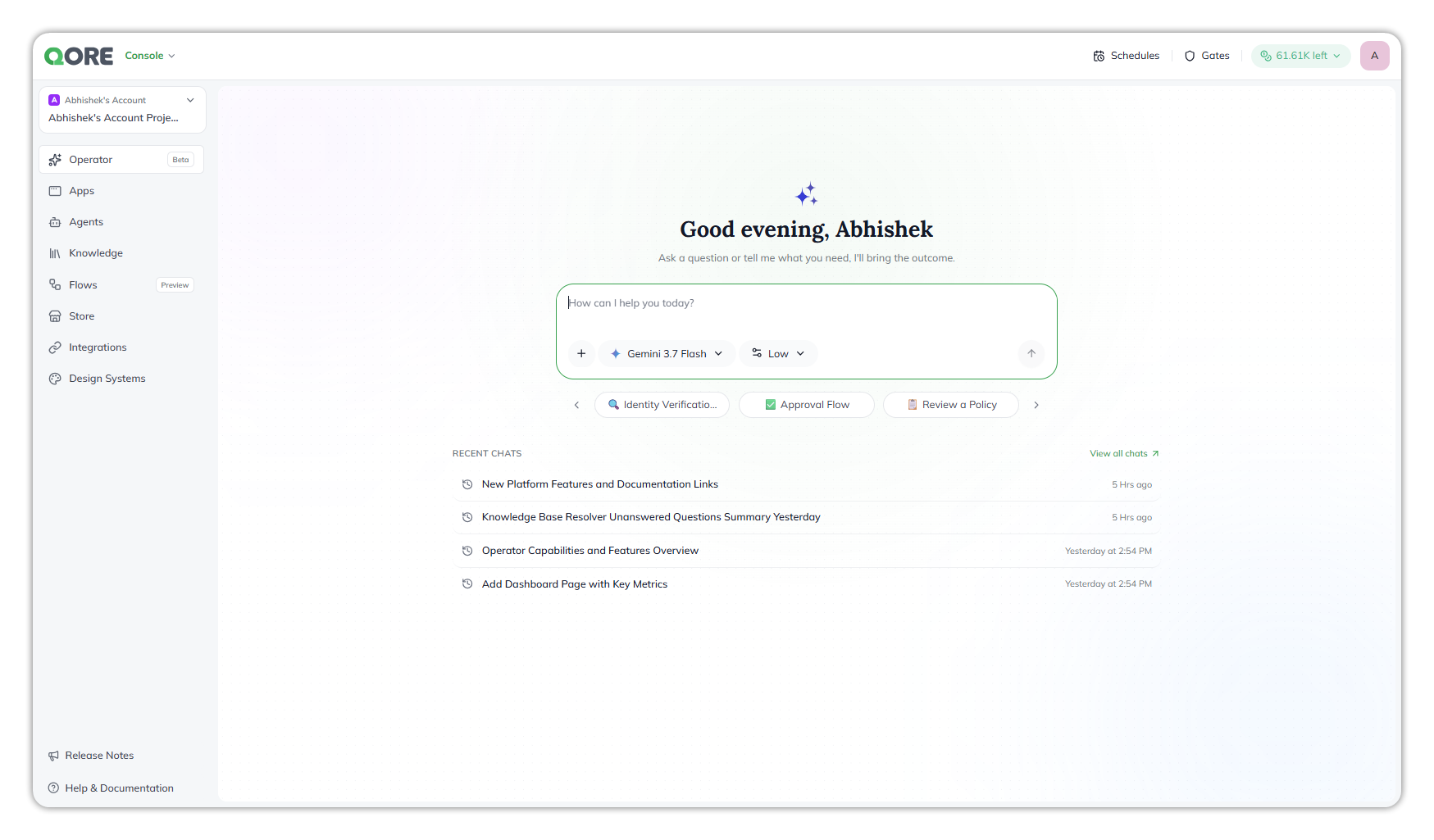
The assistant opens on a greeting with your name, such as *"Good evening, Abhishek"*, and the subtitle *"Ask a question or tell me what you need, I'll bring the outcome."*
The assistant home, with starters and recent chats.
Type your request in **How can I help you today?** and send it, or pick a starter from the row under the composer, such as **Approval Flow** or **Review a Policy**. Arrows either side of the row scroll through the starters.
**Recent chats** lists your latest conversations, each with a time such as `5 Hrs ago`. **View all chats** opens the full list.
## Work in a conversation
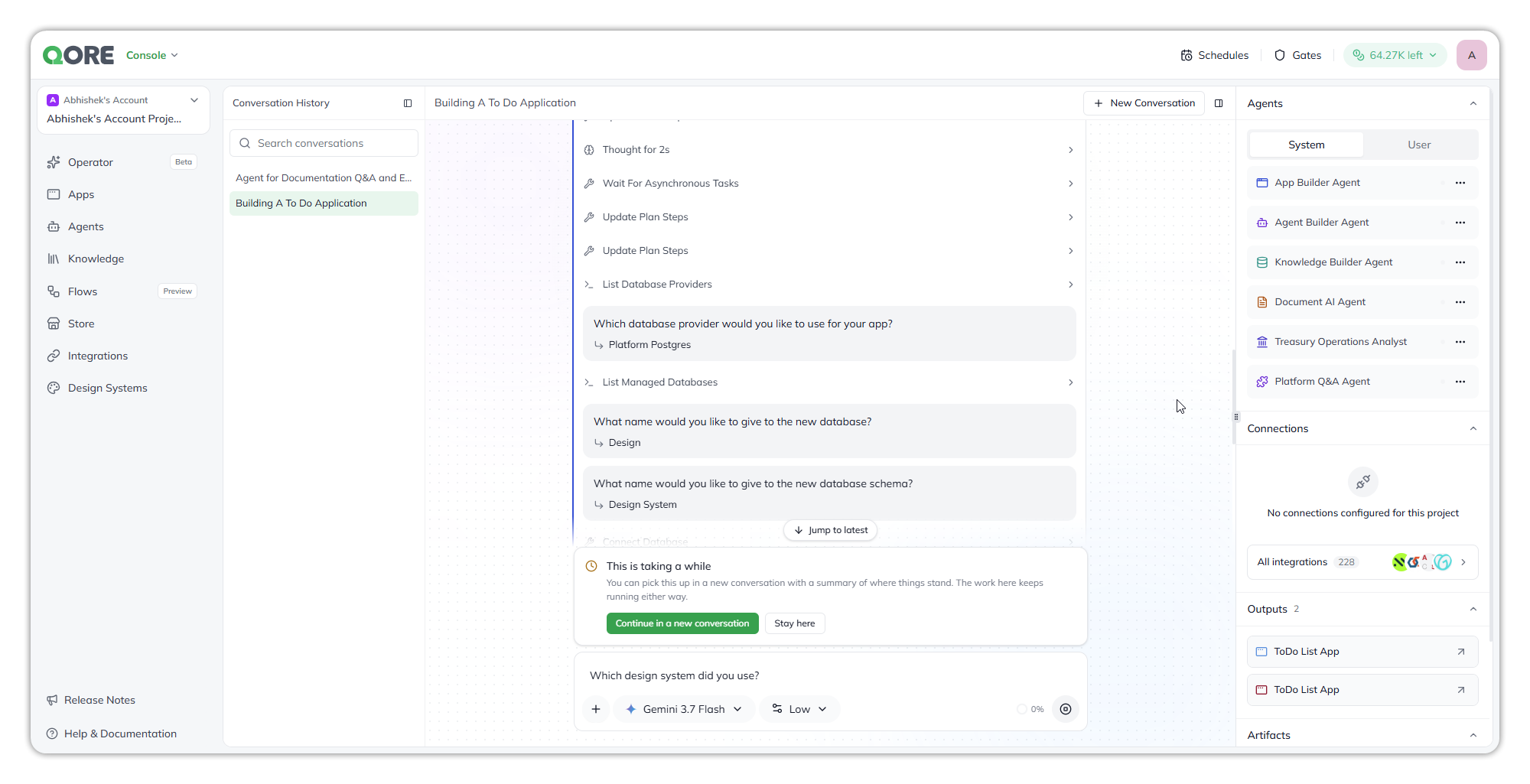
A conversation has three columns.
Conversation history, the transcript, and the side panel.
**Conversation History, on the left.** Your conversations in the project, newest first. Conversations are specific to each user, so you see only the ones you started. **Search conversations** filters them by title. **Observability**, at the bottom of the list, opens [Runs & Traces](https://docs.uptiq.ai/ai-workbench-qore/control-center/observe/runs-and-traces.md) in a new tab, with the assistant's agent and this conversation passed in.
**The transcript, in the middle.** The assistant shows its work as it goes: how long it thought, each step it took (such as **Update Plan Steps** or **List Database Providers**), and each question it asked with the answer beneath it. When it hands work to an agent, the agent appears as a card with its step count, for example **App Builder Agent · 49 steps**, and a **Working** status while it runs. Select **Open full run** on the card to see every step the agent took. **Jump to latest** returns to the bottom. **+ New Conversation**, top right, starts over.
**The side panel, on the right**, in four sections:
**Agents** — the agents the assistant can hand work to, under **System** and **User**. A count shows how many are working now, for example `1 working`. See [Agents & connections](https://docs.uptiq.ai/ai-workbench-qore/console/console-assistant/agents-and-connections.md).
**Connections** — the Integration Hub connections the assistant can use, and **All integrations**. See [Agents & connections](https://docs.uptiq.ai/ai-workbench-qore/console/console-assistant/agents-and-connections.md#connections).
**Outputs** — what the conversation built, such as an app, with a link to open it.
**Artifacts** — files and documents created during the task: *"Artifacts created during the task land here."*
### When an agent asks you something
Agents stop to ask when they need a decision, for example *"There are two apps named ToDo List App in your project. Which one would you like to update?"* The question appears as a card above the composer. Pick one of the numbered answers, write your own in **Answer in your own words…**, or select **Skip**. When the agent asks for a file, such as a brand guide, attach it as your answer. A conversation that ends on a question also appears on the [Gates](https://docs.uptiq.ai/ai-workbench-qore/console/console-assistant/gates.md) page until you answer.
### Long-running work
Building an app or ingesting knowledge can take several minutes. The assistant tracks these builds as background tasks, so it reports the real outcome when the build finishes, even if the conversation was interrupted. You may see *"Resuming 1 interrupted tool calls…"* when it picks one back up.
When a turn runs long, a banner appears above the composer:
> **This is taking a while**\
> *"You can pick this up in a new conversation with a summary of where things stand. The work here keeps running either way."*
Select **Continue in a new conversation** to carry on elsewhere with a summary, or **Stay here** to keep watching. The build keeps running whichever you choose.
## The composer
The composer at the bottom holds your message and its controls:
**+** — opens **Attach files**, to add files to your message, and **Connections**, to turn the assistant's connections on or off. See [Agents & connections](https://docs.uptiq.ai/ai-workbench-qore/console/console-assistant/agents-and-connections.md#connections).
**Model** — the model the assistant runs on, for example **Gemini 3.7 Flash** or **GPT 5.4**.
**Effort** — how hard the assistant reasons before it answers: **Minimal**, **Low**, **Medium** or **High**. More effort usually gives better plans on complex requests, at the cost of time and credits.
**Auto** — a toggle that decides whether the assistant may stop to ask you questions. See [Auto and Copilot](#auto-and-copilot).
**Context gauge** — how full the conversation's context is, for example `0%`. Hover over it for the detail, such as `18 / ~200.0K tokens`. When it fills up, start a new conversation.
Your model and effort choice applies to each message you send, so you can switch mid-conversation: plan on one model, then build on another. The composer remembers your last choice for your next conversation.
The choice applies to the assistant only. Agents it hands work to, such as the App Builder Agent, run on their own configured model and effort.
### Auto and Copilot
A conversation runs in one of two modes.
* **Copilot** is the default. The assistant and its agents may stop to ask you a question when they need a decision, as in [When an agent asks you something](#when-an-agent-asks-you-something).
* **Auto** never asks. The assistant makes a reasonable choice, says what it assumed, and keeps going.
The headless trigger supports both modes too.
On the assistant home, the **Auto** pill sits to the right of the **Effort** select. Select it to turn Auto on; it is highlighted while on. Select it again to go back to Copilot. The pill always reads **Auto**; it does not change to Copilot when it is off.
Choose the mode before you send your first message. It is fixed for the life of the conversation, so the pill doesn't appear in a conversation that has started. Hover over the pill for the same explanation in the product.
Auto doesn't remove permission requests. If the assistant needs your permission, the request still waits for you on the [Gates](https://docs.uptiq.ai/ai-workbench-qore/console/console-assistant/gates.md) page, in either mode.
### Credits used
Under each reply, a line such as `Just now · 119.52 credits` shows the credits that reply used, including the credits of any agents the assistant asked. Hover over the figure for a table with **Agent**, **Credits**, and **Cost** columns. It has a row for **Console assistant**, a row for each agent it asked, and a **Total**. In the composer of an open conversation, a credits figure shows the running total for the whole conversation, which grows with each reply, and shows the same table on hover. When you expand `Ran 1 tool, asked 1 agent` above a reply and open an agent's run, the run ends with the credits that agent used. Hover over the context gauge next to the composer figure for the token detail.
### Limit what a conversation spends
**Usage limits**, at the bottom of the conversation history, opens **Usage Limits**: *"Control how many credits, tokens or dollars Console assistant can consume in your assistant conversations."* A note, **How it works**, says that a limit counts everything spent in the conversation, by the assistant and every agent it delegates to. Once a conversation reaches the limit, Console assistant stops until a new conversation starts. The limits apply to your conversations only.
The table lists each limit with its **Period**, **Value**, and **Type**, and reads `No results.` when there are none. **Add Limit** opens **Add Usage Limit**:
| Field | Options |
| -------------- | -------------------------------------------- |
| **Duration** | **Per Conversation**. |
| **Limit Type** | **Credits**, **Tokens**, or **Dollars ($)**. |
| **Limit** | The amount, such as `10000`. |
Select **Add** to save it, or **Cancel**. **Done** closes the window.
An agent can have its own limit. Open the `⋯` menu on the agent's card in the **Agents** panel, which has **Disable** and **Usage limits**. The window reads the same, with the agent's name in place of Console assistant.
## What it does
**It routes work to your agents.** The assistant interprets your intent, identifies the agent that can complete each task, and combines its updates into one response.
**It builds.** Ask for a knowledge base, app, agent, or agentic application. The assistant creates it in the current project. You can test a new agent in the same conversation. When you ask for an app, the App Builder Agent asks which of the project's [design systems](https://docs.uptiq.ai/ai-workbench-qore/console/design-systems.md) to use, or you can name one in your request. If the branding doesn't exist yet, it saves a new design system as part of the build.
**It uses the web as input.** Ask it to search the web or crawl a public website. Given a URL, it can use the site's content to create a knowledge base. It can also use the website's design system when building an app.
**It works with documents.** The **Document AI Agent** extracts data from documents, classifies and summarises them, answers questions from them, and generates new ones. It can save a **document template**—sections and their order, layout, and a theme—and generate later documents from it. A document generated from the same template twice has the same structure and look, and a design system saved with the template keeps its branding without being named again. Before it generates a document, the agent lists the project's saved templates and asks you to choose one; it never picks one for you.
**It generates documents through GenOffice.** Document generation uses GenOffice, a provider set at the tenant level.
**It manages design systems.** Ask it to create, change or delete one of the project's [design systems](https://docs.uptiq.ai/ai-workbench-qore/console/design-systems.md#design-systems-in-console-assistant), for example from a brand's website. To set a logo, attach the image to the conversation. When it generates a document, it asks which design system to brand it with, and the document takes that design system's colours.
**It uses your connections.** With a connection turned on, the assistant can act in that third-party system. When a request needs a system it has no connection for, it tells you which existing connection to turn on, or which integration you could connect. See [Agents & connections](https://docs.uptiq.ai/ai-workbench-qore/console/console-assistant/agents-and-connections.md#connections).
**It helps you look after the account.** Ask who is in the account and which teams it has. The assistant can tell you, but it can't add, remove or change people or teams; that stays in [Users](https://docs.uptiq.ai/ai-workbench-qore/control-center/admin/users.md) and [Teams](https://docs.uptiq.ai/ai-workbench-qore/control-center/admin/teams.md). It can also manage the account's projects for you.
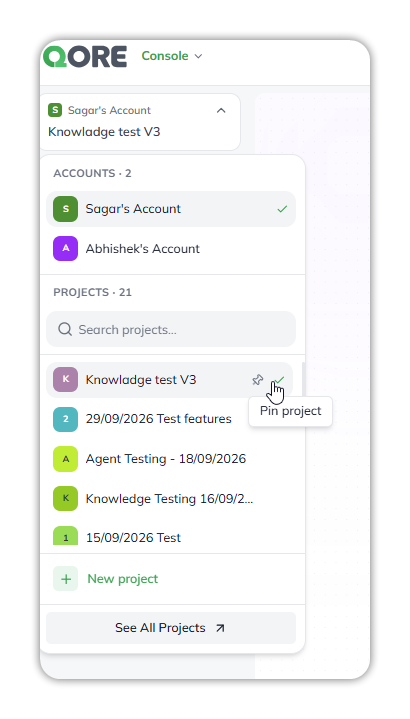
**It works inside one project.** Everything it creates belongs to the selected project. Switching projects changes what the assistant can reach. See [Spaces](https://docs.uptiq.ai/ai-workbench-qore/start-here/spaces.md) for these boundaries.
The account and project switcher, at the top of the Console sidebar.
## What you control, and what you don't
The **System** agents the assistant dispatches to are **preconfigured for the account**. You don't assemble that team, and you can't edit its agents from the assistant. The set is expected to grow as more capabilities ship.
What you do control is which agents and connections the assistant may use: turn a system agent off, turn your own project agents on, and choose which connections it can reach. See [Agents & connections](https://docs.uptiq.ai/ai-workbench-qore/console/console-assistant/agents-and-connections.md). Account policies in [Platform skills](https://docs.uptiq.ai/ai-workbench-qore/control-center/govern/connectors/platform-skills.md) apply to the assistant too.
For common questions and fixes, see [Console assistant: FAQs & Troubleshooting](https://docs.uptiq.ai/ai-workbench-qore/console/console-assistant/console-assistant-faqs-and-troubleshooting.md).
## What's next
{% content-ref url="/pages/gpaZQwdGJ12jItl2ieKa" %}
[Agents & connections](https://docs.uptiq.ai/ai-workbench-qore/console/console-assistant/agents-and-connections.md)
{% endcontent-ref %}
{% content-ref url="/pages/lkyNyxBiziq7BCINsenM" %}
[Schedules](https://docs.uptiq.ai/ai-workbench-qore/console/console-assistant/schedules.md)
{% endcontent-ref %}
{% content-ref url="/pages/5yk6Jb4SEmmnQYtwmMQm" %}
[Gates](https://docs.uptiq.ai/ai-workbench-qore/console/console-assistant/gates.md)
{% endcontent-ref %}
{% content-ref url="/pages/ndUTdUbYJoKZ0loA7yGB" %}
[Operate AI](https://docs.uptiq.ai/ai-workbench-qore/operate-ai.md)
{% endcontent-ref %}
{% content-ref url="/pages/sWeNphIZTUnb6V3jfTRr" %}
[Assistant](https://docs.uptiq.ai/ai-workbench-qore/core-concepts/assistant.md)
{% endcontent-ref %}
{% content-ref url="/pages/zJYkgM3o9KKRzcDtBr44" %}
[Governance assistant](https://docs.uptiq.ai/ai-workbench-qore/control-center/governance-assistant.md)
{% endcontent-ref %}
{% content-ref url="/pages/6712483fe92d4497b985e3f00b6d0737aa398200" %}
[Console](https://docs.uptiq.ai/ai-workbench-qore/start-here/spaces/console.md)
{% endcontent-ref %}
***
{% columns %}
{% column width="83.33333333333334%" %}
Maintained by Abhishek Paul AI-assisted, human-approved
{% endcolumn %}
{% endcolumns %}
---
# Agent Instructions
This documentation is published with GitBook. GitBook is the documentation platform designed so that both humans and AI agents can read, navigate, and reason over technical content effectively. Learn more at gitbook.com.
## Querying This Documentation
If you need additional information that is not directly available in this page, you can query the documentation by asking a question.
Perform an HTTP GET request on the following URL with the `ask` and `goal` query parameters:
```
GET https://docs.uptiq.ai/ai-workbench-qore/console/console-assistant.md?ask=&goal=
```
`ask` is the immediate question: it should be specific, self-contained, and written in natural language.
`goal` is what the user is ultimately trying to achieve, the reason they need the answer. Sharing it helps GitBook give you a better, more relevant answer. A goal is most helpful when it describes the outcome the user wants rather than restating the question. For example, with `ask=how do I create an API token`, a goal like `automate deployments from our CI pipeline` lets GitBook tailor the answer to that use case.
The response will contain a direct answer to the question and relevant excerpts and sources from the documentation.
Use this mechanism when the answer is not explicitly present in the current page, you need clarification or additional context, or you want to retrieve related documentation sections.