> For the complete documentation index, see [llms.txt](https://docs.uptiq.ai/llms.txt). Markdown versions of documentation pages are available by appending `.md` to page URLs; this page is available as [Markdown](https://docs.uptiq.ai/ai-workbench-qore/console/agent-builder/the-canvas.md).
# The Canvas
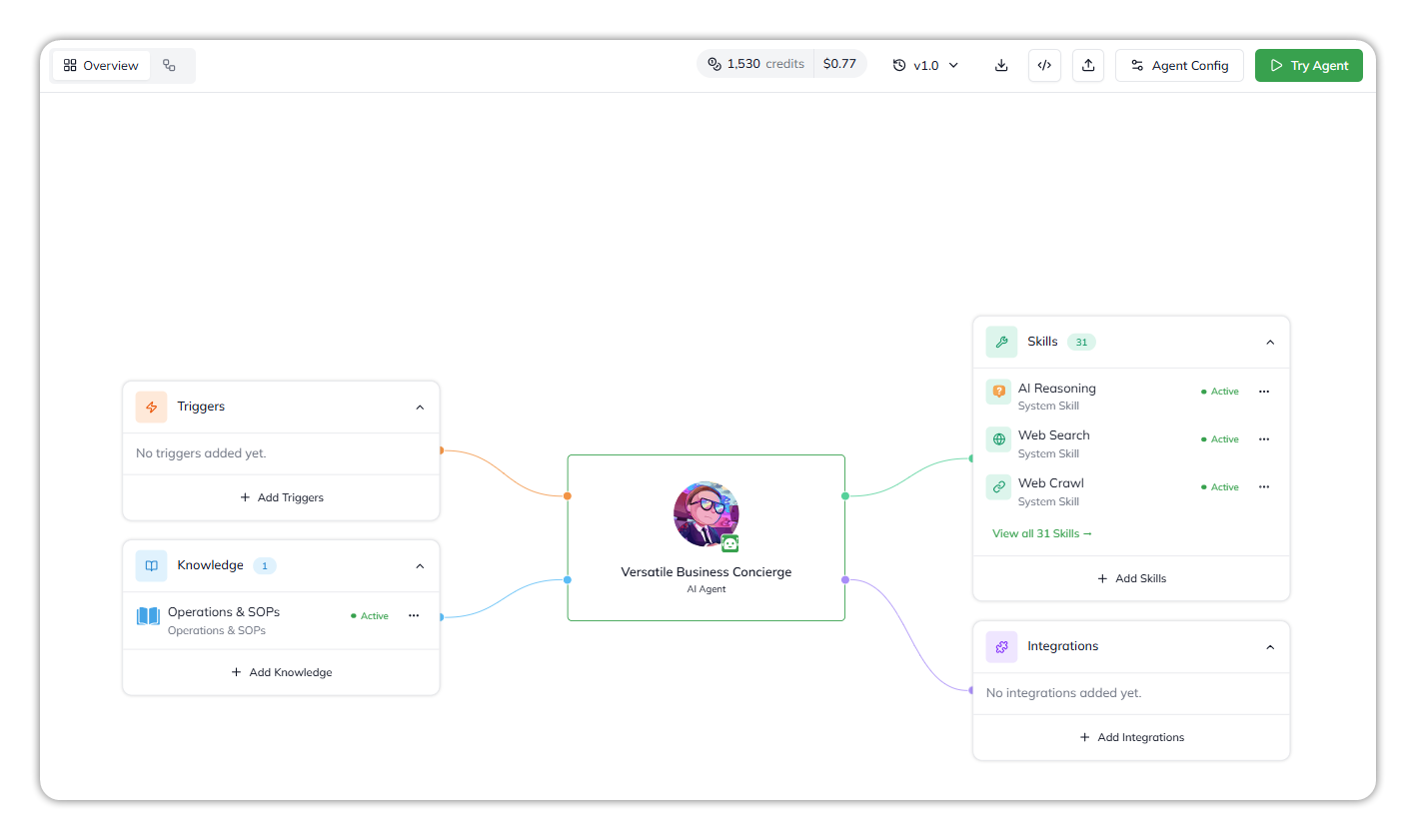
The Builder Canvas is the visual overview of the agent configuration inside the UPTIQ Qore Platform Agent Builder. It presents the agent at the center, with its connected knowledge, skills, triggers, and integrations arranged around it in a structured layout.
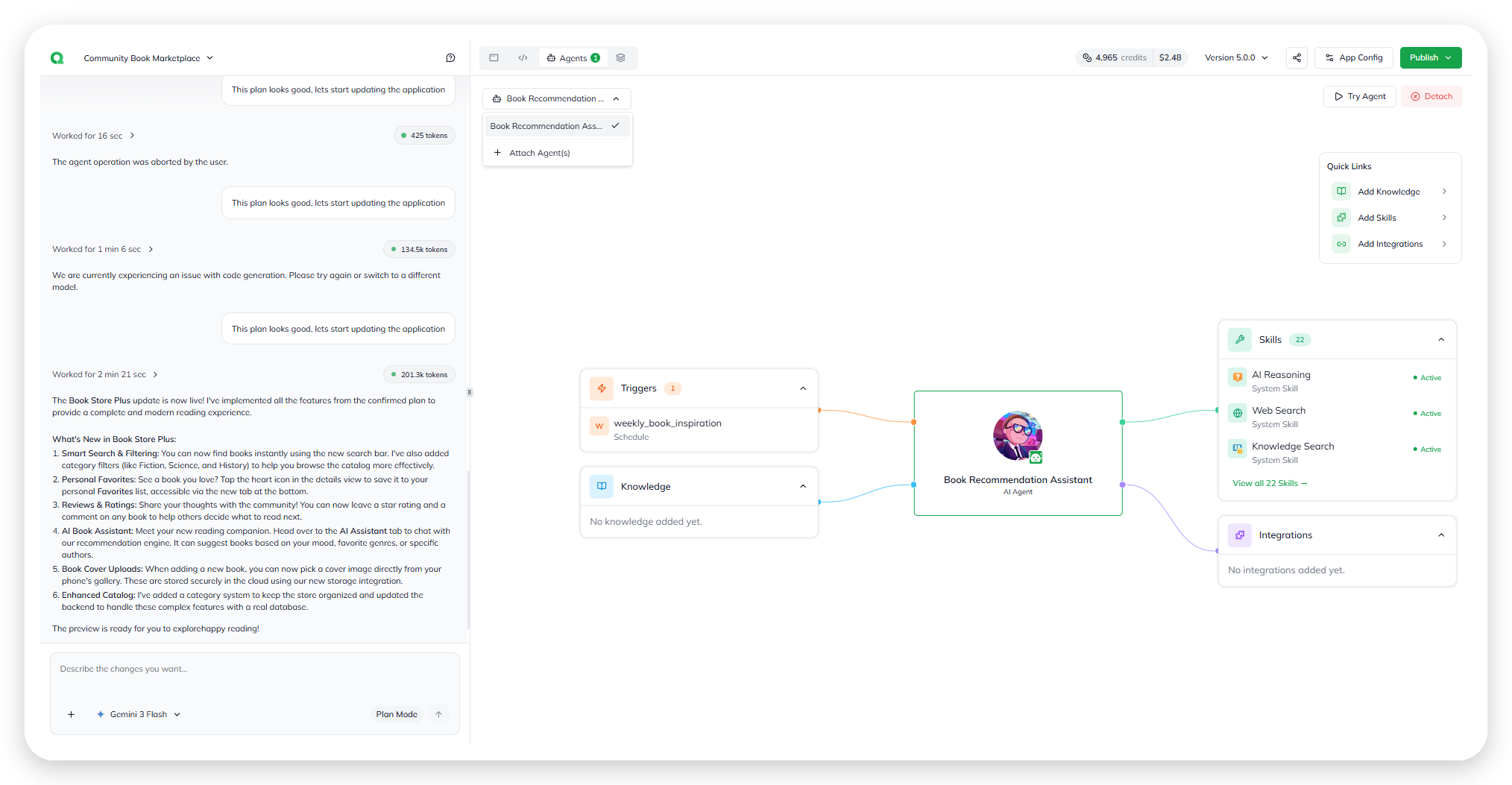
The Builder Canvas.
The canvas acts as a high-level representation of how the agent has been configured. At a glance, you can quickly understand:
* What knowledge sources are attached
* Which skills and connectors are available
* How many triggers are configured
* What runtime capabilities the agent has access to
Most configuration changes happen through **Agent Config**, but the canvas serves as the primary navigation surface for understanding the agent setup and accessing related workflows.
***
## The core layout
The canvas follows a simple mental model: one agent with connected capabilities around it.
### Agent
The agent appears at the center of the layout with its avatar, name, and agent type.
### Knowledge
Knowledge sources appear to the left of the agent, below **Triggers**. These represent the files, documents, and connected data sources the agent can reference during execution.
### Skills and Integrations
Skills and connected integrations appear to the right of the agent. These include platform-provided skills, MCP-based integrations, external connectors, and additional capabilities attached to the agent.
### Triggers
Triggers appear to the left of the agent, above **Knowledge**. Triggers define the events or actions that can initiate agent execution.
Each section in this guide maps back to one of these areas of the canvas.
## The headers
The Agent Builder has two headers: one above the chat on the left, and one above the canvas on the right.
### Chat header
* **Agent name**: opens the agent's options menu, with **Back** and **Rename Agent**.
* **Chat history**: your past conversations with the builder.
* **New chat**: starts a fresh conversation with the builder.
* **Need Help? Report the Issue** (the **?** icon): opens a form to raise a request. See [Report an issue](#report-an-issue).
* **Toggle Panel**: hides or shows the chat.
### The builder chat
* **Attach Files**: select **+** beside **Type here…**, then **Attach Files** (*Upload files from your device*).
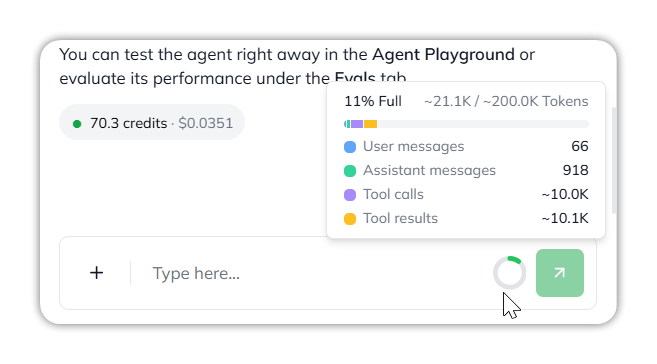
* **Context usage**: the ring beside the send arrow shows how much of the chat's context is used. Hover for how full it is, such as *11% Full*, the tokens used out of the total, such as *\~21.1K / \~200.0K Tokens*, and the tokens taken by **User messages**, **Assistant messages**, **Tool calls**, and **Tool results**.
* **Credits per reply**: each builder reply shows the credits it used, such as *70.3 credits · $0.0351*.
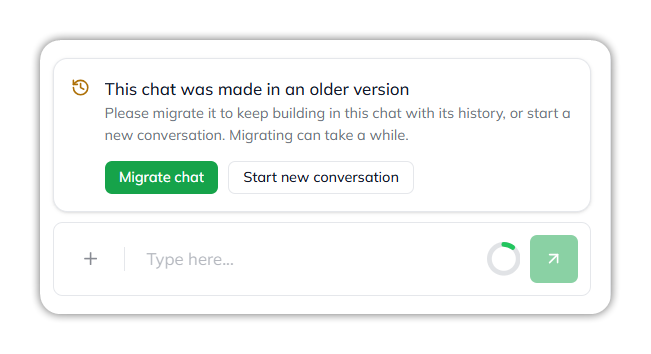
* **Chats from an older version**: these show *This chat was made in an older version.* Select **Migrate chat** to keep building in it with its history (migrating can take a while), or **Start new conversation**.
Context usage in the builder chat.
A chat from an older version.
### Canvas header
The Agent Builder header.
From left to right:
* **Overview** and **Flow**: the two views of the agent. See [Overview and Flow tabs](#overview-and-flow-tabs).
* **Credits and cost**: what the agent has used, such as `1,530 credits` and `$0.77`. Hover for the breakdown.
* **Version selector**: the version you're viewing, such as **Draft Version** or **v1.0**. See [Runtime & Versioning](/ai-workbench-qore/console/agent-builder/build/runtime-and-versioning.md).
* **Download Agent Version** (download icon): downloads the selected version's file to your browser. It appears only when you're on a saved version with no unsaved changes.
* **Integrate Agent** (``): the options for running the agent inside your own app. See [Integrate Agent](/ai-workbench-qore/console/agent-builder/deploy/agent-integration.md).
* **Export Agent** (export icon): exports the agent as a package, delivered by email. You need the **Export Agent** capability; without it the button is disabled. See [Export Agent](/ai-workbench-qore/console/agent-builder/deploy/export-agent.md).
* **Agent Config**: opens the agent's settings.
* **Try Agent**: opens the Agent Playground in a new tab, where you can chat with the agent. You need the **Trigger Agent** capability, and the agent needs a widget key.
***
## Overview and Flow tabs
The canvas has two tabs, in the canvas header.
### Overview
The default view. It shows the agent at the center with its **Triggers**, **Knowledge**, **Skills**, and **Integrations** cards around it.
The Overview tab, the canvas's default view.
### Flow
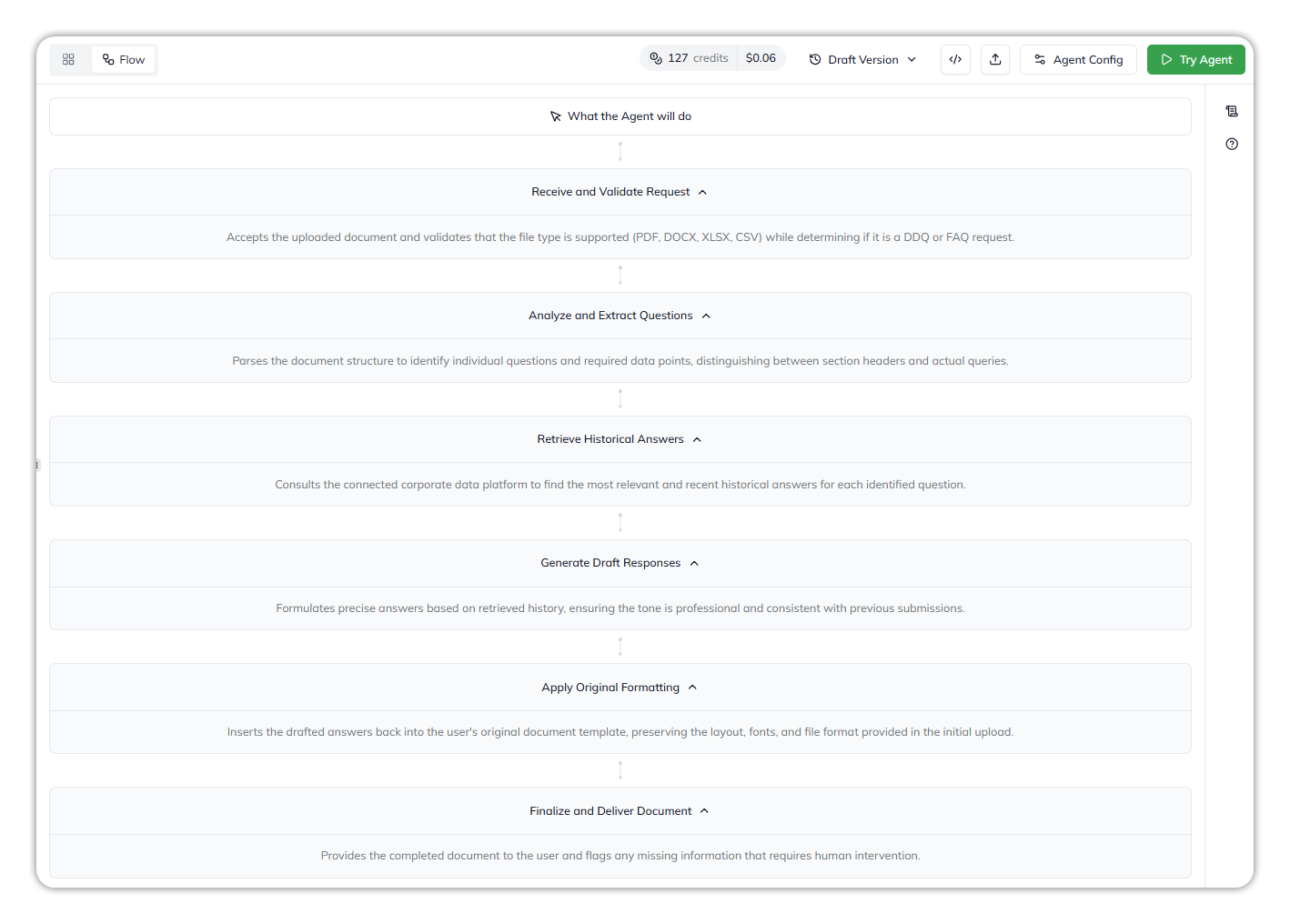
The Flow tab (formerly **Plan**) displays the agent’s decomposed execution flow as a sequence of steps the agent may follow during runtime, under *What the Agent will do*.
Instead of showing the visual layout of connected components, the Flow tab focuses on how the agent approaches task execution. It breaks the workflow into structured milestones, helping you understand:
* How the agent plans to solve a task
* The sequence of execution stages
* Which skills or integrations may be used during execution
* How larger workflows are decomposed into smaller operational steps
This view is useful for understanding orchestration logic, validating execution behavior, and reviewing how the agent is expected to progress through a task.
The Flow tab.
## Report an issue
To raise a request, select **Need Help? Report the Issue** (the **?** icon) in the chat header. The **Need Help? Raise a Request** form opens with the agent already filled in.
Raise a request from the Agent Builder.
* **Title**: required, up to 200 characters.
* **What do you need help with?**: required, up to 2,000 characters. Explain the issue or the outcome you're trying to achieve.
* **Attachment**: optional. Upload up to five PNG or JPEG screenshots, each up to 10 MB.
Select **Submit Request**. Qore confirms with *Issue reported successfully. Thank you for your feedback!* The same form is available in App Builder.
## Interactive Areas on the Canvas
The canvas primarily acts as a visual overview rather than a direct editing surface.
Most nodes are informational summaries of the current agent state. Configuration changes are managed through **Agent Config** and related setup flows.
Some sections act as shortcuts into deeper workflows, such as:
* Adding knowledge
* Managing skills
* Configuring integrations
* Setting triggers
The visual layout helps you quickly understand what is connected to the agent and identify what may still need configuration.
***
## Why this matters
The Builder Canvas serves as the central navigation and visualization layer for the agent.
Understanding this layout makes it easier to:
* Review the current agent setup
* Navigate to the correct configuration area
* Validate attached knowledge and integrations
* Identify missing runtime capabilities
* Troubleshoot agent behavior during testing
Most pages in this guide either explain a section visible on the canvas or describe the configuration flows launched from it.
***
{% columns %}
{% column width="83.33333333333334%" %}
Maintained by Abhishek Paul AI-assisted, human-approved
{% endcolumn %}
{% endcolumns %}
---
# Agent Instructions
This documentation is published with GitBook. GitBook is the documentation platform designed so that both humans and AI agents can read, navigate, and reason over technical content effectively. Learn more at gitbook.com.
## Querying This Documentation
If you need additional information that is not directly available in this page, you can query the documentation by asking a question.
Perform an HTTP GET request on the following URL with the `ask` and `goal` query parameters:
```
GET https://docs.uptiq.ai/ai-workbench-qore/console/agent-builder/the-canvas.md?ask=&goal=
```
`ask` is the immediate question: it should be specific, self-contained, and written in natural language.
`goal` is what the user is ultimately trying to achieve, the reason they need the answer. Sharing it helps GitBook give you a better, more relevant answer. A goal is most helpful when it describes the outcome the user wants rather than restating the question. For example, with `ask=how do I create an API token`, a goal like `automate deployments from our CI pipeline` lets GitBook tailor the answer to that use case.
The response will contain a direct answer to the question and relevant excerpts and sources from the documentation.
Use this mechanism when the answer is not explicitly present in the current page, you need clarification or additional context, or you want to retrieve related documentation sections.