> For the complete documentation index, see [llms.txt](https://docs.uptiq.ai/llms.txt). Markdown versions of documentation pages are available by appending `.md` to page URLs; this page is available as [Markdown](https://docs.uptiq.ai/ai-workbench-qore/console/agent-builder/test/evals.md).
# Evals
Test agent responses against scored datasets with automated LLM grading.
Evals is an evaluation framework for systematically testing agent quality on the Uptiq Platform. It allows teams to create datasets of test cases — read from an uploaded document, generated by an LLM, or added manually — run those test cases against a live agent, score each response on a 0–10 scale using an LLM scorer, and receive AI-generated suggestions for improving the agent.
{% hint style="info" %}
Use [Evals](/ai-workbench-qore/console/agent-builder/test/evals.md) before release, [Online-Eval](/ai-workbench-qore/console/agent-builder/monitor/online-eval.md) after release, and [Reinforcement Learnings](/ai-workbench-qore/console/agent-builder/monitor/reinforcement-learnings.md) to carry reviewed feedback forward.
{% endhint %}
| Capability | Description | Limit |
| -------------------- | ---------------------------------------------------------------------------------------------------------------------------- | ------------------------------------------------- |
| Dataset management | Create, rename, delete datasets; import test cases from an uploaded document, or generate them from the agent's instructions | 100 per agent |
| Test case management | Question, expected answer, optional document context and attachments | 50 per AI generation; up to 500 from one document |
| Evaluation runs | Trigger, monitor progress in real-time, cancel, view results | 100 per agent |
| LLM scoring | 0–10 scale with reasoning, 7+ = pass threshold | — |
| Suggested changes | AI-generated improvement recommendations with one-click apply | — |
| Document support | Auto-generated DOCX/XLSX/PDF test documents with preview | — |
Evals is accessed from the **Cognition & Control** section in the Agent Builder's **Agent Config** sidebar.
## Workflow
{% tabs %}
{% tab title="Datasets" %}
Manage [datasets](#datasets) and [test cases](#test-cases).
{% endtab %}
{% tab title="Runs" %}
View [runs](#runs), [scoring](#scoring), and [suggested changes](#suggested-changes).
{% endtab %}
{% endtabs %}
{% stepper %}
{% step %}
### Build a dataset
Create a [dataset](#datasets) from an uploaded document, generate one with AI, or add test cases manually.
{% endstep %}
{% step %}
### Run the evaluation
Execute the dataset against the live agent in [Runs](#runs).
{% endstep %}
{% step %}
### Review and improve
Inspect [scores](#scoring), review failures, and apply [suggested changes](#suggested-changes).
{% endstep %}
{% endstepper %}
***
## Datasets
A dataset is a collection of test cases for evaluating an agent. Each agent can have up to **100 datasets**.
### Generate Dataset
Select **Generate Dataset** on the **Datasets** tab. The **Add test data & cases** page opens in place of the list, in two steps.
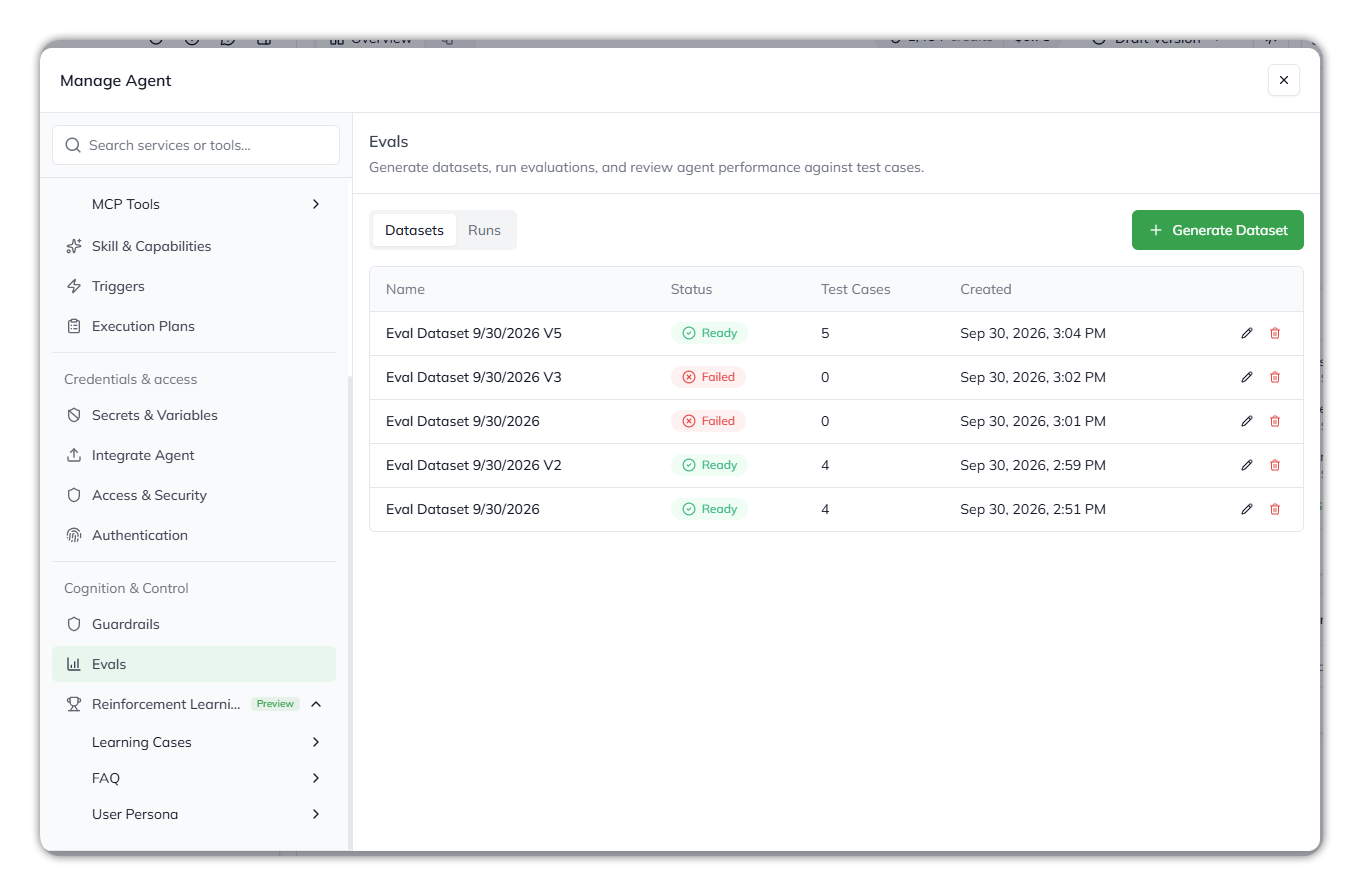
The Datasets tab, with the Generate Dataset button.
{% stepper %}
{% step %}
#### Test Data & Cases
Choose where the test cases come from.
{% tabs %}
{% tab title="Upload file" %}
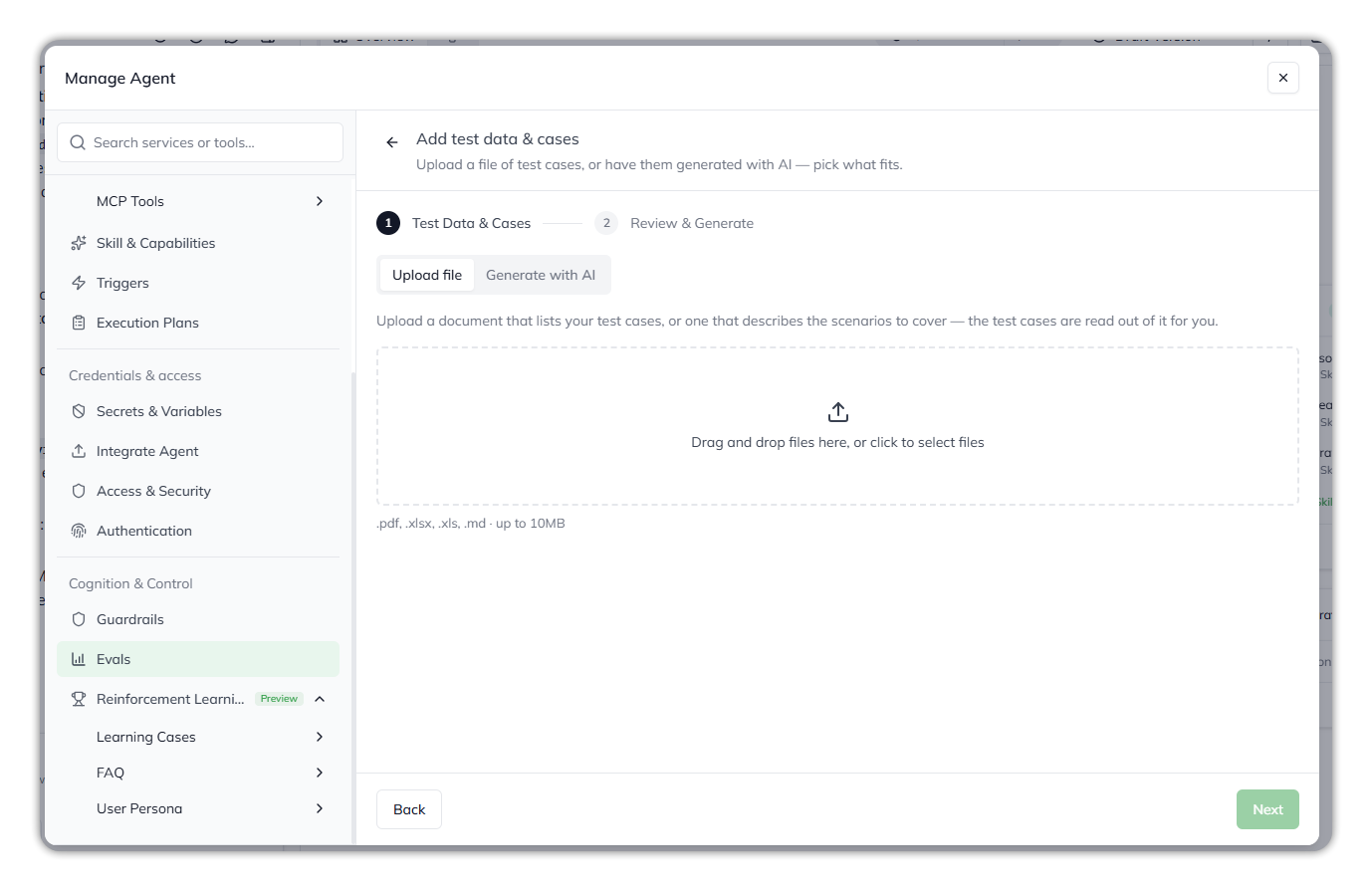
Upload a document, and the test cases are read out of it for you. The document can list the test cases, or describe the scenarios to cover; from a description, the cases are derived from the rules and constraints it states.
* **File types:** `.pdf`, `.xlsx`, `.xls`, `.md`
* **Size:** up to 10 MB
* **Test cases:** decided by the document, up to 500
Uploading a document of test cases.
{% endtab %}
{% tab title="Generate with AI" %}
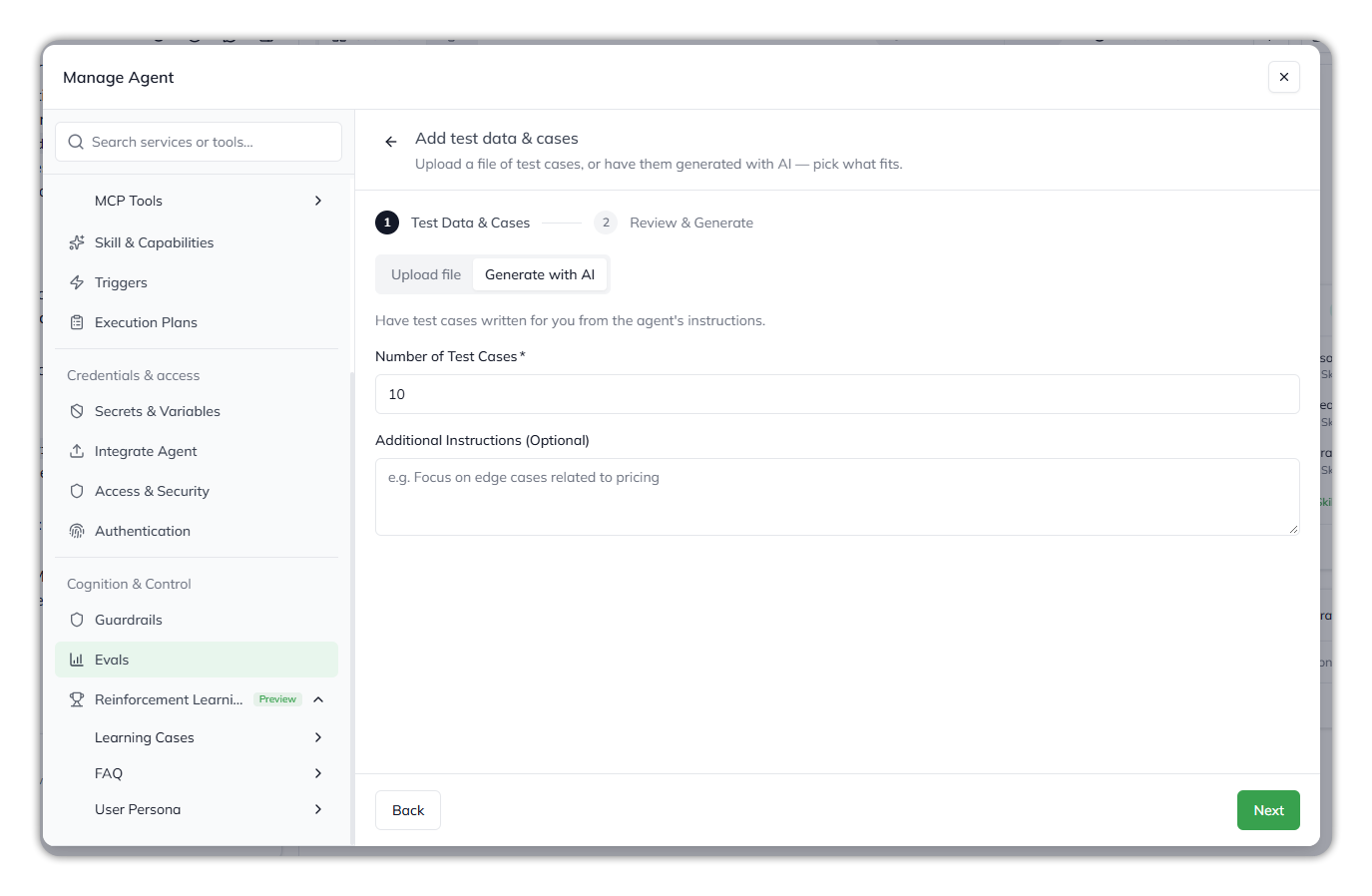
Have test cases written for you from the agent's instructions.
| Field | Required | Description |
| --------------------------- | -------- | ---------------------------------------------- |
| **Number of Test Cases** | Yes | 1–50, defaults to 10 |
| **Additional Instructions** | No | e.g., "Focus on edge cases related to pricing" |
Generating test cases from the agent's instructions.
**Generation steps:**
1. The system reads the agent's system prompt (instructions)
2. Sends it to an LLM (Gemini 3 Flash) to generate test cases
3. For each test case, the LLM creates: question, expected answer, and optional document content
4. Document content is converted to actual files (DOCX, XLSX, or PDF) and uploaded to storage
5. Test case records are created with document references
{% endtab %}
{% endtabs %}
{% endstep %}
{% step %}
#### Review & Generate
Check the details, then generate the dataset.
| Field | Description |
| -------------------- | ----------------------------------------------------------------------- |
| **Dataset name** | Required, up to 120 characters. |
| **Test case source** | **Uploaded file** (with the file name) or **Generated with AI**. |
| **Test cases** | The number you asked for, or **Decided by the document** for an upload. |
The new dataset's details page opens. Reading an uploaded document takes a while, so the dataset shows **Extracting** until its test cases are ready. You can leave the page in the meantime.
{% endstep %}
{% endstepper %}
#### Add test cases manually
Create manual test cases one at a time in an existing dataset.
Each manual test case can include:
* `question`
* `expected answer`
* optional documents
Use `POST /:agentId/eval/datasets/:datasetId/items` to create the test case.
Use **Test Case Search** to filter by question, expected answer, or document context.
How document format selection works
Document format selection is automatic.
| Format | Content Type | Examples |
| ------ | ------------------------ | ----------------------------- |
| XLSX | Tabular/spreadsheet data | Budgets, financial tables |
| DOCX | Narrative prose | Memos, policies, contracts |
| PDF | Professional documents | Invoices, resumes, statements |
### Dataset Views
**List view** displays all datasets for the agent:
* **Name** — Dataset name
* **Status** — See the table below
* **Test Cases** — How many test cases the dataset holds
* **Created** — Creation timestamp
* **Actions** — Rename (pencil icon), Delete
| Status | Meaning |
| -------------- | ------------------------------------------------------------------------------------------------------------------------------------ |
| **Extracting** | The uploaded document is still being read. The list refreshes on its own until it settles. |
| **Ready** | The test cases are in place and the dataset can be run. |
| **Failed** | No test cases could be read from the document. Hover over the badge for the reason, then upload a revised document as a new dataset. |
Empty state: "No evaluation datasets yet. Generate one to get started."
**Details view** shows the dataset name as header with a **"Run Evaluation"** button (disabled if no [test cases](#test-cases)), plus the list of all [test cases](#test-cases).
***
### Test Cases
Each test case contains:
* **Question** — The input prompt sent to the agent
* **Expected Answer** — The ground truth / ideal response
* **Document Context** (optional) — Description of attached documents (e.g., "Excel budget sheet")
* **Documents** (optional) — Attached files (DOCX, XLSX, PDF) shown as clickable chips
#### Document Preview
Clicking a document chip opens a preview modal:
| File Type | Viewer |
| -------------------------- | --------------------------------------- |
| PDF | Native document viewer |
| Google Docs / Office files | Embedded Google or Office Online viewer |
| Excel | Office Online viewer |
{% hint style="info" %}
Toggle between "Show preview" and "Show context" if document context is available. Use the "Open file" button for external download.
{% endhint %}
***
## Runs
#### Starting a Run
{% tabs %}
{% tab title="Start a run" %}
1. Navigate to a dataset with at least one test case
2. Click **"Run Evaluation"**
3. The system creates an eval run with status `Pending`
4. Background processing starts
5. Success toast: "Evaluation run started"
{% endtab %}
{% tab title="Monitor a run" %}
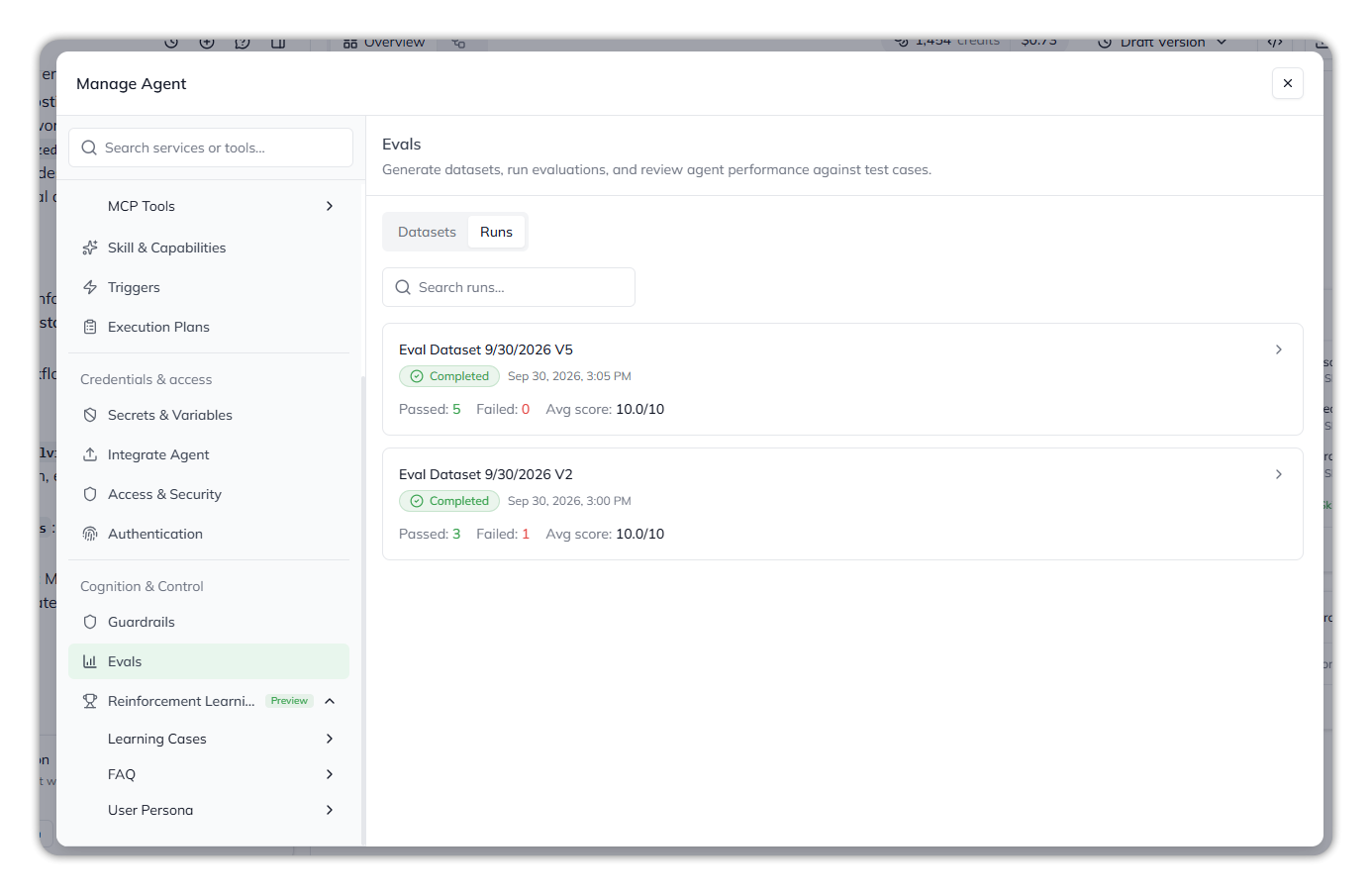
Use the **Runs** tab to track:
* current status
* progress
* scores
* suggestions
Each run is a card showing the dataset name, its status, when it started, and its **Passed**, **Failed** and **Avg score** figures. Use **Search runs** to find one, and select a card to open the **Evaluation Run** page with its summary and per-test-case [results](#scoring).
The Runs tab.
{% endtab %}
{% endtabs %}
#### Run Execution
For each test case in the dataset:
1. Resolve document references to signed URLs
2. Trigger the agent via the Agent Executor (`/agents/{agentId}/trigger`)
3. Pass the question + documents to the agent
4. Extract the agent's actual answer from the response
5. Score the response using an LLM scorer (Gemini 3 Flash)
6. Record the result (score, reasoning, correctness, duration)
7. Update run progress counters
{% hint style="info" %}
Up to **3 test cases** execute concurrently during a run.
{% endhint %}
#### Run Status
Status lifecycle
```
Pending → Running → Completed
→ Failed
→ Stopped (user-stopped)
```
| Status | Indicator | Details Shown | Available Actions |
| ------------- | ---------------- | ------------------------------------------- | ----------------------------------------------------- |
| **Pending** | Warning badge | Waiting to start | — |
| **Running** | Animated spinner | Progress bar (completedItems / totalItems) | Stop |
| **Completed** | Green badge | Pass/fail counts, [average score](#scoring) | View results, Apply [suggestions](#suggested-changes) |
| **Failed** | Red badge | Error message | — |
| **Stopped** | Red badge | Partial [results](#scoring) | View partial [results](#scoring) |
{% hint style="info" %}
A **Stop** button appears during in-progress runs. Stopping preserves already-completed results. The UI polls every **3 seconds** while a run is in progress, stopping automatically when the run completes.
{% endhint %}
***
## Scoring
**Score Scale:** Each test case response is scored by an LLM (Gemini 3 Flash):
| Score | Verdict | Description | Result |
| -------- | ----------------- | ---------------------------------------------------- | ------ |
| **0–3** | Incorrect | Response is wrong or irrelevant | Fail |
| **4–6** | Partially correct | Some relevant content but incomplete or inaccurate | Fail |
| **7–8** | Correct | Meets the expected answer criteria | Pass |
| **9–10** | Comprehensive | Exceeds expectations with additional relevant detail | Pass |
{% hint style="warning" %}
**Pass threshold:** A score of 7 or above marks the test case as passed.
{% endhint %}
**Result Card** — each completed test case displays:
* **Status Badge** — Pass (green), Fail (red), or Error (red)
* **Score** — "Score: X/10"
* **Duration** — Execution time
* **Question** — Original input
* **Expected Answer** — Ground truth (muted, scrollable)
* **Actual Answer** — Agent's response (or error message)
* **Scorer Reasoning** — LLM's explanation of the score
Results appear progressively as each test case completes.
{% hint style="success" %}
Completed runs display **pass count** (green), **fail count** (red), **average score** (0–10), and an LLM-generated **summary** of evaluation results.
{% endhint %}
What a failing run usually means
A failing run does not always mean the agent is broken.
Common causes include:
* incomplete instructions
* missing skills or knowledge
* answers that are directionally correct but below the pass threshold
***
## Suggested Changes
{% hint style="info" %}
Suggestions are generated automatically when a run completes with failures or an average score below 7.
{% endhint %}
Each suggestion contains:
* **Title** — Short description (max 200 characters)
* **Category** — Instructions, Skills, Knowledge, Guardrails, or Other
* **Description** — Detailed recommendation (max 2,000 characters)
Suggestions can modify: agent instructions, skills, knowledge, and guardrails.
#### Applying Suggestions
{% stepper %}
{% step %}
### Open suggestions
Click **"Apply to Agent"** on a completed run with suggestions.
{% endstep %}
{% step %}
### Review selections
A dialog opens with all suggestions and checkboxes.
Edit titles, categories, or descriptions as needed.
{% endstep %}
{% step %}
### Apply changes
Select the suggestions to apply and click **Apply**.
Toast: "Builder agent is applying your changes — watch the chat panel on the left"
{% endstep %}
{% step %}
### Continue in chat
The agent config modal closes and the Builder Agent executes the changes in the chat panel.
{% endstep %}
{% endstepper %}
### Related sections
* [Monitoring](/ai-workbench-qore/console/agent-builder/monitor.md) — Watch runtime behavior after the agent is live.
* [Online-Eval](/ai-workbench-qore/console/agent-builder/monitor/online-eval.md) — Score live conversations in production.
* [Reinforcement Learnings](/ai-workbench-qore/console/agent-builder/monitor/reinforcement-learnings.md) — Review and approve learning cases from real usage.
***
{% columns %}
{% column width="83.33333333333334%" %}
Maintained by Abhishek Paul AI-assisted, human-approved
{% endcolumn %}
{% endcolumns %}
---
# Agent Instructions
This documentation is published with GitBook. GitBook is the documentation platform designed so that both humans and AI agents can read, navigate, and reason over technical content effectively. Learn more at gitbook.com.
## Querying This Documentation
If you need additional information that is not directly available in this page, you can query the documentation by asking a question.
Perform an HTTP GET request on the following URL with the `ask` and `goal` query parameters:
```
GET https://docs.uptiq.ai/ai-workbench-qore/console/agent-builder/test/evals.md?ask=&goal=
```
`ask` is the immediate question: it should be specific, self-contained, and written in natural language.
`goal` is what the user is ultimately trying to achieve, the reason they need the answer. Sharing it helps GitBook give you a better, more relevant answer. A goal is most helpful when it describes the outcome the user wants rather than restating the question. For example, with `ask=how do I create an API token`, a goal like `automate deployments from our CI pipeline` lets GitBook tailor the answer to that use case.
The response will contain a direct answer to the question and relevant excerpts and sources from the documentation.
Use this mechanism when the answer is not explicitly present in the current page, you need clarification or additional context, or you want to retrieve related documentation sections.