> For the complete documentation index, see [llms.txt](https://docs.uptiq.ai/llms.txt). Markdown versions of documentation pages are available by appending `.md` to page URLs; this page is available as [Markdown](https://docs.uptiq.ai/ai-workbench-qore/console/agent-builder/get-started.md).
# Get Started
The two surfaces of the builder, and how to find your way around.
Each agent in the Qore Agent Builder is a dedicated record. What you configure here — instructions, knowledge, tools, triggers, integrations, credentials, security controls — becomes how the agent behaves at runtime, inside whatever application embeds it.
## The two surfaces
**The Builder Canvas** is the visual workspace. It shows the agent's connected knowledge, skills, triggers, and configuration as a diagram, so you can see at a glance how the agent is wired — which connectors are attached, what knowledge it can reach.
**The builder chat** is on the left. Describe changes to the agent there, and the builder applies them. To chat with the agent itself, select **Try Agent** in the canvas header: the Agent Playground opens in a new tab.
A header across the top carries the global actions: the **Overview** and **Flow** tabs, the version selector, **Integrate Agent**, **Export Agent**, **Agent Config**, and **Try Agent**. See [The headers](/ai-workbench-qore/console/agent-builder/the-canvas.md#the-headers).
The Agent Builder landing screen.
## Start an agent
**Create New Agent** reads *Describe the task. I'll build the agent to do it.* Describe the agent in **Describe the agent you want to build…** (select **+** to attach files), or select a template chip below the prompt, such as **Collections Agent**. Not starting from a prompt? Two links sit below the chips:
* **Import an existing agent** — bring in an agent package exported from Platform: a ZIP file up to 50 MB. Select **Next** to continue. See [Export Agent](/ai-workbench-qore/console/agent-builder/deploy/export-agent.md#knowledge-in-the-package) for what an import restores.
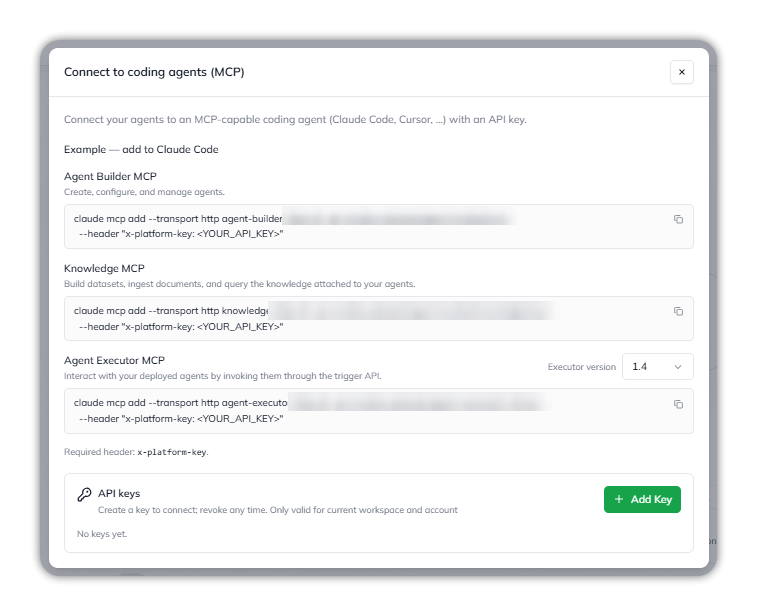
* **Build from your IDE** — **Connect to coding agents (MCP)** connects your agents to an MCP-capable coding agent, such as Claude Code or Cursor, with an API key.
Import an existing agent.
### Connect to coding agents (MCP)
The dialog lists three MCP servers, each with an example command for Claude Code:
| Server | What it does |
| ---------------------- | ------------------------------------------------------------------------------------------------------------------------------------------------------------ |
| **Agent Builder MCP** | Create, configure, and manage agents. |
| **Knowledge MCP** | Build datasets, ingest documents, and query the knowledge attached to your agents. |
| **Agent Executor MCP** | Interact with your deployed agents by invoking them through the trigger API. An **Executor version** menu, such as **1.4**, sets the version in the command. |
Every request needs the `x-platform-key` header. Under **API keys**, select **+ Add Key** to create a key. A key is valid only for the current workspace and account, and you can revoke it at any time. Before you've made one, the list reads *No keys yet.*
Connect to coding agents (MCP).
## My Agents
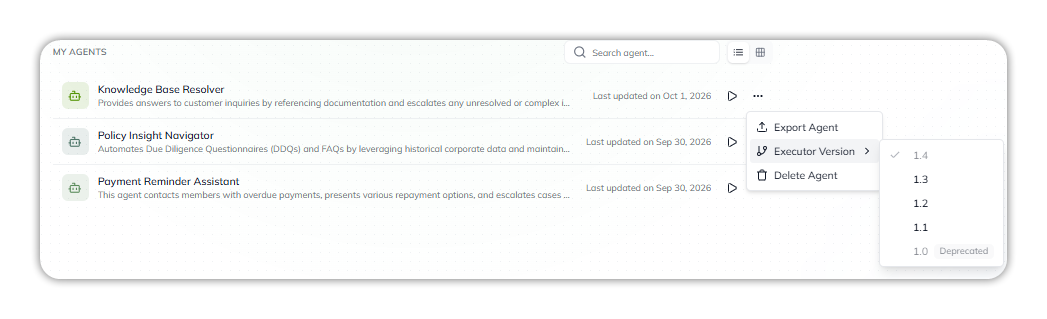
**My Agents**, below the prompt, lists your agents with their name, description, and when each was last updated. Narrow the list with **Search agent…**, and switch between the list and grid layouts. The **▷** icon on a row is **Try Agent**.
Each agent's **•••** menu has:
* **Export Agent** — opens the same Export Agent Package dialog as the canvas header. See [Export Agent](/ai-workbench-qore/console/agent-builder/deploy/export-agent.md).
* **Executor Version** — choose the runtime version. The current one is ticked, and **1.0** is marked **Deprecated**. See [Runtime & Versioning](/ai-workbench-qore/console/agent-builder/build/runtime-and-versioning.md).
* **Delete Agent**.
An agent's ••• menu in My Agents.
For every task in one place, see [Create an agent](/ai-workbench-qore/task-guides/create-an-agent.md).
→ [The Canvas](/ai-workbench-qore/console/agent-builder/the-canvas.md)
## Finding the setting you need
The builder's pages are organized by the order you work in, not by the order the settings panel happens to list them.
| Stage | What you do there |
| ------------------------------------------------------------------ | ------------------------------------------------------------------------------------------------------------------------- |
| [**Build**](/ai-workbench-qore/console/agent-builder/build.md) | Define the agent — identity, instructions, behavior, runtime, skills, MCP tools, connectors, knowledge, triggers, secrets |
| [**Test**](/ai-workbench-qore/console/agent-builder/test.md) | Validate it against scored datasets before anyone depends on it |
| [**Deploy**](/ai-workbench-qore/console/agent-builder/deploy.md) | Ship it into your product, with authentication, domain, PII, and guardrail controls |
| [**Monitor**](/ai-workbench-qore/console/agent-builder/monitor.md) | Watch production behavior and feed what you learn back into Build |
If you're looking for one specific screen, the [Overview](/ai-workbench-qore/console/agent-builder.md) lists every page under its stage.
## Common paths
* **Go live in your product** — [Integrate Agent](/ai-workbench-qore/console/agent-builder/deploy/agent-integration.md) and [Access & Security](/ai-workbench-qore/console/agent-builder/deploy/authentication.md)
* **Improve quality before release** — [Evals](/ai-workbench-qore/console/agent-builder/test/evals.md), [Instructions](/ai-workbench-qore/console/agent-builder/build/instructions.md), [Skills & Capabilities](/ai-workbench-qore/console/agent-builder/build/skills-and-capabilities.md), and [Guardrails (Beta)](/ai-workbench-qore/console/agent-builder/deploy/guardrails.md)
* **Improve quality after release** — [Monitoring](/ai-workbench-qore/console/agent-builder/monitor.md), [Online-Eval](/ai-workbench-qore/console/agent-builder/monitor/online-eval.md), and [Reinforcement Learnings](/ai-workbench-qore/console/agent-builder/monitor/reinforcement-learnings.md)
* **Move an agent between environments** — [Export Agent](/ai-workbench-qore/console/agent-builder/deploy/export-agent.md), [Secrets & Variables](/ai-workbench-qore/console/agent-builder/build/secrets-and-variables.md), and [Runtime & Versioning](/ai-workbench-qore/console/agent-builder/build/runtime-and-versioning.md)
## Why the configuration matters
What you set here becomes the agent's runtime behavior. Model selection, response format, instructions, connected knowledge, enabled tools, secrets, guardrails — each one directly affects how the agent answers real users.
A clear configuration produces an agent that behaves predictably in production. An incomplete or ambiguous one produces an agent that fails in ways that are hard to debug later, because nothing is technically broken — the agent is doing exactly what an unclear brief told it to. This guide is written to help you make each choice deliberately rather than by default.
***
New to agents? [How an Agent Works](/ai-workbench-qore/start-here/how-an-agent-works.md) walks through building one end to end. For the ideas behind the settings, see [Core Concepts](/ai-workbench-qore/start-here/core-concepts.md).
***
{% columns %}
{% column width="83.33333333333334%" %}
Maintained by Abhishek Paul AI-assisted, human-approved
{% endcolumn %}
{% endcolumns %}
---
# Agent Instructions
This documentation is published with GitBook. GitBook is the documentation platform designed so that both humans and AI agents can read, navigate, and reason over technical content effectively. Learn more at gitbook.com.
## Querying This Documentation
If you need additional information that is not directly available in this page, you can query the documentation by asking a question.
Perform an HTTP GET request on the following URL with the `ask` and `goal` query parameters:
```
GET https://docs.uptiq.ai/ai-workbench-qore/console/agent-builder/get-started.md?ask=&goal=
```
`ask` is the immediate question: it should be specific, self-contained, and written in natural language.
`goal` is what the user is ultimately trying to achieve, the reason they need the answer. Sharing it helps GitBook give you a better, more relevant answer. A goal is most helpful when it describes the outcome the user wants rather than restating the question. For example, with `ask=how do I create an API token`, a goal like `automate deployments from our CI pipeline` lets GitBook tailor the answer to that use case.
The response will contain a direct answer to the question and relevant excerpts and sources from the documentation.
Use this mechanism when the answer is not explicitly present in the current page, you need clarification or additional context, or you want to retrieve related documentation sections.