> For the complete documentation index, see [llms.txt](https://docs.uptiq.ai/llms.txt). Markdown versions of documentation pages are available by appending `.md` to page URLs; this page is available as [Markdown](https://docs.uptiq.ai/ai-workbench-qore/console/agent-builder/build/attaching-knowledge-to-an-agent.md).
# Attaching Knowledge to an Agent
Attaching knowledge allows an agent to reference your organization’s documents, files, and external content during runtime. Instead of responding only from general model training, the agent can retrieve information directly from approved knowledge sources to generate more accurate, contextual, and business-specific responses.
Knowledge can be sourced from uploaded files or connected platforms such as Google Drive, Microsoft OneDrive, and Microsoft SharePoint. Once attached, the content becomes available to the agent through the platform’s knowledge retrieval capabilities.
***
### What This Enables
With attached knowledge, agents can:
* Answer questions using internal business documents
* Reference policies, guidelines, or product documentation
* Retrieve context from uploaded files and connected repositories
* Deliver more consistent and traceable responses
* Reduce reliance on generic model knowledge
This transforms the agent from a general AI assistant into a domain-aware business agent grounded in your organization’s data.
***
### Before You Begin
Before attaching knowledge, ensure that:
* You have the source content ready for upload or import
* Each file is within the upload size limit for this screen — **10 MB**. Larger files can be added in [Datasets](/ai-workbench-qore/console/knowledge/datasets.md), which accepts up to 15 MB per file
* Required integrations such as Google Drive, OneDrive, or SharePoint are already connected
* You understand whether preprocessing is required for your content type
Typical supported content includes:
* PDFs
* Documents
* Spreadsheets
* Policy files
* Structured business reference material
***
### How to Attach Knowledge
#### 1. Open the Builder Canvas
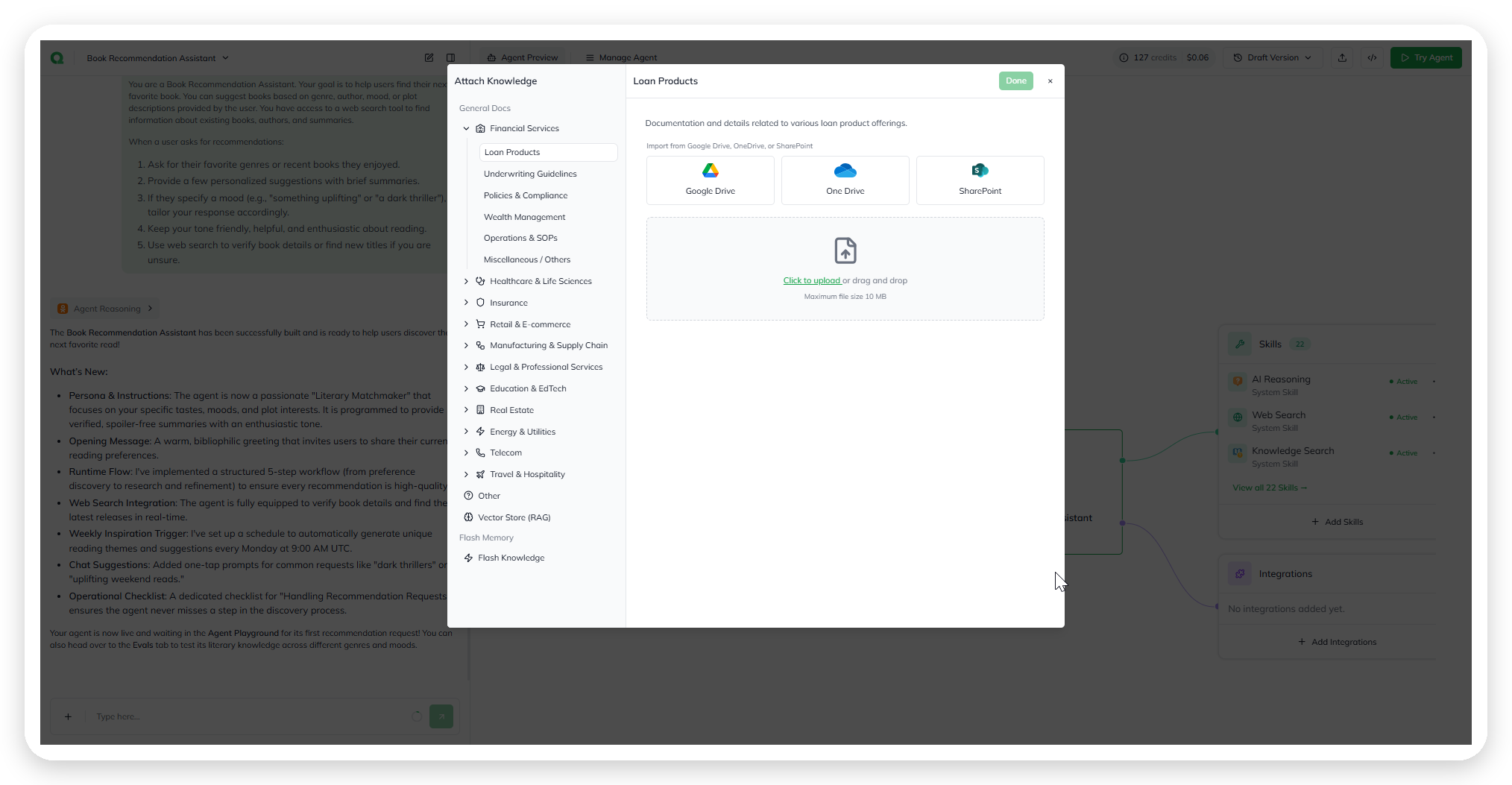
From the Agent Builder canvas, select **+ Add Knowledge** within the Knowledge section above the agent node. This opens the **Attach Knowledge** workflow.
Opening the Attach Knowledge workflow from the canvas.
***
#### 2. Select a Knowledge Category
Choose the category that best matches the content being attached. Categories help organize knowledge sources and improve downstream retrieval behavior.
Examples include:
* General Documentation
* Financial Services
* Policies & Compliance
* Underwriting Guidelines
* Healthcare
* Legal
* Insurance
* Manufacturing
If no category is an exact match, select the closest applicable category or use a general-purpose option.
***
#### 3. Import or Upload Content
Knowledge can be added through connected integrations or direct upload.
Available import options include:
* Google Drive
* Microsoft OneDrive
* Microsoft SharePoint
You can also drag and drop files directly into the upload area for local uploads.
***
#### 4. Configure the Preprocessing Pipeline
The **Preprocessing Pipeline** determines how the platform prepares content before indexing.
When enabled, the platform can perform:
* Intelligent document chunking
* OCR for scanned PDFs
* Layout-aware extraction
* Table and structured data parsing
**Recommended Usage**
| Content Type | Recommendation |
| ----------------------------------- | ------------------------------------ |
| Clean text-based documents | Leave preprocessing disabled |
| Scanned PDFs | Enable preprocessing |
| Table-heavy or structured documents | Enable preprocessing |
| Retrieval quality issues | Re-import with preprocessing enabled |
***
#### 5. Complete the Attachment
Once at least one file has been imported or uploaded, select **Done** to attach the knowledge source to the agent.
The knowledge source then appears as a node within the Knowledge section of the Builder Canvas.
***
### Build knowledge from the Agent Builder chat
The agent that builds your agent in the Agent Builder chat now has knowledge skills that follow the Knowledge Builder's process. You can set up the agent's knowledge in the same conversation where you build the agent, without switching to **Knowledge**. To find knowledge the account already has, ask the builder about it in your own words, for example *"Do we have anything on our 2026 fee schedule?"* The builder searches the account's knowledge and tells you what it found. Then ask it to attach that knowledge to the agent, and it's added to the agent as a new knowledge source, from the chat alone.
The builder can:
* **Reuse what exists.** List the account's knowledge bases and datasets, and see which knowledge the agent already has, so it reuses an existing one instead of creating a duplicate.
* **Create and organize.** Create a knowledge base or a dataset, and rename a knowledge base or rewrite its description.
* **Add files.** Add the files you attach to the chat to a dataset, list a dataset's files, and tell you why a file failed to process.
* **Make files searchable.** Sync a dataset into a knowledge base. This runs in the background, and the builder reports the result for each dataset. A dataset whose files are still processing has to wait.
* **Connect knowledge to the agent.** Attach an existing knowledge base to the agent, or detach it.
* **Add flash knowledge.** Put attached files straight into the agent's context on every run. They're usable at once, with no dataset and no wait. Use this for a few small reference files, not a large set of documents.
Some of these changes reach beyond the agent you're building:
* **Detaching** a knowledge base only removes it from this agent. The knowledge base, its datasets, and its files stay available to every other agent that uses them.
* **Deleting** a file from a dataset, or deleting a knowledge base, affects every agent that uses it. The builder asks you to confirm the item by name first.
The builder adds files that you attach to the chat.
***
### Attaching a governed graph
A [governed graph](/ai-workbench-qore/control-center/govern/governed-graph.md) is an institution's knowledge graph, uploaded in **Control Center → Govern → Governed Graph**. Once the upload completes, the graph becomes knowledge in the account, and you attach it to the agent like any existing knowledge.
{% stepper %}
{% step %}
#### Open Use Existing Knowledge
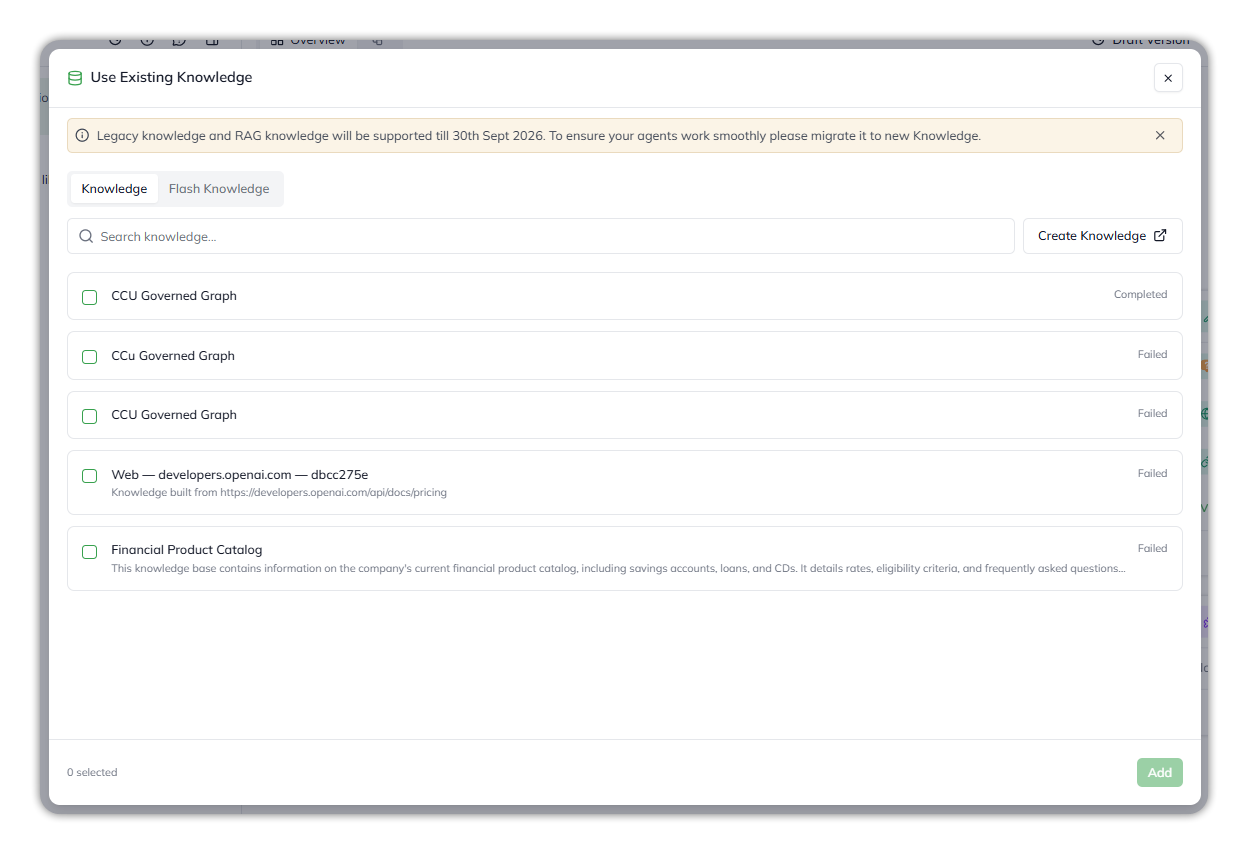
On the Builder Canvas, select **+ Add Knowledge** in the Knowledge section. The **Use Existing Knowledge** dialog opens on its **Knowledge** tab.
{% endstep %}
{% step %}
#### Select the graph
Find the graph by name, using **Search knowledge** if the list is long, and tick it. Pick the entry marked **Completed**: a graph whose upload failed is listed too, with **Failed**, but holds no data. Knowledge already attached to the agent isn't listed.
Selecting a completed governed graph.
{% endstep %}
{% step %}
#### Add it
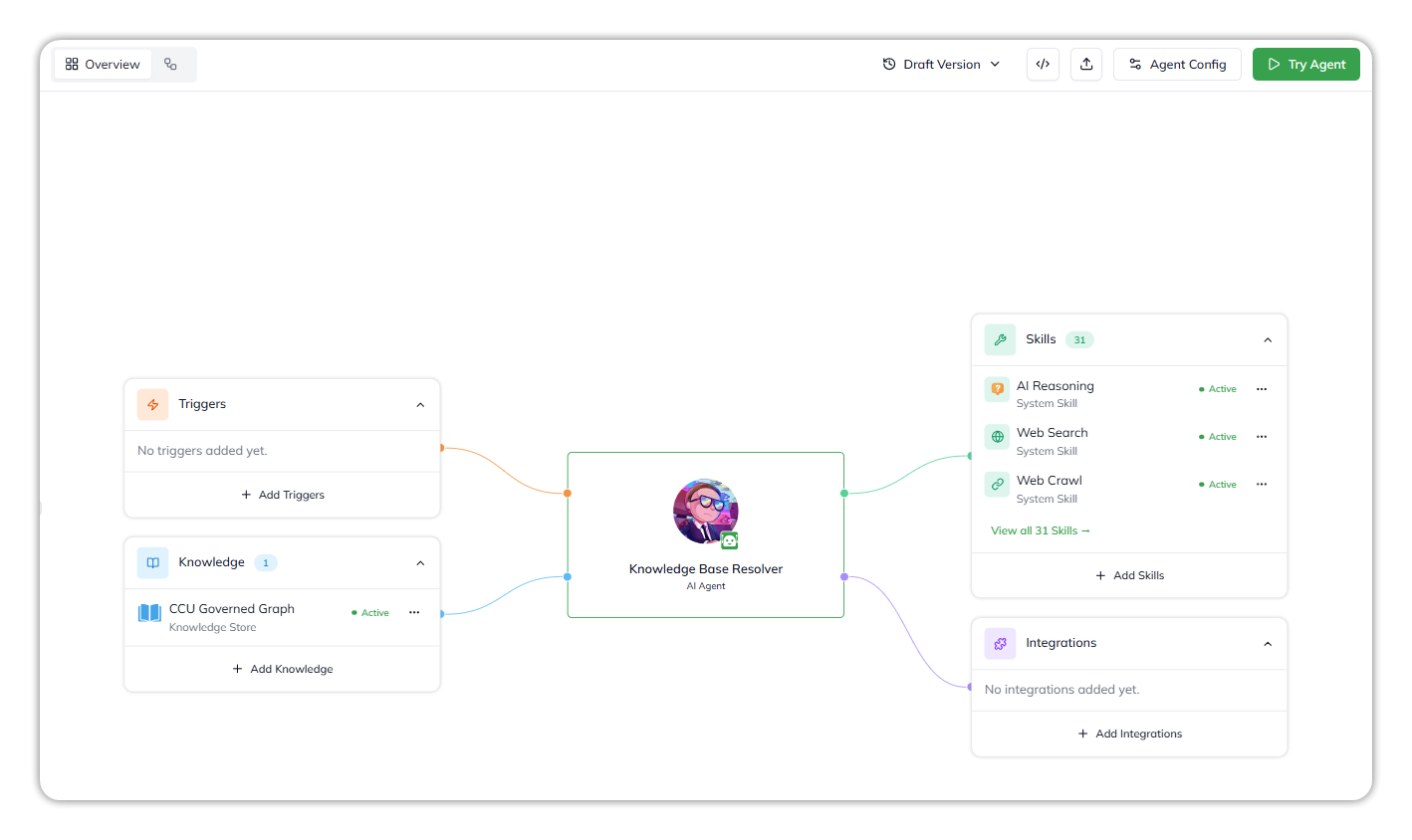
Select **Add**. The graph appears in the canvas's Knowledge section as a **Knowledge Store** node marked **Active**.
The governed graph attached to the agent.
{% endstep %}
{% endstepper %}
To detach it, open the node's `⋯` menu and select **Unlink**.
* The agent queries the graph with the **Knowledge Graph Search** skill, for structured questions such as which documents a product requires, rather than searching it as text.
* Attaching the graph needs the **Attach a govern graph to an agent** capability: Developer, Account Admin or Org Admin.
* You can't create a governed graph by attaching its package JSON in the Agent Builder chat, or through the dialog's **Flash Knowledge** tab. Upload it in Control Center first.
***
### Runtime Behavior
After attachment:
* The content is indexed and made available to the agent
* The agent can retrieve relevant passages during conversations
* Responses become grounded in attached business content
* The platform uses retrieval workflows to fetch the most relevant information dynamically
If attached knowledge does not sufficiently answer a query, the agent can still fall back to general model reasoning or request clarification.
***
### Common Issues and Troubleshooting
#### Done Button Remains Disabled
Cause:\
No file or external content has been selected yet.
Resolution:\
Upload a file or import content from a connected source.
***
#### Agent Is Not Using Attached Knowledge
Possible reasons:
* The knowledge retrieval capability is not attached to the agent
* Agent instructions do not explicitly guide the agent to consult knowledge sources
* The uploaded content does not contain relevant information
* The file was updated but not synced. Agents answer from the latest synced version of a knowledge base, so a new file version reaches the agent only once it shows **Synced**. See [Sync & versions](/ai-workbench-qore/console/knowledge/sync-and-versions.md)
Recommended checks:
* Verify the knowledge retrieval skill is enabled
* Review agent instructions and retrieval behavior
* Validate the uploaded source content
***
#### Retrieval Quality Is Poor
For scanned or complex documents:
* Re-import the content with preprocessing enabled
* Ensure the source document is readable and structured properly
* Avoid low-quality scans where possible
Preprocessing generally improves retrieval accuracy for OCR-heavy and layout-complex documents.
***
### Why Knowledge Attachment Matters
Knowledge attachment is foundational to building reliable enterprise agents.
It enables:
* Business-grounded responses
* Consistent answers across users
* Reduced hallucination risk
* Better compliance and traceability
* Domain-specific intelligence
Instead of relying solely on generalized training data, the agent retrieves information from approved organizational sources, making outputs more trustworthy, explainable, and operationally useful.
***
{% columns %}
{% column width="83.33333333333334%" %}
Maintained by Abhishek Paul AI-assisted, human-approved
{% endcolumn %}
{% endcolumns %}
---
# Agent Instructions
This documentation is published with GitBook. GitBook is the documentation platform designed so that both humans and AI agents can read, navigate, and reason over technical content effectively. Learn more at gitbook.com.
## Querying This Documentation
If you need additional information that is not directly available in this page, you can query the documentation by asking a question.
Perform an HTTP GET request on the following URL with the `ask` and `goal` query parameters:
```
GET https://docs.uptiq.ai/ai-workbench-qore/console/agent-builder/build/attaching-knowledge-to-an-agent.md?ask=&goal=
```
`ask` is the immediate question: it should be specific, self-contained, and written in natural language.
`goal` is what the user is ultimately trying to achieve, the reason they need the answer. Sharing it helps GitBook give you a better, more relevant answer. A goal is most helpful when it describes the outcome the user wants rather than restating the question. For example, with `ask=how do I create an API token`, a goal like `automate deployments from our CI pipeline` lets GitBook tailor the answer to that use case.
The response will contain a direct answer to the question and relevant excerpts and sources from the documentation.
Use this mechanism when the answer is not explicitly present in the current page, you need clarification or additional context, or you want to retrieve related documentation sections.